Table of Contents
Jump to a section
The Problem: Your Database Is Unreachable
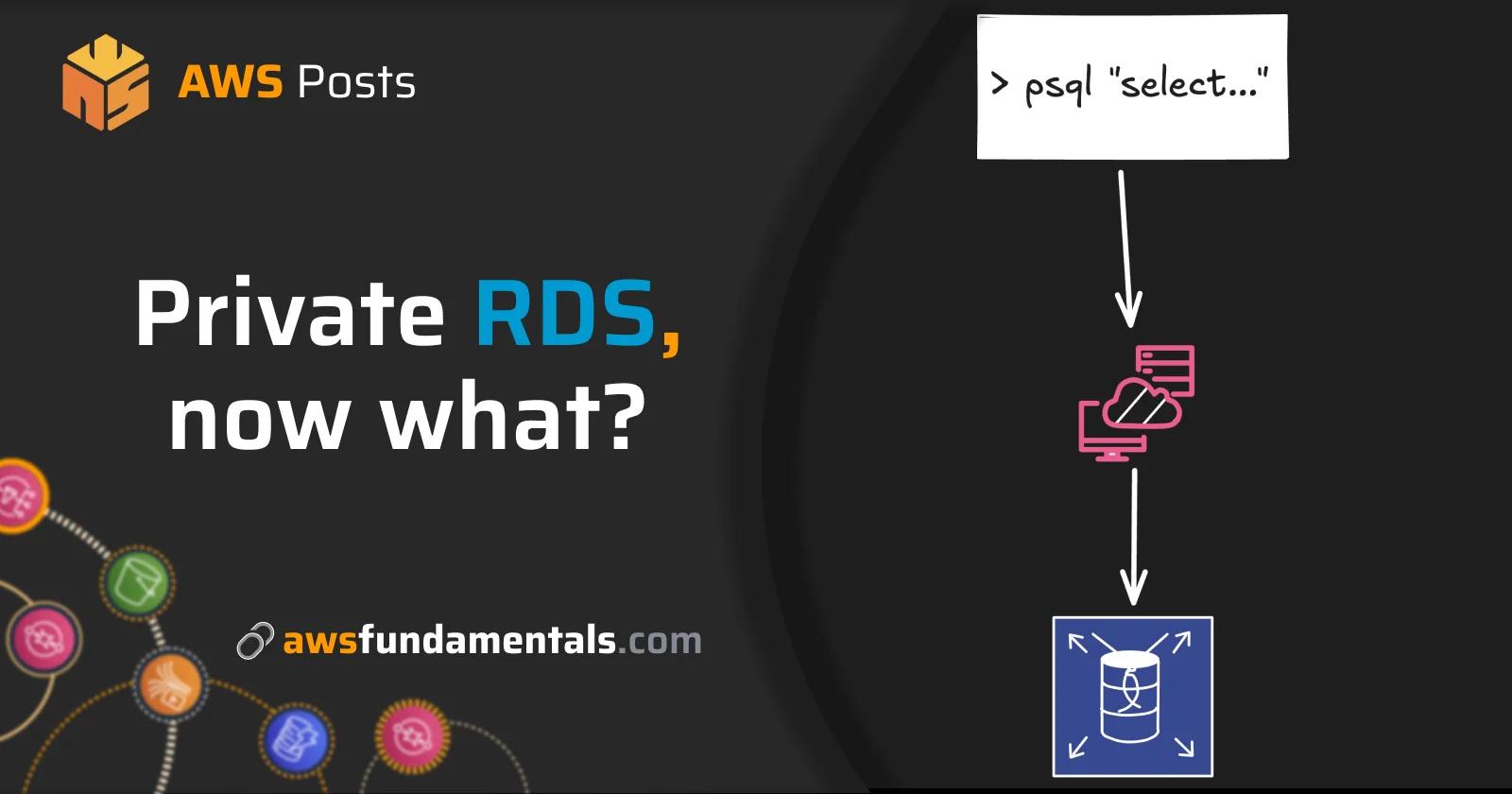
Every AWS certification teaches you to put databases in private subnets. That's the right call for security, and you followed the best practices. But when you actually need to run a query against that database, you realize nobody explained how to get there.
With a local Docker setup, you just fire up DBeaver or psql and connect. Your RDS instance in a private subnet has no public IP, so your laptop simply cannot reach it. This gap between exam knowledge and real-world access trips up developers all the time.
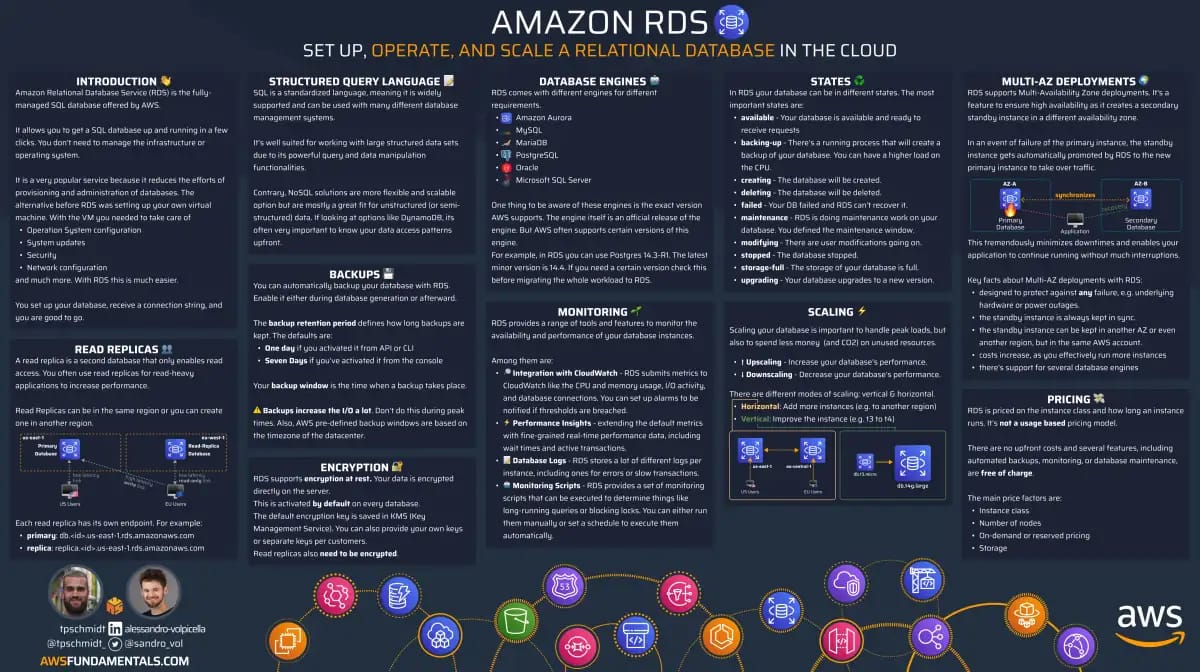
RDS on One Page (No Fluff)
Manage databases efficiently. Our RDS cheat sheet covers instance types, backups, and scaling - the key aspects of database management.
HD quality, print-friendly. Stick it next to your desk.
The Typical Architecture
Here's what a typical setup looks like:

Lambda functions can reach RDS because they run inside the VPC, and API Gateway exposes them to the outside world. The problem is that you're sitting outside the VPC on your MacBook, with no direct path to the private subnet.
The Solution: EC2 Jumphost with Session Manager
We need a bridge into the private network, and that bridge is called a jumphost (or bastion host).
Why Session Manager Over SSH?
Traditional jumphosts require SSH: you create a key pair, open port 22, and manage access manually. Session Manager is a better approach:
- No SSH keys to manage. Keys get lost, leaked, or forgotten.
- No open ports. The EC2 instance stays in a private subnet with no inbound rules.
- Centralized access control. IAM policies decide who can connect.
- Audit logging. Every session appears in CloudTrail.
- Port forwarding built-in. Tunnel any port to your local machine.
The Target Architecture

The jumphost sits in the same private subnet as RDS, so it can reach the database on port 5432. Session Manager connects your laptop to the jumphost through VPC endpoints, which means you don't need a NAT gateway or any public IPs.
Setting Up the Infrastructure (CDK)
Here's the complete CDK stack, broken down piece by piece.
The VPC
const vpc = new ec2.Vpc(this, 'Vpc', {
    maxAzs: 1,
    natGateways: 0,
    subnetConfiguration: [
        {
            name: 'Private',
            subnetType: ec2.SubnetType.PRIVATE_ISOLATED,
            cidrMask: 24,
        },
    ],
});
We use PRIVATE_ISOLATED subnets with no NAT gateway, which keeps costs down and security tight since there's no internet access at all.
VPC Endpoints for SSM
Without internet access, the EC2 instance cannot reach AWS services, so we need VPC endpoints to solve that.
const endpointSecurityGroup = new ec2.SecurityGroup(this, 'EndpointSecurityGroup', {
    vpc,
    description: 'Security group for VPC endpoints',
    allowAllOutbound: true,
});

endpointSecurityGroup.addIngressRule(ec2.Peer.ipv4(vpc.vpcCidrBlock), ec2.Port.tcp(443), 'Allow HTTPS from VPC');

vpc.addInterfaceEndpoint('SsmEndpoint', {
    service: ec2.InterfaceVpcEndpointAwsService.SSM,
    securityGroups: [endpointSecurityGroup],
    subnets: { subnetType: ec2.SubnetType.PRIVATE_ISOLATED },
});

vpc.addInterfaceEndpoint('SsmMessagesEndpoint', {
    service: ec2.InterfaceVpcEndpointAwsService.SSM_MESSAGES,
    securityGroups: [endpointSecurityGroup],
    subnets: { subnetType: ec2.SubnetType.PRIVATE_ISOLATED },
});

vpc.addInterfaceEndpoint('Ec2MessagesEndpoint', {
    service: ec2.InterfaceVpcEndpointAwsService.EC2_MESSAGES,
    securityGroups: [endpointSecurityGroup],
    subnets: { subnetType: ec2.SubnetType.PRIVATE_ISOLATED },
});
Three endpoints are required:
ssmfor Session Manager API callsssmmessagesfor session dataec2messagesfor EC2 communication
The EC2 Jumphost
The jumphost is a basic EC2 instance with connnection to the RDS instance.
const jumphost = new ec2.Instance(this, 'Jumphost', {
    vpc,
    vpcSubnets: { subnetType: ec2.SubnetType.PRIVATE_ISOLATED },
    instanceType: ec2.InstanceType.of(ec2.InstanceClass.T4G, ec2.InstanceSize.MICRO),
    machineImage,
    role: jumphostRole,
    securityGroup: jumphostSecurityGroup,
    requireImdsv2: true,
});
The RDS Database
The database is set up so that the jumphost has access to it. We allow access between both security groups. Credentials are stored in secrets manager.
rdsSecurityGroup.addIngressRule(jumphostSecurityGroup, ec2.Port.tcp(5432), 'Allow PostgreSQL from jumphost');

const database = new rds.DatabaseInstance(this, 'Database', {
    engine: rds.DatabaseInstanceEngine.postgres({
        version: rds.PostgresEngineVersion.VER_16,
    }),
    instanceType: ec2.InstanceType.of(ec2.InstanceClass.T4G, ec2.InstanceSize.MICRO),
    vpc,
    vpcSubnets: { subnetType: ec2.SubnetType.PRIVATE_ISOLATED },
    securityGroups: [rdsSecurityGroup],
    credentials: rds.Credentials.fromSecret(databaseCredentials),
    databaseName: 'demo',
    publiclyAccessible: false,
    removalPolicy: cdk.RemovalPolicy.DESTROY,
});
Connecting to Your Database
Prerequisites
First, you need to install the session manager plugin into your AWS CLI. Of course, you also need the AWS CLI installed.
# macOS
brew install --cask session-manager-plugin

# Verify installation
session-manager-plugin --version
Starting the Port Forwarding Tunnel
After deploying the stack, get the outputs:
aws cloudformation describe-stacks \
  --stack-name RdsJumphostSessionManagerStack \
  --query 'Stacks[0].Outputs'
Start the tunnel:
aws ssm start-session \
  --target <INSTANCE_ID> \
  --document-name AWS-StartPortForwardingSessionToRemoteHost \
  --parameters '{"host":["<RDS_ENDPOINT>"],"portNumber":["5432"],"localPortNumber":["5432"]}'
This forwards localhost:5432 to your RDS instance.
You can now connect via localhost:5432 to your database in RDS.
Automating with a Tunnel Script
Typing that command every time gets old. The repo includes a tunnel script that fetches the CloudFormation outputs automatically:
./scripts/tunnel.sh
When you run it, you'll see:
🔍 Fetching stack outputs from CloudFormation...

┌─────────────────────────────────────────────────────────────────┐
│  🚀 RDS Tunnel via Session Manager                             │
├─────────────────────────────────────────────────────────────────┤
│                                                                 │
│  🖥️  Instance:  i-0abc123def456...                             │
│  🗄️  RDS Host:  rdsjumphostsessionmanager-database...          │
│  🔌 Local Port: localhost:5432                                 │
│                                                                 │
├─────────────────────────────────────────────────────────────────┤
│  📝 Connect with:                                               │
│     psql -h localhost -p 5432 -U <username> -d postgres        │
│                                                                 │
│  🛑 Press Ctrl+C to stop the tunnel                            │
└─────────────────────────────────────────────────────────────────┘

⏳ Starting Session Manager connection...
Once you see "Waiting for connections", open another terminal for your database work.
Using a Database Client
Now we can simply connect to the DB using psql.
It depends on your configuration of your secret.
In my case, I use Secrets Manager and get the ARN from CloudFormation first, then I get the secret value from Secrets Manager.
SECRET_ARN=$(aws cloudformation describe-stacks \
  --stack-name RdsJumphostSessionManagerStack \
  --query "Stacks[0].Outputs[?OutputKey=='DatabaseSecretArn'].OutputValue" \
  --output text)

aws secretsmanager get-secret-value \
  --secret-id "$SECRET_ARN" \
  --query SecretString \
  --output text | jq -r .password
Connect with psql:
psql -h localhost -p 5432 -U postgres -d demo
Or use your favorite GUI tool (DBeaver, DataGrip, TablePlus) with these settings:
| Setting | Value |
|---|---|
| Host | localhost |
| Port | 5432 |
| Database | demo |
| Username | postgres |
| Password | (from Secrets Manager) |
Verifying It Works
Once connected, run a few queries to prove you're hitting RDS:
-- Check existing tables (empty on fresh database)
\dt

-- Create a test table
CREATE TABLE users (
    id SERIAL PRIMARY KEY,
    name VARCHAR(100) NOT NULL,
    email VARCHAR(255) UNIQUE NOT NULL,
    created_at TIMESTAMP DEFAULT CURRENT_TIMESTAMP
);

-- Insert some data
INSERT INTO users (name, email) VALUES
    ('Alice', 'alice@example.com'),
    ('Bob', 'bob@example.com');

-- Query the data
SELECT * FROM users;
If you see your data, the tunnel is working. You're connected to RDS through Session Manager.
Common Gotchas
A few things that trip people up:
localhost:5432 Confusion
The tunnel forwards to localhost:5432.
If you have a local Docker Postgres running, that's the same port.
Either stop Docker, use a different port (./scripts/tunnel.sh 15432), or be careful which database you're hitting.
For scripts that connect to both local and remote databases, use environment variables to make the distinction obvious.
Keep the Tunnel Running
The tunnel must stay open while you work. Close the terminal, lose the connection.
For migrations or seeding, start the tunnel in one terminal and run your scripts in another. In CI/CD, start the tunnel as a background process before running migrations.
SSL Certificate Errors
RDS requires SSL by default. AWS has its own certificate authority, and when you connect through localhost, your client might complain about the certificate chain.
If you see self-signed certificate errors, you may need to adjust your connection settings or add ?sslmode=require to your connection string.
The exact fix depends on your client.
Summary
Private subnets keep your database safe, but they also make it harder to reach from your local machine.
The solution comes down to three things:
- Deploy an EC2 jumphost in the same subnet as RDS
- Use VPC endpoints so Session Manager works without internet access
- Forward ports through Session Manager to localhost
This setup gives you secure access without SSH keys, public IPs, or a NAT gateway, and every session gets logged in CloudTrail for auditing.
Related Posts
Similar content found using AWS S3 Vectors semantic search