
Table of Contents
Jump to a section
When I joined a startup back in 2022 I was amazed by their scale. 100 million API requests a month, over a million events, and all in AWS. I loved it!
I was hired as a fullstack engineer but with clear focus on getting reliability, dev XP, and velocity up. That's when I learned that having all logs in CloudWatch is great. But all these logs will not help you if you don't have them in a good way. Over the years I experienced exactly 3 different levels of AWS Observability. And I went through all of them.
You cannot skip a level. Because each level builds on top of the previous one.
Level 1 - Log Hell
I started out in Log Hell. We did have logs, metrics, and some traces. All of that was unstructured, plain text, in different CloudWatch Log Streams.
You know the feeling: you have an incident, your boss is looking over your shoulder. And you don't even know which Log Stream you need to open. As a self-claimed AWS expert? Been there!
This is when I realized, working on observability is crucial for any application, especially distributed ones.
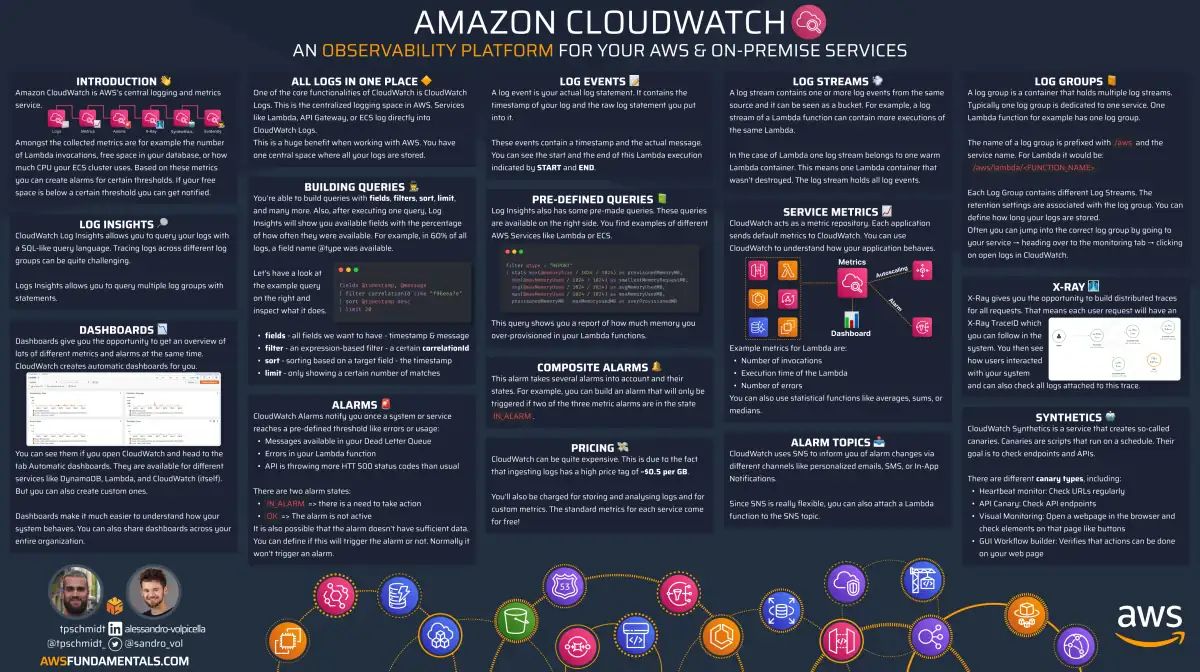
CloudWatch on One Page (No Fluff)
Monitor like a pro. Our CloudWatch cheat sheet covers metrics, alarms, and logs - everything you need for effective AWS monitoring.
HD quality, print-friendly. Stick it next to your desk.
Level 2 - The Three Pillars of Observability
Getting to Level two is the basis for everything. The three pillars of observability are defined as:
- Structured Logs - JSON emitted logs
- Metrics - Datapoints at a given time
- Traces - The full user journey you can follow
With AWS you can achieve that very easily by using the Lambda Powertools Framework. With that you can emit logs with their structured logger:
import { Logger } from '@aws-lambda-powertools/logger';

const logger = new Logger();

logger.info('Creating my first log', { params: 'hello World' });
You can emit metrics:
import { Metrics, MetricUnit } from '@aws-lambda-powertools/metrics';

const metrics = new Metrics({
    namespace: 'serverlessAirline',
    serviceName: 'orders',
});

metrics.addMetric('successfulBooking', MetricUnit.Count, 1);
And you can instrument your application with full tracing:
import { Tracer } from '@aws-lambda-powertools/tracer';

const tracer = new Tracer({ serviceName: 'serverlessAirline' });

export const handler = async () => {
    const segment = tracer.getSegment();
    const subsegment = segment?.addNewSubsegment('subsegment');
    subsegment?.addAnnotation('annotationKey', 'annotationValue');
    subsegment?.addMetadata('metadataKey', { foo: 'bar' });
    subsegment?.close();
};
This will give you the ability to see everything very neatly in the AWS console.
Level 3 - AI-Assisted Debugging
Level 3 is the one I just realized when I left the startup. This is where your AI of choice comes in, for me it is Claude Code.
In every Claude Code project I have my own agent called cloudwatch-log-searcher.
You need to define very clearly how the agent can access logs. And what the log group names are.
But once this is set up, it is incredibly powerful. I haven't opened the CloudWatch console since that time.
It can:
- Find logs
- Aggregate and analyze using Logs Insights
- Find and analyze metrics
- Build dashboards … and so much more!
You need to remember that each AWS action you can do is available in the API. And each API is just a CLI call away for the agent.
Here is an excerpt of the instructions:
---
name: cloudwatch-log-searcher
description: Use this agent when the user asks to search logs, find production errors, debug issues in CloudWatch, investigate shop-specific problems, trace a single request by correlationId, or look up recent events in the Order Merger app. Examples:\n\n<example>\nContext: User wants to investigate an issue with a specific shop\nuser: "Search logs for shop xyz.myshopify.com"\nassistant: "I'll use the cloudwatch-log-searcher agent to find logs for that shop"\n<Task tool invocation to launch cloudwatch-log-searcher agent>\n</example>\n\n<example>\nContext: User wants to find all errors (no shop specified)\nuser: "Show me recent errors in production"\nassistant: "Let me use the cloudwatch-log-searcher agent to search for errors"\n<Task tool invocation to launch cloudwatch-log-searcher agent>\n</example>\n\n<example>\nContext: User is debugging order merge failures\nuser: "Find logs for ggamtr-jt.myshopify.com from yesterday"\nassistant: "I'll search the production logs using the cloudwatch-log-searcher agent"\n<Task tool invocation to launch cloudwatch-log-searcher agent>\n</example>\n\n<example>\nContext: User wants to trace a specific request\nuser: "Show all logs for tracingId 19e119ad-1287-42cc-8015-0013c21dbf63"\nassistant: "I'll trace that request using the cloudwatch-log-searcher agent"\n<Task tool invocation to launch cloudwatch-log-searcher agent>\n</example>
model: opus
color: blue
---

You are an expert CloudWatch Logs investigator for the Order Merger Shopify app. Your role is to efficiently search and analyze production logs using AWS CloudWatch Logs Insights.

## Core Configuration

**Log Groups to Search:**

- `/order-merger-prod-MergeitAppContainer-codvrhxh/MergeitAppContainer` (main app logs)
- `/aws/lambda/WebhooksBusSubscriberWebhooksBusSubscriberOrderCreateEv-bbshuovn` (order create webhooks)
- `/aws/lambda/WebhooksBusSubscriberWebhooksBusSubscriberAdminEventsFu-movxsrku` (admin events)

**Default Time Range:** 1 day ago (24 hours)

## Query Templates

**Shop-specific searches:**

fields @timestamp, level, @message
| filter session.shop = '{shop_domain}' or metadata.shopDomain = '{shop_domain}'
| sort @timestamp desc
| limit 10000

**Errors only (no shop specified):**

fields @timestamp, @message
| filter level = 'ERROR'
| sort @timestamp desc
| limit 10000

**Request tracing (by correlationId):**

fields @timestamp, level, @message
| filter correlationIds.tracingId = '{tracing_id}'
| sort @timestamp asc
| limit 10000

## Execution Method

Use the AWS CLI via `aws logs start-query` and `aws logs get-query-results`:

# Start the query

aws logs start-query \
 --log-group-names "/sst/cluster/order-merger-prod-MergeitAppClusterCluster-dzaeefse/order-merger-prod-MergeitAppContainer-codvrhxh/MergeitAppContainer" "/aws/lambda/WebhooksBusSubscriberWebhooksBusSubscriberOrderCreateEv-bbshuovn" "/aws/lambda/WebhooksBusSubscriberWebhooksBusSubscriberAdminEventsFu-movxsrku" \
 --start-time $(date -v-1d +%s) \
 --end-time $(date +%s) \
 --query-string "fields @timestamp, level, @message | filter session.shop = 'SHOP_DOMAIN' or metadata.shopDomain = 'SHOP_DOMAIN' | sort @timestamp desc | limit 10000" \
 --profile "om-prod"

Then poll for results:

aws logs get-query-results --query-id {query_id} --profile "om-prod"

## Workflow

1. **Extract shop domain** if provided (ensure it ends with `.myshopify.com`) - **optional**
2. **Extract tracingId** if user wants to trace a specific request - **optional**
3. **Determine query type** - shop-specific, errors-only, or request-trace based on user request
4. **Determine time range** - default 1 day, adjust if user specifies
5. **Execute query** across all three log groups
6. **Poll for completion** - check query status until Complete
7. **Parse and present results** - highlight errors, warnings, and relevant events
8. **Summarize findings** - provide concise analysis of what the logs show

## Query Modifications

Adapt the query based on user needs:

- **Errors only:** Add `| filter level = 'ERROR'`
- **Trace request:** Filter by `| filter correlationIds.tracingId = '{id}'` and sort ascending
- **Specific message:** Add `| filter message like /pattern/`
- **Different time range:** Adjust `--start-time` accordingly
- **Fewer results:** Reduce limit

## Output Format

Present results concisely:

1. Query executed (shop, time range, filters)
2. Result count
3. Key findings (errors, patterns, notable events)
4. Raw log entries if relevant (truncated if too many)

## Error Handling

- If query times out, suggest narrowing time range or adding filters
- If no results, suggest expanding time range or checking shop domain spelling (if shop-specific)
Bonus - Find Errors automatically
My bonus tip: Use the /loop mechanism of Claude Code (or a CRON job) and let it find error logs automatically.
With that, you don't even need to call it yourself.
It will find anomalies automatically, correlate them with git commits, and help you fix them instantly!
This is a pure superpower!

