
Table of Contents
Jump to a section
Your AI Agent Has a Problem
OpenClaw is an open-source personal AI agent that runs on your machine and connects to your tools: Slack, Notion, Gmail, AWS, and more. You give it skills, it runs them on a schedule or on demand, and you interact with it through a messaging app.
Running it locally has two problems.
The first: your laptop goes to sleep. The task it was halfway through? Gone. You come back to a dead terminal and a bot that has no idea what happened.
The second is worse. OpenClaw runs on your local machine with access to your files, your browser, your shell. That's what makes it powerful. But if OpenClaw gets compromised — or if someone gains local access while it's running — they get everything. Your SSH keys, your browser cookies, your local code. OpenClaw runs without isolation. Unless you're running it inside Docker with strict volume mounts (most people don't), there's no boundary between the agent and your machine.
The only real fix is to run it on a dedicated machine that has nothing else on it. A $7 Lightsail instance (or $5 nano if you want the cheapest option) that only exists for this purpose. Worst case, the blast radius is the agent itself, not your entire laptop.
That's what this setup is: a Linux server in AWS that never sleeps, no open ports, no SSH keys to manage, and a GitHub repository that acts as a "time machine" for your agent's config. Break something? Roll back.
Let's build it.
What you need before you start: an AWS account, Terraform installed locally, and the AWS CLI configured with credentials. That's it.
😉 New to Lightsail? AWS gives you three months free on the $5/month nano bundle. You can run the budget option at no cost for your first 90 days. We recommend the $7 micro for better performance.
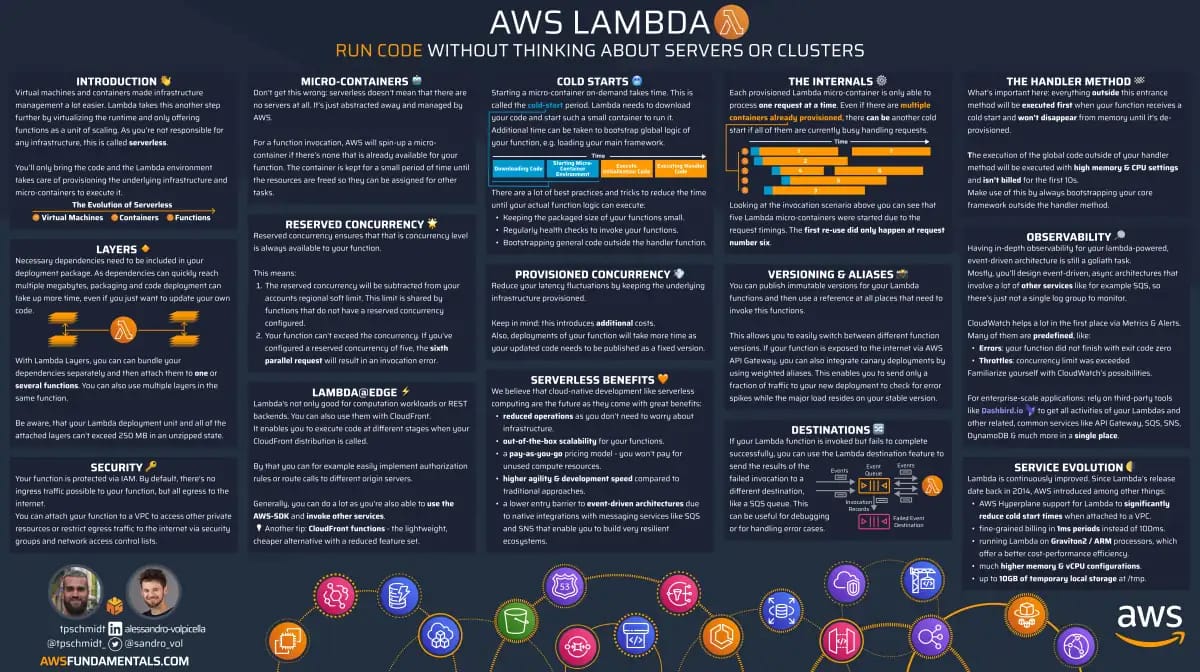
AWS Lambda on One Page (No Fluff)
Skip the 300-page docs. Our Lambda cheat sheet covers everything from cold starts to concurrency limits - the stuff we actually use daily.
HD quality, print-friendly. Stick it next to your desk.
The Architecture
Before writing a single line of Terraform, here's what we're building.
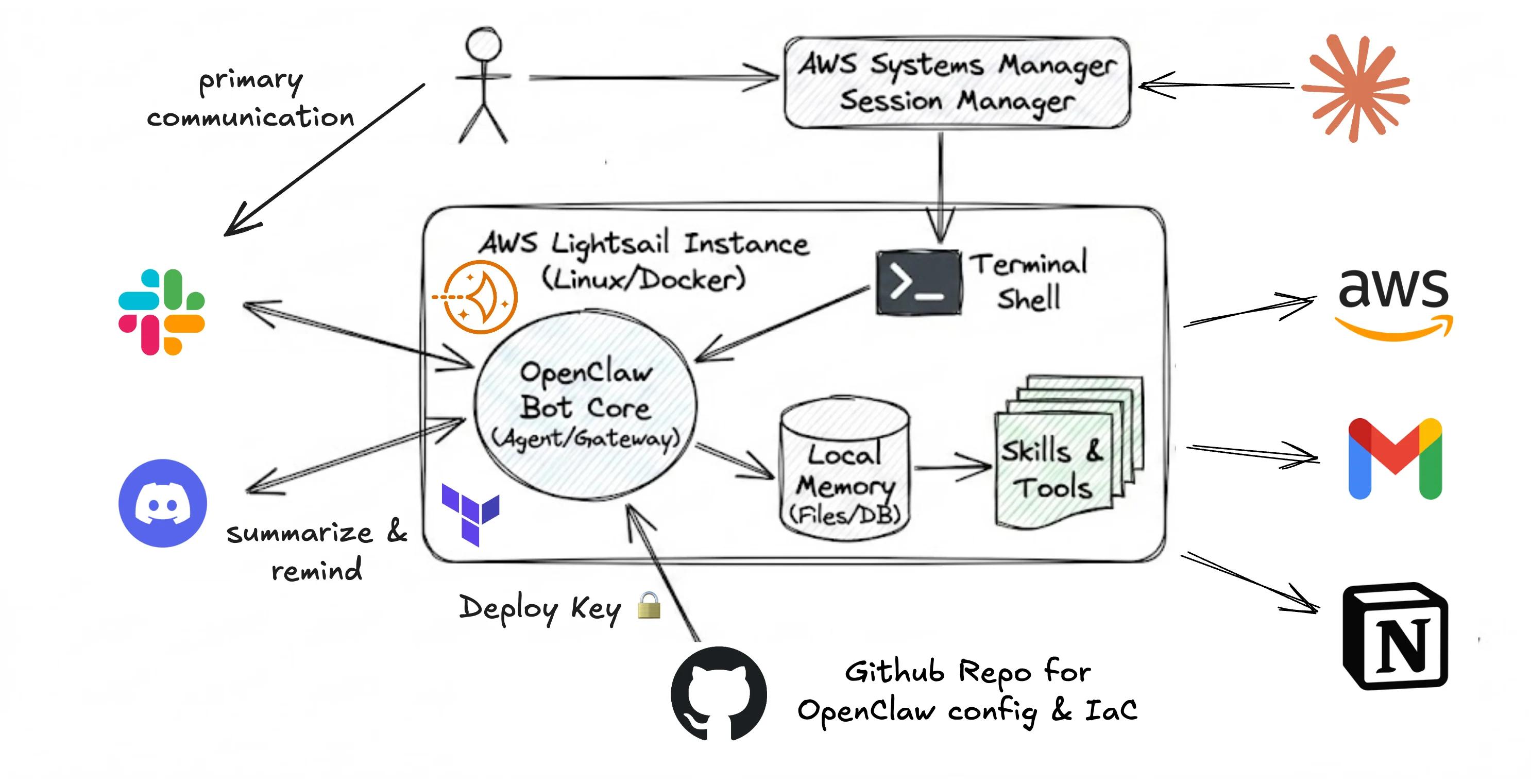
Six components, no surprises:
AWS Lightsail is the server. A simple Linux VPS with fixed monthly pricing, running 24/7 whether your laptop is open or not.
AWS Systems Manager (SSM) replaces SSH. You never open port 22, never manage a key file. You connect through the AWS console or CLI, authenticated via IAM, with no public-facing attack surface.
GitHub is the memory store. Your agent's config, skills, and memory files live in a private repo. When something breaks (and something will break), you git checkout back to when it worked.
Slack is the interface. Message your bot from your phone, your browser, anywhere. It responds because the server never goes to sleep.
An IAM User gives the instance scoped AWS access. The credentials are written during bootstrap so OpenClaw can call the AWS API without any hardcoded secrets in config files.
Claude Code connects to the instance via SSM and acts as the development environment for your agent's skills. OpenClaw runs a cheap, fast model for day-to-day tasks. Claude Code runs a frontier model like Opus on your local machine and connects to the instance to write and deploy new skills. You get the best of both: low token costs for routine agent work, and full reasoning power when you're actually building something.
That's the whole thing. Secure by default, version-controlled, always on.
Now let's provision it.
Spinning Up the Brain: AWS Lightsail
Lightsail used to have a reputation as the "not serious" AWS service — something you'd spin up for a side project and never touch again. That image is changing. AWS has been actively investing in Lightsail, and today it sits in a genuinely useful spot: a managed VPS that gives you a real Linux machine without any of the networking complexity that comes with EC2.
With EC2, a basic setup requires a VPC, a subnet, an internet gateway, a security group, and a route table before your instance can even reach the internet. Lightsail skips all of that. You pick an instance size, pick an OS, and you're done. Firewall rules are a simple list of ports — open or closed. No security groups, no NACLs, no route tables to debug at 11pm.
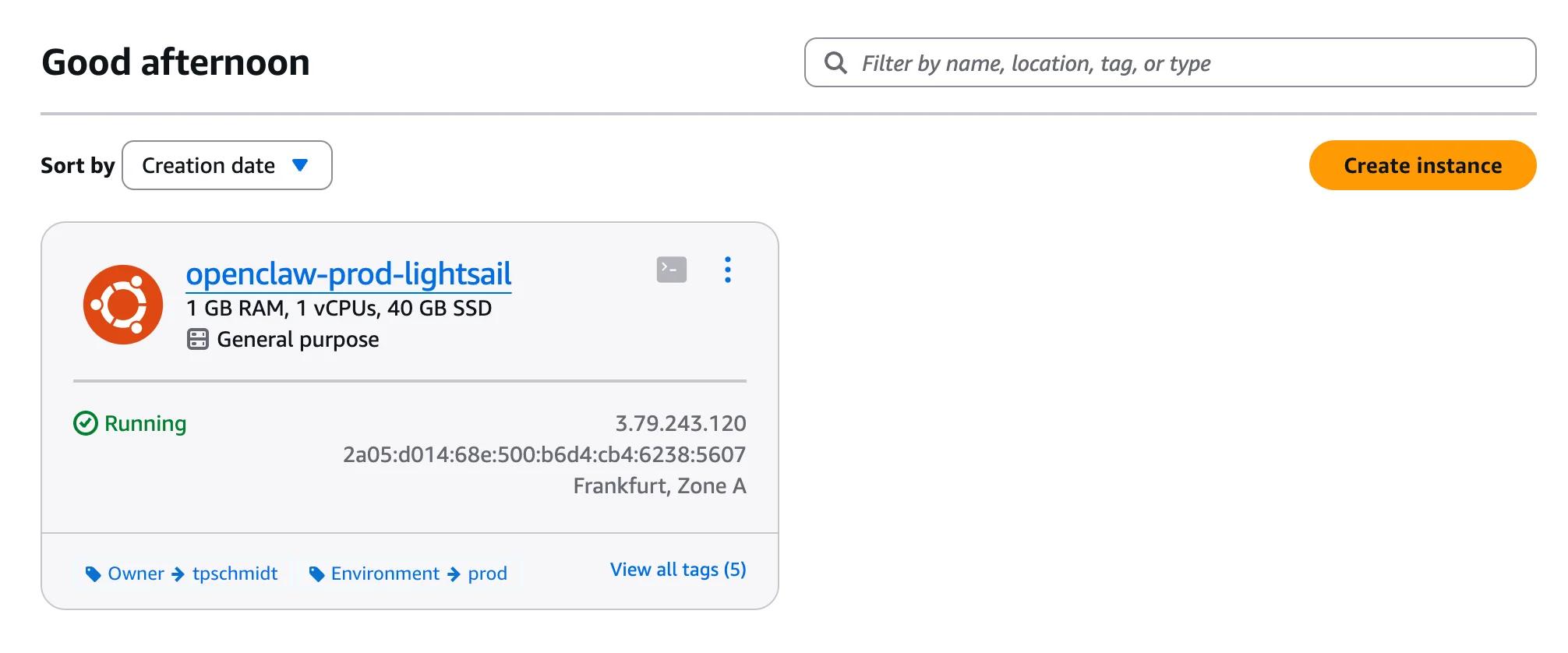
For a personal AI agent, that simplicity is exactly what you want. The micro_3_0 bundle gets you 1GB RAM, 2 vCPUs, 40GB SSD, and 1TB of transfer for $7/month flat when configured as dual-stack (IPv4 + IPv6). No elastic IP charges, no data transfer surprises, no NAT gateway fees. If you want the absolute cheapest option, the nano instance is $5/month — but the extra $2 for micro_3_0 buys you a T3-based instance with double the vCPUs and noticeably better performance.
We're using Terraform to provision everything. Clicking through the console works once. Terraform means you can tear it down and rebuild in two minutes if something goes wrong.
The module structure looks like this:
lightsail-openclaw/
├── main.tf             # provider config
├── lightsail.tf        # instance + firewall
├── iam.tf              # SSM role + IAM user for AWS access
├── ssm.tf              # SSM hybrid activation
├── variables.tf        # inputs
└── startup/
    └── bootstrap.sh    # everything installed on first boot
The bootstrap script
The user_data script handles everything on first boot: SSM agent registration, Node.js, AWS CLI v2, Go, OpenClaw, and gogcli for Gmail access.
Each section is idempotent, safe to run multiple times without breaking anything.
You can find the full script here: bootstrap.sh
The script expects six template variables injected by Terraform: ssm_activation_id, ssm_activation_code, region, creds_b64, nodejs_version, and go_version.
That's exactly what the templatefile() call in lightsail.tf provides.
And lightsail.tf:
locals {
  bootstrap_script = templatefile("${path.module}/startup/bootstrap.sh", {
    ssm_activation_id   = aws_ssm_activation.lightsail_ssm.id
    ssm_activation_code = aws_ssm_activation.lightsail_ssm.activation_code
    region              = var.region
    creds_b64           = local.aws_credentials_b64
    nodejs_version      = var.nodejs_version
    go_version          = var.go_version
  })
}

resource "aws_lightsail_instance" "main" {
  name              = "${var.app_name}-${var.environment}-lightsail"
  availability_zone = var.availability_zone
  blueprint_id      = var.blueprint_id
  bundle_id         = var.bundle_id
  user_data         = local.bootstrap_script

  depends_on = [aws_iam_access_key.lightsail]

  lifecycle {
    ignore_changes = [user_data]
  }
}

resource "aws_lightsail_instance_public_ports" "main" {
  instance_name = aws_lightsail_instance.main.name

  port_info {
    protocol  = "tcp"
    from_port = 443
    to_port   = 443
  }
}
Set bundle_id = "micro_3_0" in your variables — that's the T3-based instance with 2 vCPUs. The older micro_2_0 (T2) only has 1 vCPU.
Two things to notice.
The firewall only allows port 443. That's it.
Port 22 is never opened.
The user_data runs the bootstrap script on first boot and installs everything automatically.
The lifecycle block ignores future changes to user_data so Terraform doesn't try to recreate the instance every time you run terraform plan.
No Terraform? Use the console instead
If you'd rather skip Terraform and just get something running, the console works fine. You'll use SSH to connect instead of SSM, which means managing a key file — but it's simpler to get started.
Go to the Lightsail console and click Create instance.
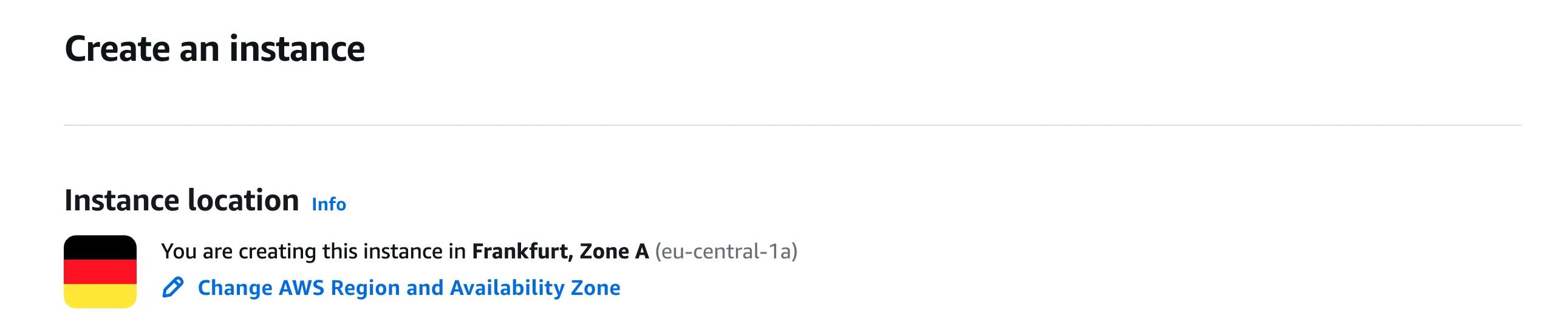
First, pick your region. Lightsail shows you exactly where the instance will land.
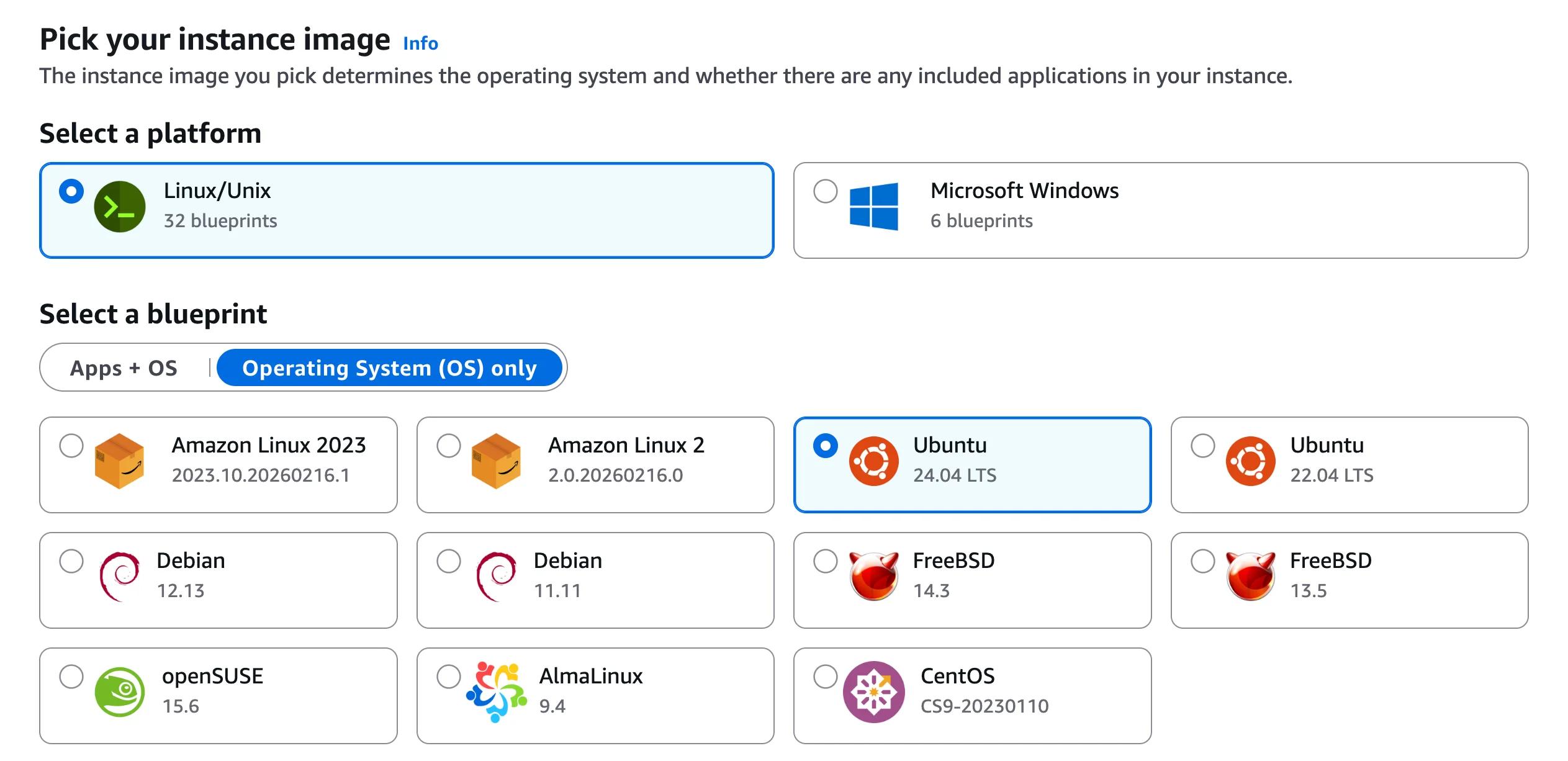
Select Linux/Unix as the platform and Ubuntu 24.04 LTS as the blueprint.
Expand the Optional section and paste the bootstrap script into the launch script field.
You'll need to fill in the template variables manually before pasting — the script expects ssm_activation_id, ssm_activation_code, region, creds_b64, nodejs_version, and go_version.
If you're skipping SSM entirely, you can strip those parts out and just keep the Node.js, AWS CLI, Go, OpenClaw, and gogcli sections.

Create or select an SSH key pair. This is how you'll connect to the instance.
Give it a descriptive name — openclaw-ssh works fine.

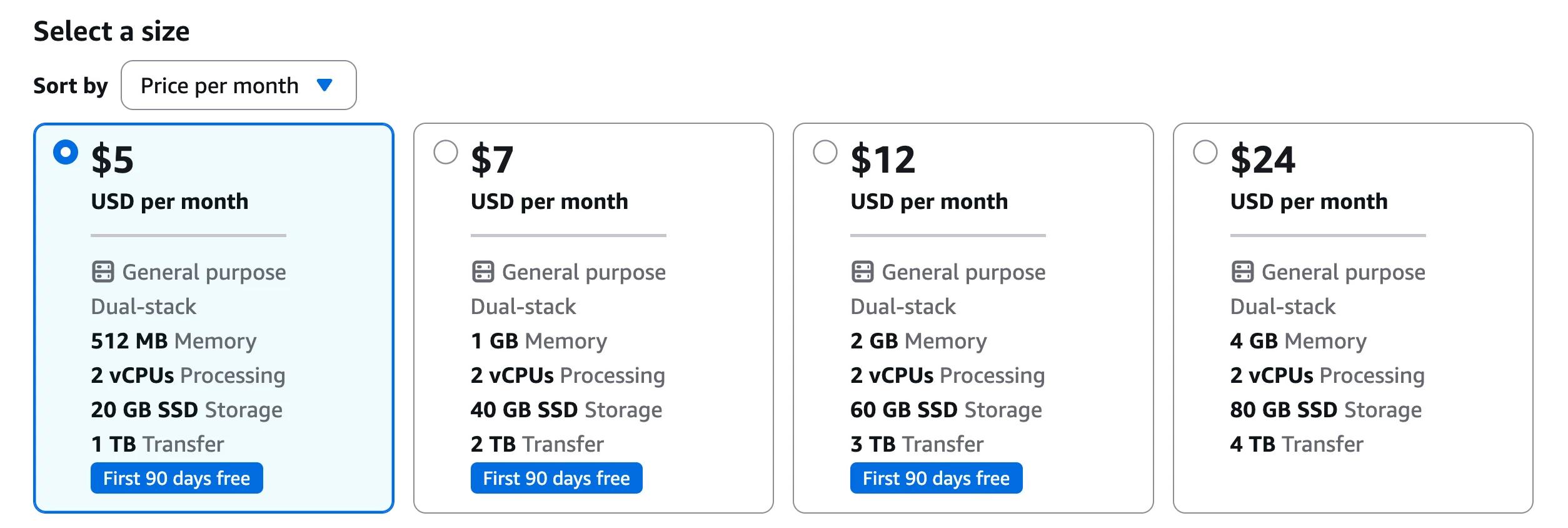
Select the $7/month micro plan (choose micro_3_0 for the T3-based instance with 2 vCPUs) or the $5/month nano if you want the cheapest option. The micro plan gives you 1 GB RAM, 2 vCPUs, 40 GB SSD, and 1 TB transfer.
The first 90 days are free on the $5 nano bundle.
Click Create instance and wait a minute for it to boot. Connect via SSH using the key you just created:
ssh -i ~/.ssh/openclaw-ssh.pem ubuntu@<your-instance-ip>
From there, follow the rest of this guide from the GitHub section onward. The main difference: you'll connect via SSH instead of Session Manager, and port 22 will need to be open in the Lightsail firewall.
Zero Open Ports: Connect via Session Manager
Here's the awkward part about Lightsail: it isn't EC2. You can't attach an IAM instance profile to it. So the standard "give the instance a role" pattern doesn't work here.
Instead, we use SSM hybrid activation. This is a registration mechanism that lets non-EC2 machines register with Systems Manager. Terraform generates an activation ID and code at deploy time, passes them into the bootstrap script, and the instance self-registers on first boot. From that point on, you connect via Session Manager like any EC2 instance.
The IAM role for SSM uses ssm.amazonaws.com as the principal, not ec2.amazonaws.com. That's what makes it a hybrid activation. It attaches the AmazonSSMManagedInstanceCore managed policy.
Then in ssm.tf, we create the activation and a cleanup hook for when the instance is destroyed:
resource "aws_ssm_activation" "lightsail_ssm" {
  name               = "${var.app_name}-${var.environment}-lightsail-ssm-activation"
  iam_role           = aws_iam_role.ssm_role.name
  registration_limit = 1
  expiration_date    = timeadd(plantimestamp(), "720h")
  depends_on         = [aws_iam_role_policy_attachment.ssm_attach]

  lifecycle {
    ignore_changes = [expiration_date]
  }
}

resource "terraform_data" "ssm_deregister" {
  input = {
    ssm_activation_id = aws_ssm_activation.lightsail_ssm.id
    region            = var.region
  }

  depends_on = [aws_lightsail_instance.main, aws_ssm_activation.lightsail_ssm]

  provisioner "local-exec" {
    when    = destroy
    command = <<-EOT
      for id in $(aws ssm describe-instance-information \
        --region "${self.input.region}" \
        --filters "Key=ActivationIds,Values=${self.input.ssm_activation_id}" \
        --query "InstanceInformationList[*].InstanceId" \
        --output text 2>/dev/null); do
        aws ssm deregister-managed-instance --instance-id "$id" \
          --region "${self.input.region}" 2>/dev/null || true
      done
    EOT
  }
}
The activation expires after 30 days, but the instance only registers once so it doesn't matter.
The lifecycle block prevents Terraform from rotating the expiry on every plan.
The terraform_data block handles cleanup. When you run terraform destroy, it deregisters the managed instance from SSM so you don't end up with ghost entries.
The bootstrap script registers the SSM agent on first boot:
snap stop amazon-ssm-agent || true
rm -f /var/lib/amazon/ssm/Vault/Store/RegistrationKey
/snap/amazon-ssm-agent/current/amazon-ssm-agent -register -y \
  -id "${ssm_activation_id}" \
  -code "${ssm_activation_code}" \
  -region "${region}"
snap start amazon-ssm-agent
Ubuntu 24.04 ships with the SSM agent as a snap package already installed. We stop it, delete the existing registration key so the re-registration always succeeds cleanly, and start it again. That's all it takes.
Once terraform apply completes, wait a minute or two for the instance to boot.
Then find the managed instance ID:
aws ssm describe-instance-information \
  --region eu-central-1 \
  --query "InstanceInformationList[*].[InstanceId,SourceId]" \
  --output table
Connect:
aws ssm start-session --target <managed-instance-id> --region eu-central-1
You're in. No key file, no open port. If someone scans your instance's IP, they find nothing.
GitHub as the Time Machine
OpenClaw stores its config, skills, and memory on the filesystem. By default that means one bad edit can break everything, and there's no way back.
We fix that with a private GitHub repository.
The repo mirrors the ~/.openclaw directory where OpenClaw stores everything.
If you break something (wrong prompt, broken skill, bad config), you git checkout to when it last worked.
Create the repo
Create a new private repository on GitHub.
Call it whatever you want: openclaw, my-agent, brain.
Generate a deploy key
Connect to your instance via Session Manager and run:
ssh-keygen -t ed25519 -C "openclaw-lightsail" -f ~/.ssh/github_deploy -N ""
cat ~/.ssh/github_deploy.pub
Copy the output. In your GitHub repo, go to Settings → Deploy keys → Add deploy key. Paste the public key. Enable Allow write access. The agent needs to commit memory updates back to the repo.
Configure SSH for GitHub
Still on the instance:
cat >> ~/.ssh/config << 'EOF'
Host github.com
  IdentityFile ~/.ssh/github_deploy
  StrictHostKeyChecking no
EOF
Init the repo inside ~/.openclaw
OpenClaw already created ~/.openclaw when it was installed.
We want to turn that existing directory into a Git repo and push it to GitHub.
First, set a git identity on the instance so commits don't fail:
git config --global user.email "you@example.com"
git config --global user.name "Your Name"
Then init and push:
cd ~/.openclaw
git init
git remote add origin git@github.com:your-username/your-repo.git
git add -A
git commit -m "init: openclaw config"
git push -u origin main
The workflow
After any config change that works, commit it:
cd ~/.openclaw
git add -A
git commit -m "update: new notion skill"
git push
When something breaks:
git log --oneline
git checkout <last-good-commit>
That's the whole time machine. Version control is just version control. Most people just don't think to apply it to their AI agent's brain.
Worth repeating: the deploy key only has access to this one repository. Not your entire GitHub account. Least privilege, applied to a SSH key.
Installing OpenClaw and Connecting Slack
The bootstrap script already ran the OpenClaw installer when the instance booted. But installation and configuration are two different things. Connect to your instance via Session Manager and finish the setup.
Run onboarding
openclaw onboard --install-daemon
This walks you through the initial configuration: workspace location, default agent name, and messaging channels.
OpenClaw will use ~/.openclaw as its workspace, which is already the Git repo you set up.
The --install-daemon flag registers OpenClaw as a systemd service. It starts automatically on boot and restarts if it crashes. If your instance reboots for any reason (a Lightsail maintenance window, a manual restart), OpenClaw comes back up on its own without you touching anything.
Connect your LLM
OpenClaw supports multiple LLM providers, so use whatever works for you.
If you already have a Claude.ai or ChatGPT subscription, you can connect those directly. If you want API access with model flexibility, OpenRouter is a good option — one API key gives you access to Claude, Gemini, Grok, and most other frontier models without managing separate accounts.
Run:
openclaw configure
Select your provider and paste your key. For the model, start with something cheap — GPT-5 nano or Gemini 2.5 Flash Lite are good defaults. We cover why this matters in the cost section at the end. OpenRouter makes it easy to swap models later without touching your config.
Create the Slack app
Go to api.slack.com/apps and create a new app from scratch.
You need three things:
-
Bot Token: Under OAuth & Permissions, add these bot scopes:
chat:write,im:history,im:read,im:write,users:readThen install the app to your workspace and copy thexoxb-...token. -
App Token: Under Basic Information → App-Level Tokens, create a token with the
connections:writescope. Copy thexapp-...token. -
Enable Socket Mode: Under Socket Mode, turn it on. This is how OpenClaw receives messages without exposing a webhook URL. No public endpoint, no open port.
Back on the instance:
openclaw configure
Select Slack as the channel and paste both tokens. When prompted, enter the verification code that appears in your Slack workspace to confirm the connection.
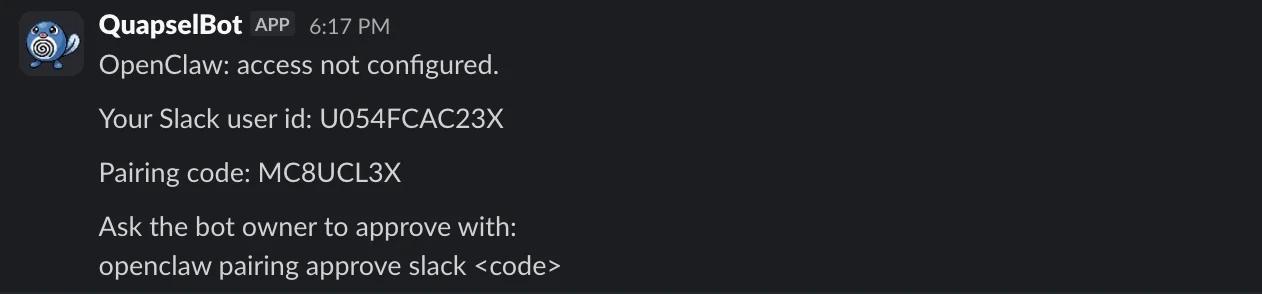
The first hello
Message your bot in Slack from your phone.
It responds.
Your laptop can be closed, off, or at the bottom of a lake. The agent is running on a server in AWS and will keep running until you tell it to stop.
Supercharging with Tools: Notion, Gmail, and AWS
An always-on agent that can only chat is just a slow search engine. The useful part is giving it access to your actual data. We'll wire up three integrations: Notion for your notes and databases, Gmail for email, and AWS for checking what your infrastructure is actually doing.
Notion
Notion's internal integrations are the simplest auth flow in existence.
Go to notion.so/my-integrations and create a new integration.
Give it a name, select your workspace, and set the capabilities to Read content only.
Copy the Internal Integration Token. It starts with secret_.
Now go to the Notion pages or databases you want the agent to access. Open the page menu, click Connect to, and select your integration. Notion access is opt-in per page, so the agent can only see what you explicitly share with it. That's the security model. No token scope to configure, just share the pages you want.
In OpenClaw, add the token:
openclaw configure
Select Notion and paste the token.
Gmail
Gmail uses gogcli, a small Go CLI tool that handles OAuth for Google APIs.
The bootstrap script already installed it at /home/ssm-user/gogcli/bin.
Run the auth flow:
gogcli auth
It prints a URL. Open it on your phone or computer, authorize access, and paste the code back into the terminal. Your credentials are stored locally on the instance.
OpenClaw uses gogcli under the hood whenever you ask it to read or send email.
You never touch OAuth tokens directly.
AWS: the right way
This is where most tutorials tell you to create an IAM user, generate access keys, and paste them into a config file. Don't do that manually.
Our Terraform already handles it. It creates a scoped IAM user and writes the credentials to the instance during bootstrap:
resource "aws_iam_user" "lightsail" {
  name = "${var.app_name}-${var.environment}-lightsail"
}

resource "aws_iam_access_key" "lightsail" {
  user = aws_iam_user.lightsail.name
}

resource "aws_iam_user_policy" "cost_explorer" {
  name = "CostExplorerReadOnly"
  user = aws_iam_user.lightsail.name

  policy = jsonencode({
    Version = "2012-10-17"
    Statement = [{
      Effect   = "Allow"
      Action   = ["ce:Get*", "ce:Describe*", "ce:List*"]
      Resource = "*"
    }]
  })
}
Terraform reads the generated access key and encodes it into a base64 string:
locals {
  aws_credentials_content = join("\n", [
    "[default]",
    "aws_access_key_id = ${aws_iam_access_key.lightsail.id}",
    "aws_secret_access_key = ${aws_iam_access_key.lightsail.secret}",
    "region = ${var.region}"
  ])

  aws_credentials_b64 = base64encode(local.aws_credentials_content)
}
That creds_b64 value is passed into the bootstrap script as a template variable.
On first boot, the script decodes it and writes it to ~/.aws/credentials for both the ubuntu and ssm-user home directories.
The agent can call aws ce get-cost-and-usage without you doing anything else.
This is least privilege in practice. The IAM user can read Cost Explorer data and nothing else. If someone somehow extracted the credentials from the instance, the blast radius is read-only billing data. Not your entire AWS account.
To add more AWS capabilities later, add statements to the aws_iam_user_policy resource and run terraform apply.
Start narrow and expand as you need it.
Real-World Use Cases
Here are four automations I actually run. All of them are conditional crons — they only fire when something is worth knowing. That's the thing about OpenClaw I appreciate most: you don't have to receive a notification just because a schedule triggered. You only hear from it when the condition is met.
-
Weekly AWS cost report. Every Friday, OpenClaw pulls my AWS Cost Explorer data, calculates what each service cost over the past week, and forecasts the total for the coming month. It sends me the breakdown sorted from most expensive to cheapest. That ordering matters. The top entry is always the one worth looking at first. Since we already gave the instance an IAM user with Cost Explorer read access, no extra setup is needed.
-
Daily Discord catch-up. At the end of each day, OpenClaw reads the Discord channels I care about and sends me a summary of anything I missed. Not a transcript, an actual summary with a short to-do list sorted by priority if there's something I need to act on. If nothing needs my attention, it stays quiet.
-
Freelancer timesheet check. At 5 PM, OpenClaw checks a specific Notion database where I log my work hours. If I've already logged time for today, nothing happens. If I haven't, it sends me a reminder. One notification, one condition, zero noise. As a freelancer, forgetting to log hours means forgetting to bill — this one pays for the whole setup.
-
Weekly Gmail spam review. Once a week, OpenClaw goes through my Gmail spam folder and looks for anything misclassified by Google's filter. It does happen more than you'd expect: invoices, client replies, service notifications. It sends me a short list of anything suspicious with a one-line summary of each. I scan it in ten seconds and move on.
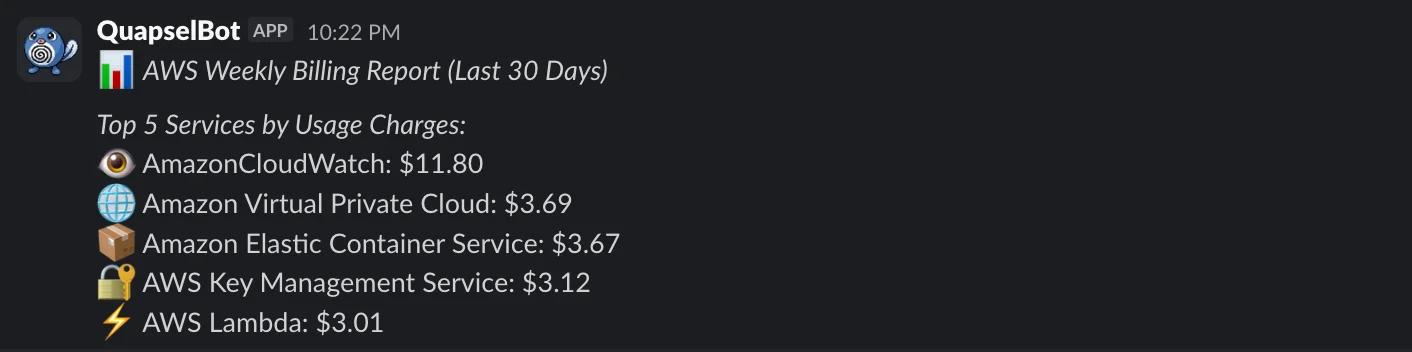
Each of these is a skill with a cron schedule and a condition. The skill runs on the server at the right time, checks a data source (AWS, Discord, Notion), and only notifies you if something needs your attention. This is fundamentally different from a simple cron job or a webhook. It's an agent that can reason about whether the data it found is actually worth interrupting you for.
The Inception Moment: Claude Managing OpenClaw
This is the part that makes the whole setup click.
OpenClaw can write and deploy its own skills. A skill is just a JavaScript file that describes a capability: what it does, what parameters it takes, and what code runs when you call it. They live in your GitHub repo, which means every new skill is automatically version-controlled.
But here's the workflow that actually makes sense: instead of chatting with OpenClaw to write its own skills, you use Claude Code (or Claude in any interface) to write the skill, then deploy it to the instance.
You're using a more capable AI to improve a less capable one. That's the inception part.
Connecting Claude Code to the instance
There's nothing special to configure. Claude Code can connect to any SSM-registered instance directly. Just tell it where to look — a short note in your project's CLAUDE.md is enough:
## OpenClaw instance

- AWS Lightsail instance in eu-central-1
- OpenClaw workspace: /home/ssm-user/.openclaw
- Connect via SSM: aws ssm start-session --target <managed-instance-id> --region eu-central-1
- Skills live in: /home/ssm-user/.openclaw/skills/
That's it. Claude Code reads this context, connects to the instance via SSM, and can read, write, and deploy skills without any further setup. You don't need to open a port or manage a key file.
A real example
Say you want OpenClaw to summarize your Notion meeting notes from the last week. Open Claude and ask:
Write an OpenClaw skill that fetches Notion pages updated in the last 7 days
from my meeting database and returns a bullet summary of each one.
Claude writes the skill file.
You review it, save it into ~/.openclaw/skills/ on the instance, commit, and push:
cd ~/.openclaw
git add skills/summarize-meeting-notes.js
git commit -m "add: weekly meeting notes summary skill"
git push
On the Lightsail instance, pull the update:
cd ~/.openclaw && git pull
OpenClaw picks up the new skill automatically. Message your bot in Slack:
summarize my meeting notes from this week
It runs the skill you just deployed.
Why this workflow beats chatting with the bot
When you ask OpenClaw to write its own skills, you're limited by whatever model you've configured for it. And you're doing it through a chat interface with no syntax highlighting, no review step, and no version history.
When you use Claude Code instead, you get the full editor experience.
You can read the skill before it ships.
You can test it.
If it breaks something, git revert and pull again.
The agent on the server gets smarter. You stay in control of what actually gets deployed.
The commit history is your audit log
Every skill addition, every config change, every memory update that gets committed. It's all in Git. You can see exactly what changed, when, and roll back any of it in seconds.
That's the real payoff of using GitHub as the memory store. Not just disaster recovery. A full audit trail of how your agent evolved.
ClawHub: A Community of Ready-Made Skills
You don't have to write every skill from scratch.
ClawHub is the public skill registry for OpenClaw. Over 5,000 community-built skills, searchable by category. Slack summaries, calendar integrations, crypto price alerts, Notion automations — most things you'd want to build already exist.
Installing a skill is three commands:
npm i -g clawhub
clawhub search "notion"
clawhub install <skill-slug>
The skill lands in your ~/.openclaw/skills directory and gets picked up in the next OpenClaw session.
Since ~/.openclaw is your Git repo, the installed skill is automatically version-controlled.
Commit it, and you have a record of exactly what you added and when.
Worth checking ClawHub before you ask Claude to write something. Chances are it's already there.
⚠️ Read skills before you install them. ClawHub is community-maintained and anyone can publish. A skill is JavaScript that runs on your server with access to your credentials and integrations. Skim the code, check what APIs it calls, and make sure you trust what it does before installing. The same scrutiny you'd apply to an npm package applies here.
What This Costs (and What You Get)
Let's be concrete about the bill.
The Lightsail micro_3_0 instance costs $7/month when configured as dual-stack (IPv4 + IPv6).
The nano instance is $5/month if you want to go cheaper — you give up half the RAM and vCPUs.
No data transfer charges within the 1TB monthly allowance, no per-request fees, no elastic IP surprises.
Everything else (GitHub private repos, SSM Session Manager, the IAM user, the SSM activation) is free.
The only variable is your LLM usage, and this is where you need to pay attention.
Model choice matters a lot
An AI agent makes a lot of API calls. Every message, every tool invocation, every background task burns tokens. The wrong model choice can turn a $7 server into a $50+ monthly bill without you noticing.
Here's a comparison of current models and what they actually cost:
| Model | Input (per 1M tokens) | Output (per 1M tokens) |
|---|---|---|
| GPT-5 nano | $0.05 | $0.40 |
| Gemini 2.5 Flash Lite | $0.10 | $0.40 |
| Gemini 2.5 Flash | $0.30 | $2.50 |
| Claude Haiku 4.5 | $1.00 | $5.00 |
| Claude Sonnet 4.6 | $3.00 | $15.00 |
| Claude Opus 4.6 | $5.00 | $25.00 |
Prices as of March 2026. LLM pricing changes frequently — always check the provider's current pricing page before committing to a model.
Haiku 4.5 is a decent middle ground if you find the nano/lite tier models too limited. At $1/$5 it's already 20x more expensive on input than GPT-5 nano, so keep an eye on usage.
⚠️ Do not use a frontier model like Claude Opus 4.6 for OpenClaw. An always-on agent makes continuous API calls in the background. At $5/M input tokens, costs compound fast. We learned this the hard way: OpenRouter's Auto mode picked Opus 4.6 with extended thinking enabled and burned through several hundred dollars within minutes. No cap, no warning — just a bill.
💳 Set a billing limit before you connect anything. OpenRouter lets you set a credit cap per API key. The Anthropic console has a monthly spend limit per account. Both take two minutes and are non-negotiable for an always-on agent.
Claude Opus 4.6 is a phenomenal model. It's also 100x more expensive on input tokens than GPT-5 nano. For a personal agent doing routine tasks (checking your calendar, summarizing emails, pulling Notion pages) that extra capability doesn't justify the cost.
Our recommendation: start with GPT-5 nano or Gemini 2.5 Flash Lite. Both are capable enough for daily agent tasks at a fraction of the price. Gemini 2.5 Flash Lite drops to $0.05/M input if you use the batch API, but for real-time use the $0.10 rate applies.
Worth repeating: even stepping up one tier to Gemini 2.5 Flash or Claude Haiku starts adding up fast if your agent is active throughout the day. Stay on nano/lite tier until you have a reason to upgrade.
What you get for that:
-
🟢 Always on. The agent runs whether your laptop is open or not. Tasks you kick off at night are done by morning. Messages you send from your phone get answered immediately.
-
🔒 Zero open ports. There is no public attack surface on this instance. SSM connects through the AWS API. Port 22 is closed. Port 18789 (the OpenClaw gateway) is closed. The only open port is 443 for SSM traffic, and that's outbound-initiated.
-
⏪ Version-controlled memory. Every config change, every new skill, every memory update lives in Git. Breaking changes are reversible in 30 seconds. You have a complete history of how the agent evolved.
-
🛡️ Least privilege throughout. The IAM user can only read Cost Explorer. The Notion integration only sees pages you explicitly shared. The deploy key only has access to one repository. Each integration has exactly the permissions it needs and nothing more.
Less than two coffees a month. A personal AI agent that doesn't compromise your home network, doesn't die when you close your laptop, and doesn't lose its memory when something goes wrong.
That's the setup.

