 AWS
AWS
Waking up to unexpected AWS costs is never fun. Especially if it's at the end of the month when you're already stressed about your budget. Also, there are dozens of horror stories about companies or indie developers who got hit by unexpected, exploded AWS costs. AWS' cost pitfalls are real and there are many of them.
The hard part: AWS pricing doesn't just throw a menu at you; it's its own dense ecosystem. You can also call it a jungle, as it's not easy to navigate.
While on-demand pricing is safe, it's also expensive.
We are going to clear the path in this article.
We'll look at how to get the best rates for Compute (EC2, Fargate, Lambda) while also tackling the quite complex Database commitments that just came with re:Invent 2025.
What Are Savings Plans?
Savings Plans are a pricing model where you commit to a consistent usage amount (measured in $/hour) for 1 or 3 years. In return, AWS gives you steep discounts compared to on-demand pricing.
Think of it like a gym membership. You pay upfront (or monthly) for guaranteed access, even if you don't use it every day. The more you commit, the cheaper your hourly rate becomes.
You purchase a Savings Plan through the AWS Cost Explorer console. You specify your hourly commitment (e.g., $10/hour), choose your term (1 or 3 years), and select your payment option (all upfront, partial upfront, or no upfront). Once activated, AWS automatically applies the discounted rates to eligible usage every hour.
Reserved Instances vs Savings Plans: Reserved Instances (RIs) are the older, less flexible pricing model. They lock you into specific instance types, regions, and even operating systems. Savings Plans replaced them for most use cases by offering more flexibility while still providing significant discounts.
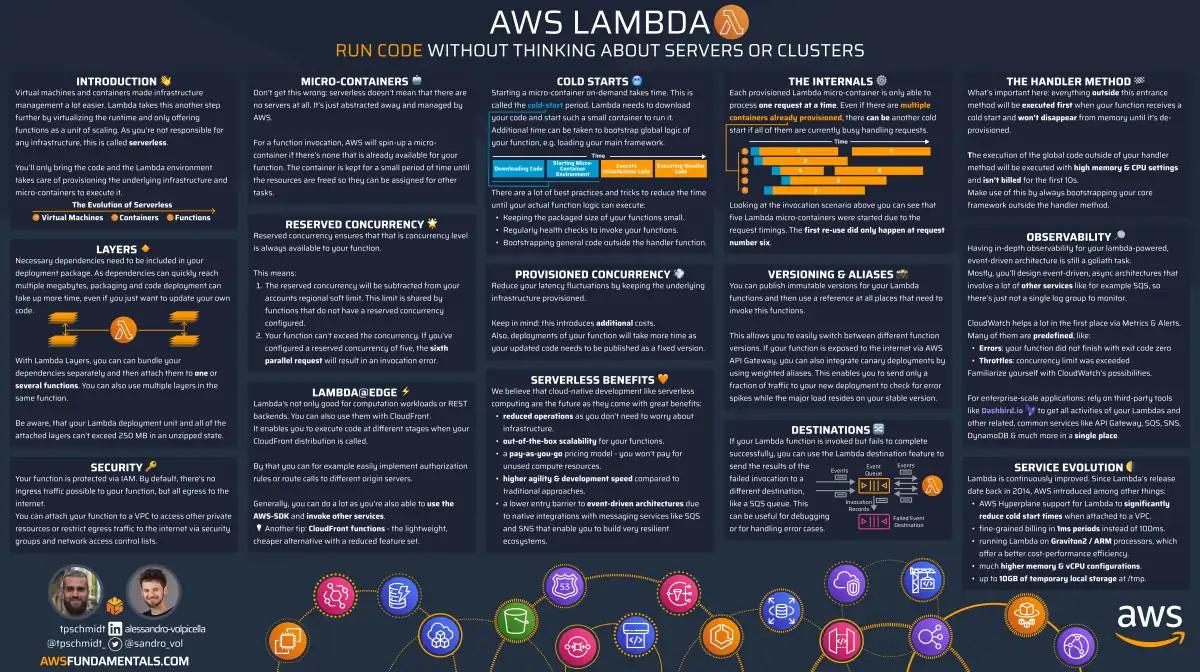
AWS Lambda on One Page (No Fluff)
Skip the 300-page docs. Our Lambda cheat sheet covers everything from cold starts to concurrency limits - the stuff we actually use daily.
HD quality, print-friendly. Stick it next to your desk.
The High Shelter: Compute Savings Plans
The Compute Savings Plans are the most flexible option, as they cover EC2, Fargate, and Lambda. These plans provide you savings if you commit to a certain amount of usage over a 1-year OR 3-year term.
Important key take aways:
- Needs commitment for 1 year or 3 years
- Prices are up to 66% lower than on-demand pricing
- Apply to your usage regardless of the instance family, region, OS, or tenancy.
- You commit to an hourly amount of usage with no rollover.
- There's organization-wide sharing.
- SageMaker has it's own Savings Plans.
- RDS requires a Reserved Instance.
Moving your workload from a c5 EC2 in eu-west-1 to ECS with Fargate in eu-central-1 is as simple as updating your CloudFormation template.
You'll still benefit from the savings plan.
How Discounts are Applied
What if I've over or undercomitted? How does AWS decide which instance will receive the discount?
That's a good question and easy to answer: The AWS billing engine automatically applies the Savings Plan commitment to the usage that offers the highest percentage discount first.
Meaning, you don't need to worry about it. You'll get the best possible discount.
Think about it as a waterfall: the highest discount will always be applied first and it flows down to the next one.
Example:
- 🐧 Instance A (Linux): Offers 20% discount
- 🏙️ Instance B (Windows): Offers 50% discount
If your savings plan doesn't cover both, instance B will receive the discount first. Instance A will either receive a partial discount or stay at on-demand rates.
This happens automatically. You don't need to configure anything in the console. The AWS billing engine calculates the optimal discount application every hour based on your actual usage.
Organization-wide Sharing
Savings plans can float across accounts in your AWS Organization if enabled.
Usage in the account that purchased the plan is covered first. Remaining commitment is then shared across linked member accounts.
Also remember, the commitments applies to any region in your AWS Organization.
Paying for your Compute Savings Plans
You can choose how you want to pay:
- 💸 Upfront: Pay the full amount upfront and get the best discount.
- 💸/💰 Partial Upfront: Pay a partial amount upfront and get a discount based on the remaining amount.
- 💰 No Upfront: Pay nothing upfront and get a discount based on the remaining amount.
There's just a small difference in the 1-year term, but a huge one in the 3-year term!
Deciding on this is often a question of two factors:
- Risk tolerance
- Accounting of your company
The account part plays a big role in enterprises, as it completely changes the way you account for your expenses.
- All upfront means that it will oftenly be treated as a capital expense.
- Partial upfront and no upfront are often treated as operating expenses (like a standard utility bill).
Let's have a look at a small comparison table:
| Option | Discount Rate | Cash Flow Impact | Risk Profile |
|---|---|---|---|
| All Upfront | Highest | High initial impact | Sunk Cost: If you stop using AWS, the money is already gone. |
| Partial Upfront | Moderate | Moderate initial impact | Balanced: Typically >50% is paid upfront. |
| No Upfront | Lowest | Smoothed monthly impact | Contractual: You pay monthly, but you are still legally bound to pay even if usage drops. |
Partial upfront is a good option for most companies, as it balances the risk and cash flow impact. You'll still get benefits from the increased discount, but you'll also have a lower initial impact.
The Middle Ground: EC2 Instance Savings Plans
EC2 Instance Savings Plans are the less flexible option, but with a higher max discount. The major difference, besides that fact that it only applies to EC2, is that you need to commit to a specific instance family and region.
This means if you buy an EC2 Instance Savings Plan, you must choose a region upfront (e.g., eu-central-1).
Unlike Compute Savings Plans (which work across all regions), this plan only applies to instances in that specific region.
| Feature | Compute Savings Plans | EC2 Instance Savings Plans |
|---|---|---|
| Flexibility | High (Any Region, Family, OS) | Low (Specific Region & Family) |
| Max Discount | ~66% | ~72% |
| Services | EC2, Fargate, Lambda | EC2 Only |
| Risk Level | Low | Medium-High |
The Family Trap
What does AWS mean by "specific instance family"? The commitment is specific to the instance family, not the instance type.
This binds you to the specific API Name prefix of the instance family.
If you commit to the m5 family, your savings are strictly tied to m5.* instances.
Let's have a look at a small comparison table:
| Usage Type | Covered by m5 Plan? | Reason |
|---|---|---|
| m5.large | ✅ Yes | Exact family match. |
| m5.12xlarge | ✅ Yes | Size within the family. |
| m5a.large | ❌ No | Different suffix (AMD). |
| m5d.large | ❌ No | Different suffix (Local NVMe). |
| m6i.large | ❌ No | Different generation. |
So this is a big commitment and warning. ⚠️
If you buy a 3-year EC2 Instance Savings Plan for m5, you're taking a huge bet that you don't want to upgrade to m6 or m7g (Graviton) processors for 36 months.
That's a pretty large bet and a risky one to take.
Vertical Size Flexibility
Unlike the standard Reserved Instances of the past, we don't need to worry about horizontal scaling! This is perfectly covered.
Switching from c5.large to c5.2xlarge is as simple as updating the instance type.
No manual exchanges or modifications are required.
The billing engine will take care and automatically apply the savings plan.
OS and Tenancy Flexibility
Similar to the vertical size flexibility, we don't need to worry about OS and tenancy. You're free to choose the OS or go from default to dedicated instances.
You can also move availability zones.
The Dense Undergrowth: Database Savings
AWS just introduced Database Savings Plans, but it's not as simple as it sounds. To quote the article:
[...] reduce database costs by up to 35% when they commit to a consistent amount of usage ($/hour) over a 1-year term.
Furthermore:
Savings automatically apply each hour to eligible usage across supported database services, and any additional usage beyond the commitment is billed at on-demand rates.
That doesn't sound intuitive, does it? At least I wouldn't know what to expect of that. Why can't we just apply a Compute Plan to my RDS?
Let's dive into the new Database Savings Plans and get a clear picture of what it actually means.
The Managed Service Tax
Why doesn't my Compute Savings Plan apply to my RDS?
Great question - answer lies in the abstraction.
- Compute Savings Plans are for Raw Compute
- Database Savings Plans are for Managed Compute
With RDS, you're not just paying for CPU cycles, but also for a premium for AWS to manage the patching, backups, and other management tasks!
The "Any Engine" Flexibility
Before the new plans, database savings where only possible via Reserved Instances. This means, if you bought an RI for RDS PostgreSQL, you couldn't use it for RDS MySQL.
The new Database Savings Plans covers hourly cost regardless of:
- Engine: You can switch from RDS MySQL to Aurora.
- Region: Move your database from
eu-central-1toeu-west-1. - Family: Upgrade from
db.r5todb.r6g.
Let's compare it once again in a table:
| Feature | Old Way (Reserved Instances) | New Way (Database Savings Plans) |
|---|---|---|
| Commitment | Specific Instance Type & Region | Hourly Spend ($/hr) |
| Engine Flexibility | ❌ None (Locked to Engine) | ✅ High (Across supported DBs) |
| Region Flexibility | ❌ None (Locked to Region) | ✅ High (Global) |
| Management | Manual swaps/exchanges | Automatic application |
| Savings | Higher (~40-50% for specific lock-ins) | Moderate (~35% for flexibility) |
So it's absolutely fair that the savings are lower compared to RIs or Compute Savings Plans.
Survival Strategy: Calculating Your Commitment
Buying a Savings Plan is a commitment. To put it into persective: it's like a financial marriage. It's better to ensure that you commit to a plan that you can live with for a year (or even 3 years!).
Golden Rule of Savings Plans is: Optimize first, Commit second!

Step 1: Clean Up Your Mess (Compute Optimizer)
If you run an m5.4xlarge that sits 90% idle, buying a Savings Plan for it is just optimizing the cost of waste.
You should downsize it first.
AWS Compute Optimizer is your best friend here.
It analyzes the past 14 days of usage metrics to identify workloads that are over-provisioned.
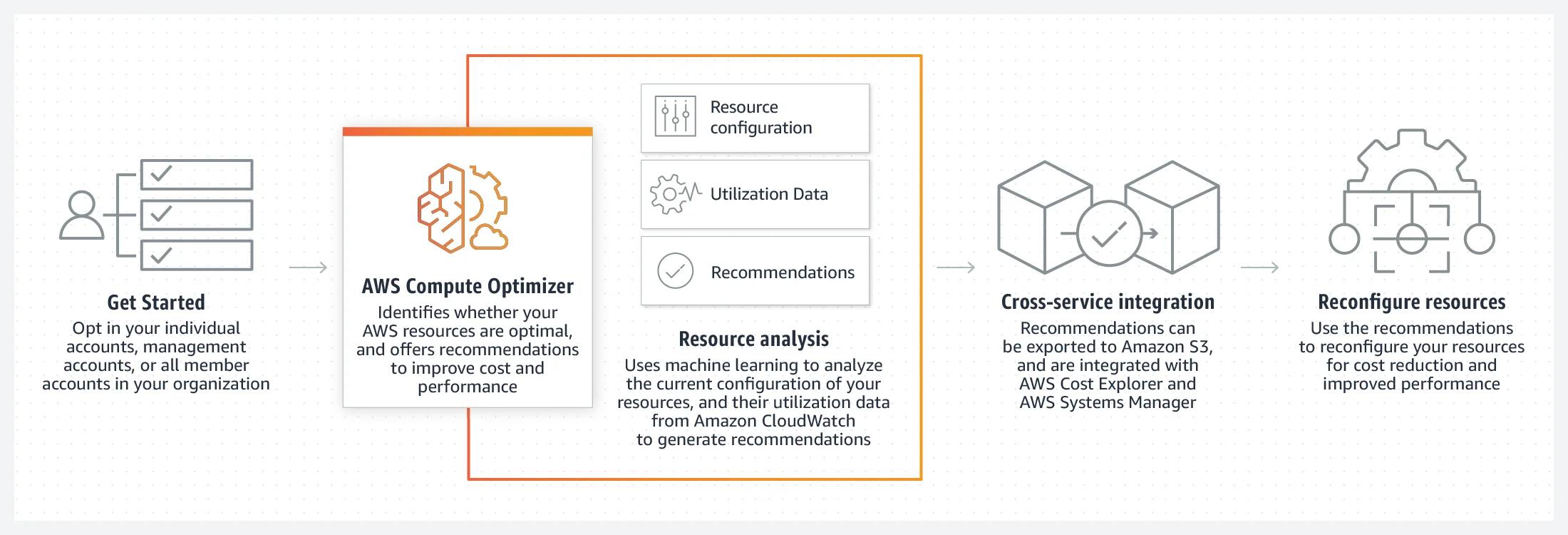
It identifies workloads that:
- Run on over-provisioned instances (suggesting a downsize).
- Run on older generation instances (suggesting a modernize).
- Face performance bottlenecks (e.g., EBS throttling).

You can even create automations to apply recommendations automatically, like snapshotting and deleting unattached EBS volumes.
Step 2: Enable Enhanced Visibility
Once your compute fleet is right-sized, you need clear data.
AWS recently introduced Enhanced Forecasts, which allows AWS to analyze your specific usage patterns for better accuracy.
You'll find this in your Cost Management Preferences.

Note: It takes up to 48 hours after enabling for the data to populate.
You should also check the Cost Optimization Hub. This aggregates recommendations from Compute Optimizer and Savings Plans into a single dashboard, often revealing "low hanging fruit" savings that don't require a contract.

Step 3: The "Waterline" Calculation
Now that you are optimized and tracking correctly, do not use a spreadsheet to guess your commitment. Use the Savings Plans Recommendations tool within Cost Explorer.
This tool performs a counterfactual simulation: "How much would you have saved if you had this plan in the past?"
However, the recommendation tool often targets your average usage. For a robust strategy, you should target your Base Load.
Visualize your hourly spend as a wave:
- 📈 Peak Load: The top of the mountain (Mid-day traffic).
- 📉 Base Load: The bottom of the valley (3 AM traffic).
Your commitment should be the "Waterline": the usage level that never drops.
The Strategy:
- Set the tool's Lookback Period to 60 days (to smooth out EVERY spike).
- Find your minimum hourly spend (the waterline!).
- Commit to that number.
It is financially safer to pay on-demand for the variable peaks of your traffic. Do not commit to a high Savings Plan that sits idle and wastes money during your valleys.
Quicksand: The Traps to Avoid
A quick reminder about the most important things to avoid:
- 🌎 Region Trap (EC2 Instance Plans only): Buying an EC2 Instance Plan in
eu-central-1and then moving the workload toeu-west-1. Remember, Compute Savings Plans work across all regions, but EC2 Instance Plans are region-locked. - 💾 Database Drift: Committing to an RDS RI for PostgreSQL and then deciding to migrate to Aurora or DynamoDB (the commitment does not transfer).
- 🧟 Zombie Commitment: Paying for a plan that applies to older generation instance
Key Takeaway
There's no one-size-fits-all solution.
Start by optimizing your existing workloads with Compute Optimizer. Then use Cost Explorer's Savings Plans Recommendations to identify your baseline usage. Commit to your "waterline" (the usage that never drops), not your average.
Use Compute Savings Plans for flexibility across services and regions. Use EC2 Instance Plans only when you're certain about your instance family and region for the next 1-3 years. For databases, the new Database Savings Plans give you engine and region flexibility at a moderate discount.
Review your coverage monthly and adjust as your workload evolves.
Generally: Don't let the jungle overgrow! 🤷♂️