
Introduction
LLMs can generate code faster than ever. Suddenly, everyone feels like a software engineer. But there's something we forget.
Writing code is the easy part. The hard part is iteration, evolution, and deep understanding. Knowing what's actually happening in your systems. Especially when those systems are distributed across multiple services.
Observability isn't optional and was never in the first place. It's the difference between guessing and knowing.
CloudWatch gives you the tools to collect metrics and turn them into insights. Dashboards are how you visualize those insights. They're powerful, yet overlooked.
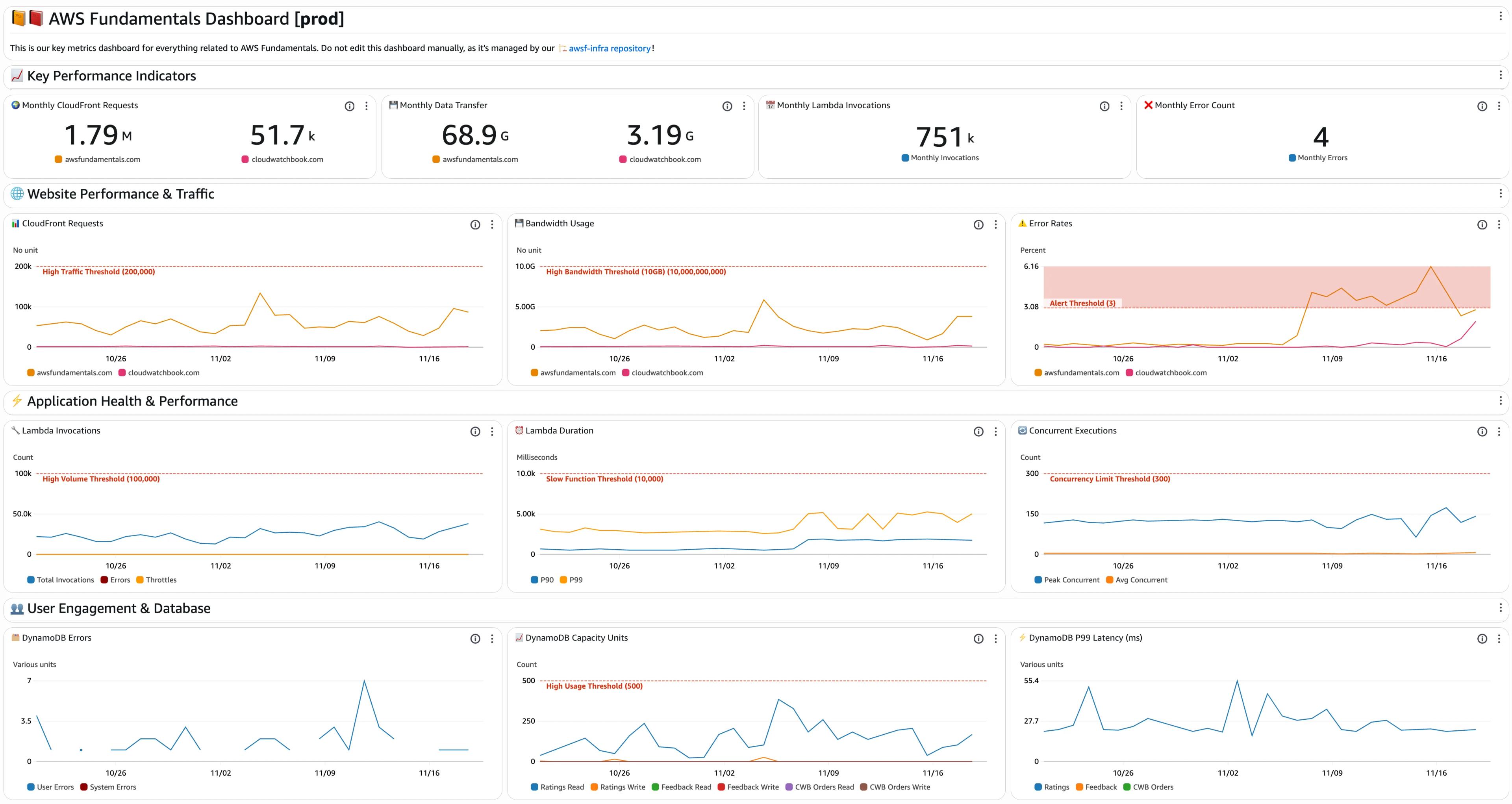
This guide shows you how to build CloudWatch dashboards using Pulumi. We'll go from setup to production-ready monitoring. No guesswork, just clear visibility into your AWS infrastructure.
We'll show metrics for CloudFront, Lambda and DynamoDB, but in the end it's up to you what you want to see!
Why Infrastructure as Code for CloudWatch Dashboards
Think about observability the same way you think about your application code. It needs to be replicable. It needs to be easy to adapt. It needs to be documented.
This is Observability as Code.
Custom metrics, dashboard widgets, alarms — all of it should be defined deterministically. That way you can replicate across stages and track changes properly. Putting everything into code isn't just helpful. It's necessary.
Pulumi makes this simple. You write infrastructure using your favorite programming language. It has powerful providers for AWS, Azure, and GCP.
When you're using SST (like we are in this post), Pulumi is built right in. SST components cover most use cases. But when you need something specific, you drop down to Pulumi. No friction, just flexibility.
Using the Pulumi Provider with SST
SST lets you use Pulumi's AWS provider directly in your infrastructure code. No extra setup needed.
You can create CloudWatch dashboards using aws.cloudwatch.Dashboard.
const dashboard = new aws.cloudwatch.Dashboard('MyDashboard', {
    dashboardName: 'my-app-dashboard',
    dashboardBody: JSON.stringify({
        widgets: [
            {
                type: 'metric',
                properties: {
                    metrics: [['AWS/Lambda', 'Invocations']],
                    period: 300,
                    stat: 'Sum',
                    region: 'us-east-1',
                    title: 'Lambda Invocations',
                },
            },
        ],
    }),
});
The tricky part is dashboardBody.
It's not typed.
It requires a stringified JSON with a specific structure.
This means:
- 📝 We need to know the exact widget schema.
- ⚡️ We need to manually construct the JSON.
- 🔎 We need to know about the metrics names and namespaces.
This gets messy fast, especially with complex dashboards.
Creating Our First Dashboard
Let's build a dashboard for a real application stack. We're monitoring CloudFront, Lambda, and DynamoDB in this tutorial, but you're free to choose your own favorite metrics.
CloudFront Metrics
For CloudFront, we track key performance indicators, like requests per second or downloaded bytes.
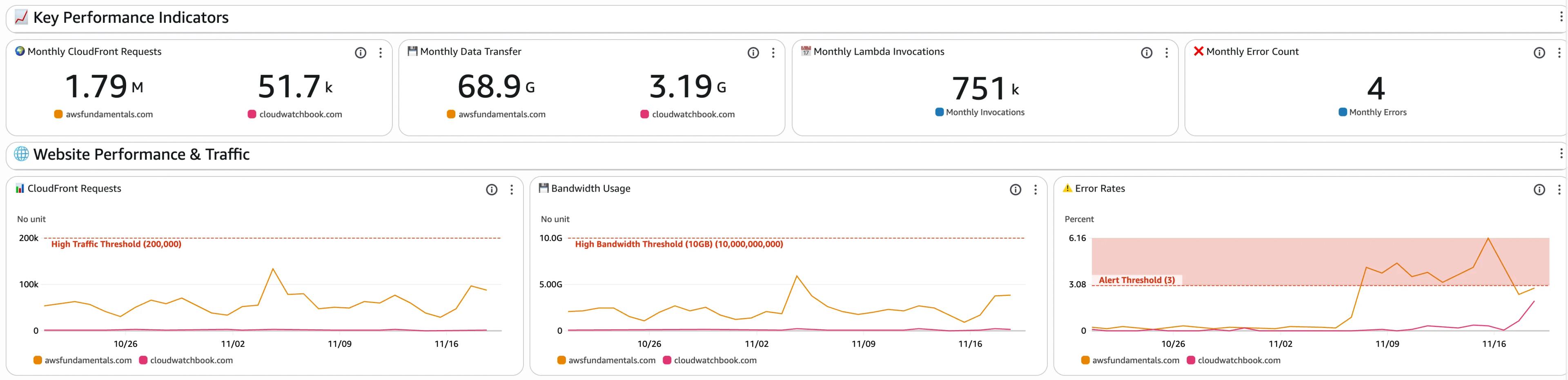
What do we want to have in detail?
- ⚡️ Number of requests that go to our distributions. In our example case, we tracking the calls to our distributions for our landing pages for AWS Fundamentals 📙 and The CloudWatch Book.
- 📈 Used Bandwidth which maps down to the transferred bytes out of CloudFront into the internet.
- 🐛 Error Rates, meaning the HTTP 5xx responses from our distributions, e.g. through errors in our edge functions.
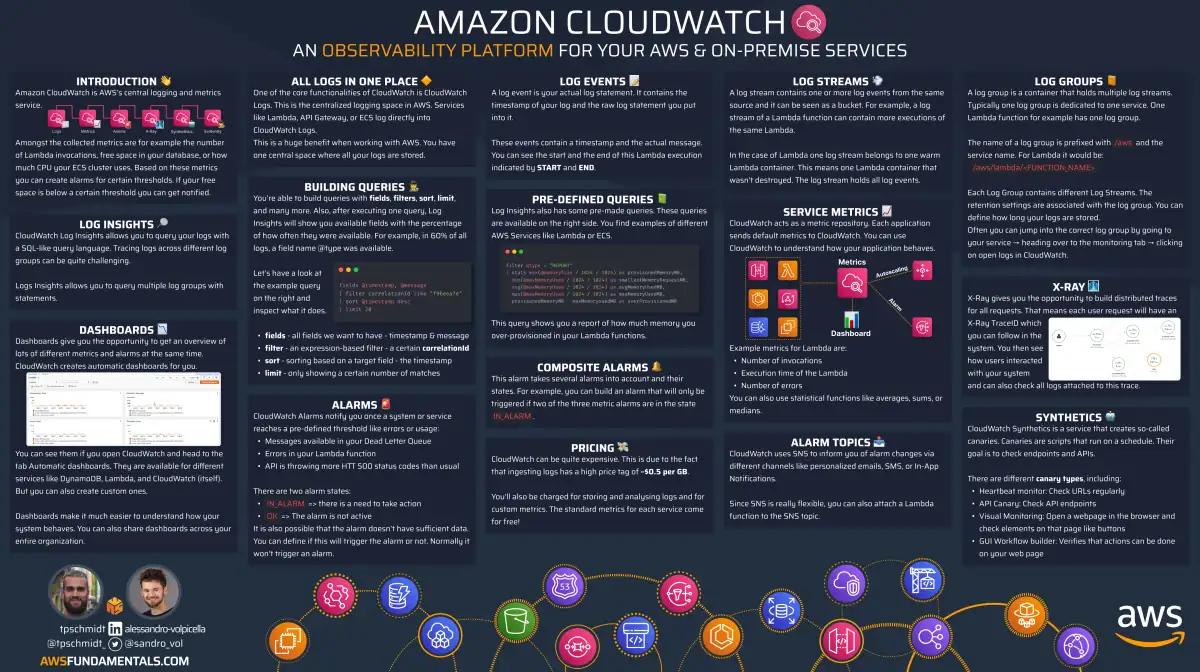
CloudWatch on One Page (No Fluff)
Monitor like a pro. Our CloudWatch cheat sheet covers metrics, alarms, and logs - everything you need for effective AWS monitoring.
HD quality, print-friendly. Stick it next to your desk.
Lambda Metrics
For Lambda, there are also many out of the box metrics that are important.

This includes:
- 🪄 Number of invocations for our functions
- ⚡️ Duration of the function executions, meaning how long a function needs to finish its computation. As this is a timing metric, we're also primarily interested in the p90 and p99 details.
- 👥 Concurrent executions, which shows how many functions are executed in parallel.
DynamoDB Metrics
For DynamoDB, we watch consumed read and write capacity units. This shows how much throughput we're using.

As with Lambda, the latencies at p90 or p99 matter most. They show how your queries perform under load and if users will be happy about response times in the end.
In detail:
- ❌ DynamoDB Errors, representing the number of user and system errors encountered during database operations. This metric helps us monitor reliability and quickly identify issues impacting data access or integrity.
- 📊 DynamoDB Capacity Units, tracking the consumed read and write capacity units for different tables and operations. Monitoring this ensures we stay below provisioned thresholds and avoid throttling, especially when usage approaches the high usage threshold.
- ⚡️ DynamoDB P99 Latency, measuring the 99th percentile latency (in milliseconds) for database operations. This metric highlights the slowest responses, helping us ensure that even the worst-case access times remain within acceptable limits.
All these metrics are collected by CloudWatch automatically. They also do not add any charges to your bill!
You can build your entire dashboard for free.
Adding Metrics and Widgets
We built a custom DashboardBuilder to handle the complexity.
It adds some type safety and makes the code cleaner.
Type Definitions
First, define the interfaces for widget properties.
interface MetricWidgetProperties {
    metrics: any[];
    period: number;
    stat: string;
    region: string;
    title: string;
    yAxis?: any;
    view?: string;
    stacked?: boolean;
    annotations?: any;
}

interface TextWidgetProperties {
    markdown: string;
}
These match CloudWatch's widget schema. They give you type hints for the required fields.
Widget Structure
Define how widgets are positioned on the dashboard.
interface Widget {
    type: 'metric' | 'text';
    x: number; // horizontal position (0-24)
    y: number; // vertical position
    width: number; // widget width (max 24)
    height: number; // widget height
    properties: MetricWidgetProperties | TextWidgetProperties;
}

interface WidgetSpec {
    type: 'metric' | 'text';
    properties: MetricWidgetProperties | TextWidgetProperties;
    width?: number;
    height?: number;
}
CloudWatch dashboards use a 24-column grid. Widgets snap to this grid based on x, y, width, and height.
The Builder Class
Now create the builder that manages layout automatically.
class DashboardBuilder {
    private widgets: Widget[] = [];
    private currentY = 0;
    private readonly maxWidth = 24;

    addTextWidget(properties: TextWidgetProperties, width = 24, height = 1): DashboardBuilder {
        this.widgets.push({
            type: 'text',
            x: 0,
            y: this.currentY,
            width,
            height,
            properties,
        });
        this.currentY += height;
        return this;
    }

    addRow(widgetSpecs: WidgetSpec[]): DashboardBuilder {
        if (widgetSpecs.length === 0) return this;

        const defaultWidth = Math.floor(this.maxWidth / widgetSpecs.length);
        let currentX = 0;
        let rowHeight = 0;

        for (const spec of widgetSpecs) {
            const width = spec.width || defaultWidth;
            const height = spec.height || (spec.type === 'text' ? 1 : 6);

            this.widgets.push({
                type: spec.type,
                x: currentX,
                y: this.currentY,
                width,
                height,
                properties: spec.properties,
            });

            currentX += width;
            rowHeight = Math.max(rowHeight, height);
        }

        this.currentY += rowHeight;
        return this;
    }

    build(): Widget[] {
        return [...this.widgets];
    }

    static metric(properties: MetricWidgetProperties, width?: number, height?: number): WidgetSpec {
        return { type: 'metric', properties, width, height };
    }

    static text(properties: TextWidgetProperties, width?: number, height?: number): WidgetSpec {
        return { type: 'text', properties, width, height };
    }
}
The builder tracks currentY to stack widgets vertically.
Text widgets span full width by default.
Metric rows distribute widgets evenly unless you specify widths.
This way, you never need to calculate x and y coordinates manually. This reduces stress when we refactor widgets, or change their positions.
We can simply call our methods to add new rows and metrics!
Using the Dashboard Builder
Here's how you use the builder with Pulumi's AWS provider.
new aws.cloudwatch.Dashboard('MyAppDashboard', {
    dashboardName: 'my-app-monitoring',
    dashboardBody: JSON.stringify({
        widgets: new DashboardBuilder()
            .addTextWidget({ markdown: '# My App Dashboard\nMonitoring key metrics for production.' }, 24, 2)
            .addTextWidget({ markdown: '## 📈 Key Performance Indicators' })
            .addRow([
                DashboardBuilder.metric({
                    metrics: [['AWS/CloudFront', 'Requests', 'DistributionId', 'E2QWRUHAPOMQZL', 'Region', 'Global']],
                    period: 86400,
                    stat: 'Sum',
                    region,
                    title: '🌍 CloudFront Requests',
                    view: 'timeSeries',
                }),
                DashboardBuilder.metric({
                    metrics: [['AWS/Lambda', 'Duration', { stat: 'p99', label: 'P99' }]],
                    period: 86400,
                    stat: 'Average',
                    region,
                    title: '⏰ Lambda Duration P99',
                    view: 'timeSeries',
                }),
            ])
            .build(),
    }),
});
The builder chains methods together.
Each call returns the builder instance, so you can keep adding widgets.
At the end, call .build() to get the final widget array.
Dashboard Metrics Breakdown
Let's look at all the metrics we use in the final dashboard. Each section groups related metrics together.
Key Performance Indicators - CloudFront
These are high-level monthly summaries displayed as single values.
Monthly CloudFront Requests
- Namespace:
AWS/CloudFront - Metric:
Requests - Dimensions:
DistributionId,Region(Global) - Stat:
Sum
Monthly Data Transfer
- Namespace:
AWS/CloudFront - Metric:
BytesDownloaded - Dimensions:
DistributionId,Region(Global) - Stat:
Sum
Error Rates
- Namespace:
AWS/CloudFront - Metric:
5xxErrorRate - Dimensions:
DistributionId,Region(Global) - Stat:
Average
Application Health & Performance
Lambda metrics showing function behavior.
Lambda Invocations
- Namespace:
AWS/Lambda - Metrics:
Invocations,Errors,Throttles - Stat:
Sum
Lambda Duration
- Namespace:
AWS/Lambda - Metric:
Duration - Stats:
p90,p99
Concurrent Executions
- Namespace:
AWS/Lambda - Metric:
ConcurrentExecutions - Stats:
Maximum,Average
User Engagement & Database
DynamoDB metrics for data layer monitoring.
DynamoDB Errors
- Namespace:
AWS/DynamoDB - Metrics:
UserErrors,SystemErrors - Stat:
Sum
DynamoDB Capacity Units
- Namespace:
AWS/DynamoDB - Metrics:
ConsumedReadCapacityUnits,ConsumedWriteCapacityUnits - Dimension:
TableName - Stat:
Sum
DynamoDB P99 Latency
- Namespace:
AWS/DynamoDB - Metric:
SuccessfulRequestLatency - Dimensions:
Operation(Query),TableName - Stat:
p99
Conclusion
Building CloudWatch dashboards with Pulumi is straightforward once you understand the structure.
The DashboardBuilder pattern makes it simple to add widgets and organize layouts.
The hard part is finding the right metrics. AWS doesn't make it easy to discover metric names, namespaces, and required dimensions. You need to dig through documentation or inspect existing dashboards to figure out what parameters to pass.
The experience is OK but could be better. More type safety would help. Better documentation on available metrics would help even more.
But once you have your dashboard working, it's pure infrastructure as code. You can version it, replicate it across stages, and track every change. That's the real win.
No more manual dashboard edits. No more guessing what changed. Just code.
Related Posts
Similar content found using AWS S3 Vectors semantic search