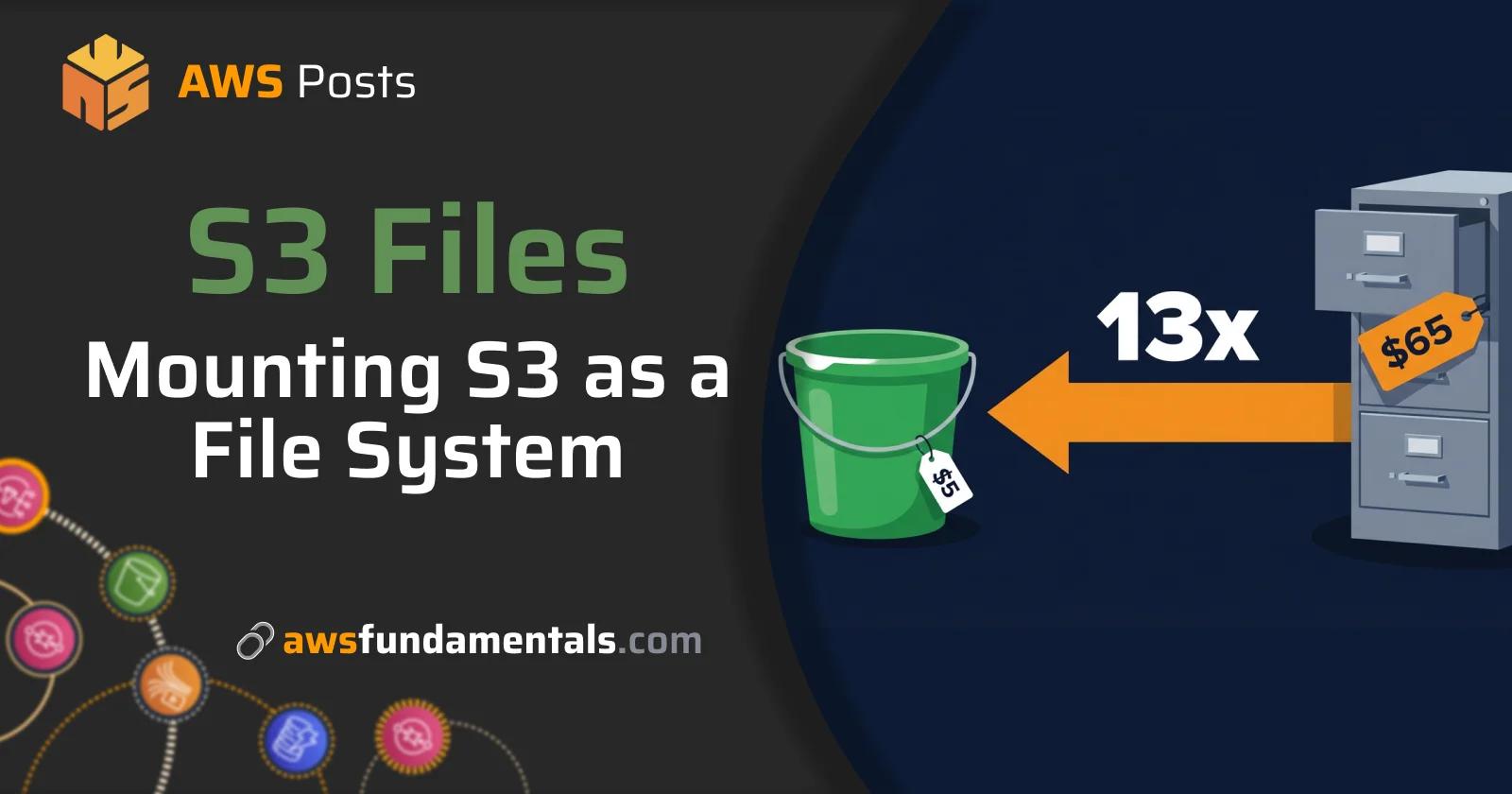
EFS is $0.30/GB-month. S3 is $0.023/GB-month. Those two numbers are where the S3 Files story starts.

One terabyte on EFS Standard costs $307/month.
The same terabyte on S3 Files costs around $25/month.
Same NFS mount, same fs.readFile calls, Lambda reads files like a normal file system.
The data just lives in S3 instead of EFS.
AWS recently released S3 Files: a POSIX file system backed by an S3 bucket. Same NFS mount, same fs.readFile calls, but data lives in S3. For large-file workloads, that's a 13x price difference.
It has real limitations. The write-back delay alone will break patterns that work fine on EFS, and the pricing model is harder to predict than it looks. I'll walk through how it works, where it breaks, and how to set it up with Lambda using the sample repo below.
Where the 13x Comes From
EFS Standard storage costs $0.30 per GB-month. S3 standard storage costs $0.023 per GB-month. That's the gap, and it comes before you even factor in EFS throughput charges.
Most teams reach for EFS because it's familiar and POSIX-compatible. S3 Files gives you the same file system semantics at S3 prices.
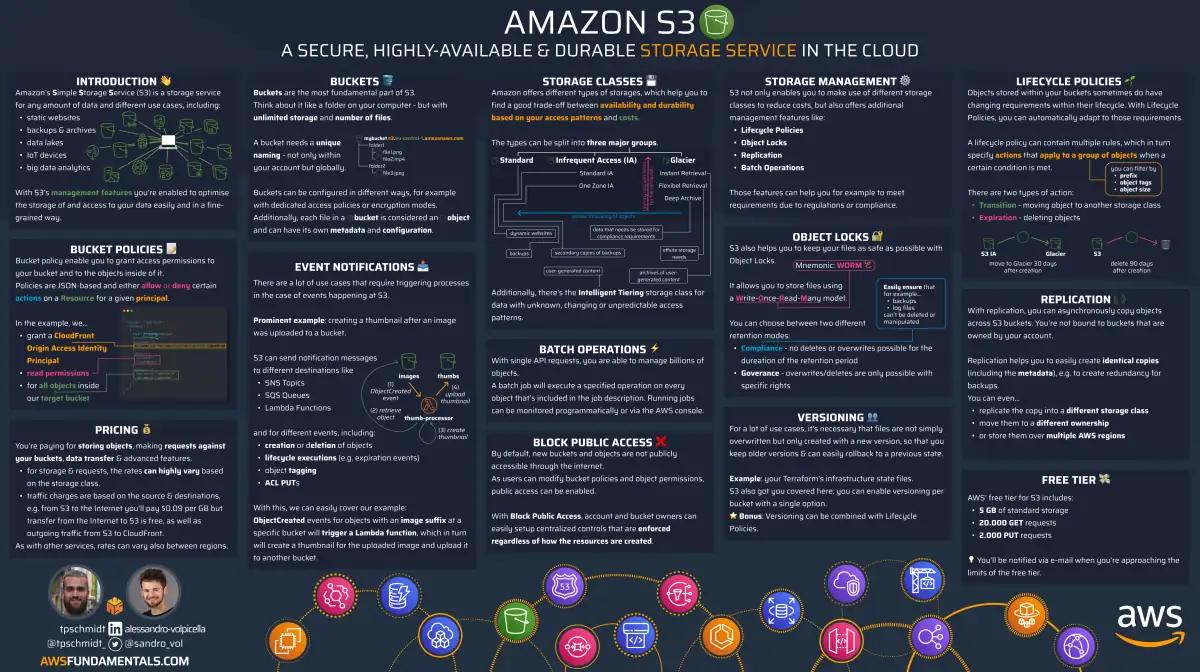
S3 on One Page (No Fluff)
Store data efficiently. Our S3 cheat sheet covers storage classes, lifecycle policies, and security - everything you need for object storage.
HD quality, print-friendly. Stick it next to your desk.
Why EFS Bills Shock You
EFS pricing has three layers, and most teams only notice one of them.
| Charge | Price (us-east-1) |
|---|---|
| Standard storage | $0.30/GB-month |
| Infrequent Access storage | $0.016/GB-month |
| IA retrieval | $0.01/GB |
| Elastic Throughput (read) | $0.03/GB |
| Elastic Throughput (write) | $0.06/GB |
| Provisioned Throughput | $6.60/MBps-month |
| One Zone storage | $0.16/GB-month |
The storage charge itself is already 13x more than S3, but it gets worse.
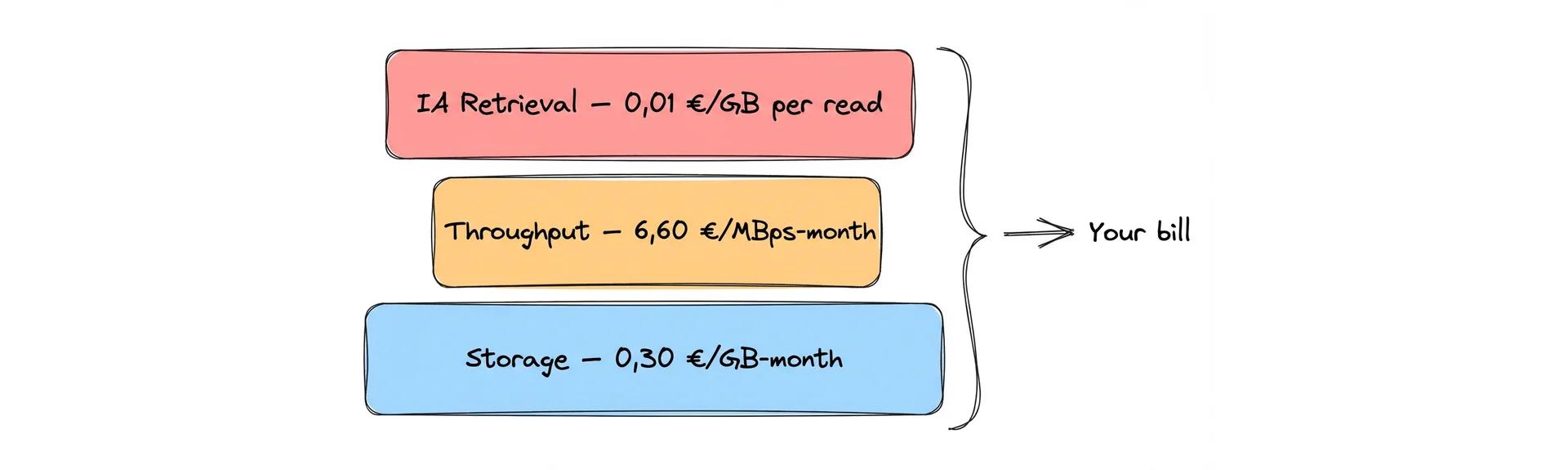
EFS has two throughput modes: Bursting and Provisioned. Bursting sounds free until your workload uses it consistently. Then you hit the burst credit limit. Provisioned Throughput costs $6.60 per MBps-month, on top of storage. A team provisioning 100 MBps of throughput pays $660/month before storing a single byte.
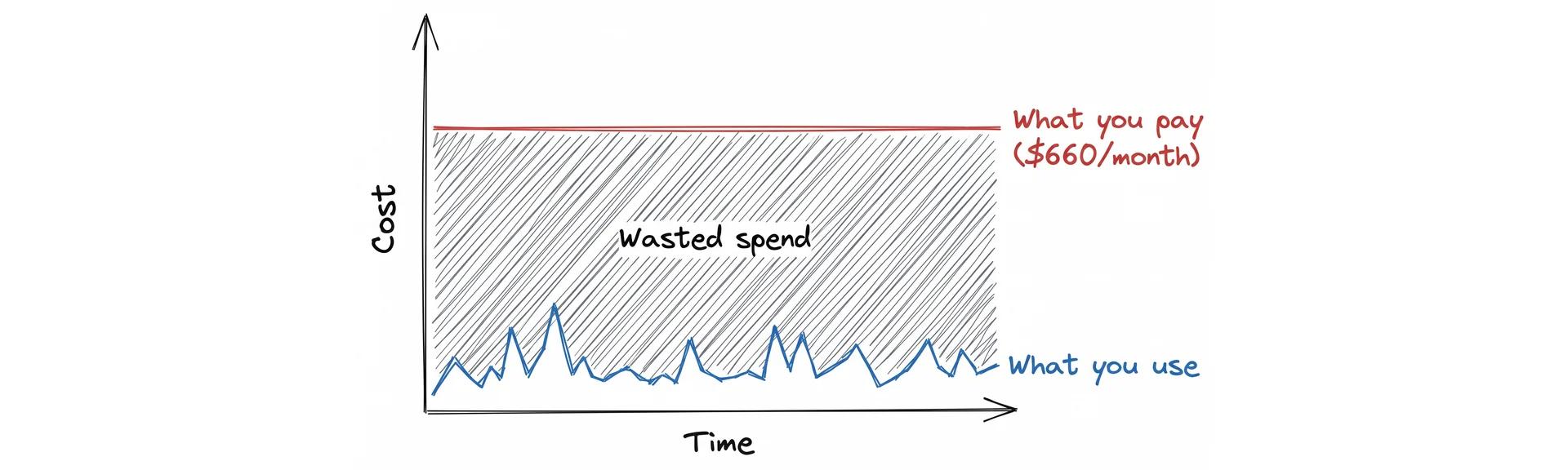
Then there's the IA tier. EFS Infrequent Access costs $0.016/GB-month for storage, but charges $0.01 per GB on every read. An infrequently read 100 GB dataset that gets pulled once costs $1 in retrieval fees that month.
None of these charges are surprising on their own. The bill shock happens when all three hit at once and nobody planned for it.
How S3 Files Actually Works
S3 Files is a managed NFS file system with an S3 bucket as the backing store. You create a file system, point it at an S3 bucket, and every file operation translates to S3 object operations under the hood.
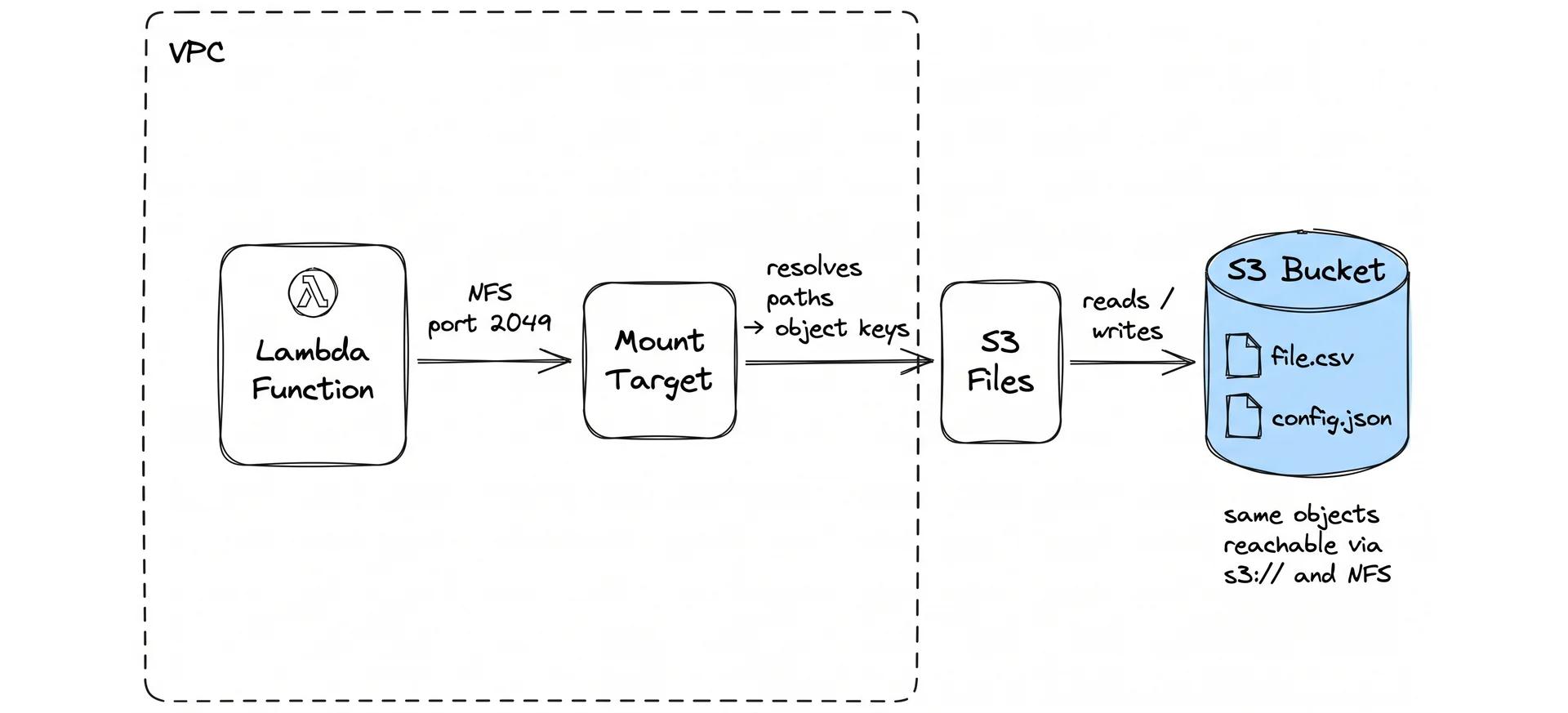
There are three resources to understand:
-
File system: the top-level construct that maps NFS paths to S3 object keys.
-
Mount target: the NFS endpoint inside your VPC. Lambda connects over port 2049, the same port used for EFS.
-
Access point: a scoped entry into the file system with an assigned POSIX user (UID/GID) and root directory path. Lambda uses the access point ARN to mount the file system.
One thing that surprises people: the IAM service role for S3 Files uses the elasticfilesystem.amazonaws.com principal.
That's the EFS principal, not a separate one.
S3 Files shares the NFS layer with EFS; only the storage backend is different.
The Cost Math
S3 Files has a tiered storage model.
| Charge | Price (us-east-1) |
|---|---|
| High-performance cache storage | $0.30/GB-month |
| Cache reads | $0.03/GB |
| Cache writes | $0.06/GB |
| Large file reads (≥1 MiB) | no S3 Files charge |
| Underlying S3 storage | $0.023/GB-month |
Large files (1 MiB and above) are streamed directly from S3 when read. No high-performance cache involved, no S3 Files data access charge. You pay standard S3 storage rates: $0.023/GB-month.
Small files and active metadata are held in a high-performance cache at $0.30/GB-month. But you only pay for what's actively cached; cold data stays in S3 at S3 prices and gets promoted on access.
For a workload with 1 TB of data in large files, Bursting throughput, us-east-1:
| EFS Standard | S3 Files | |
|---|---|---|
| Storage | $307.20 | ~$23.55 (S3 rates) |
| Throughput | included (Bursting) | included |
| Data access (reads) | included | $0.03/GB cached |
| Monthly total | ~$307 | ~$25–40 |
The gap comes almost entirely from where large file data lives: S3 at $0.023/GB instead of EFS at $0.30/GB.
If your workload uses Provisioned Throughput on EFS, the gap widens further. 100 MBps provisioned adds $660/month in throughput alone. S3 Files has no throughput tier pricing.
The comparison above assumes large files that stream directly from S3. For small-file workloads, the math flips.
If your dataset is 1 TB of files under 1 MiB each (think JSON records, CSVs, small images), all of it lands in the high-performance cache. You pay $0.30/GB for the cache and $0.023/GB for the underlying S3 storage at the same time. That's ~$330/month versus EFS Standard at $307/month. S3 Files ends up more expensive.
S3 Files costs are also harder to estimate upfront than EFS. With EFS, you multiply GB by $0.30 and you're done. With S3 Files, the cache size depends on your access patterns, which you can only measure after the fact. A workload that looks cheap in testing can get expensive in production if access patterns shift toward smaller, more frequently touched files.
Before committing, run your actual workload and check the S3Files line items in Cost Explorer.
The 60-Second Write-Back Delay
S3 Files uses NFS client-side write-back caching. When Lambda writes a file, the data lands in the kernel's NFS cache first. The NFS client flushes that cache to the mount target after a write-back interval. Then the mount target pushes to S3. Two hops, each with their own delay. Total: typically around 60 seconds.
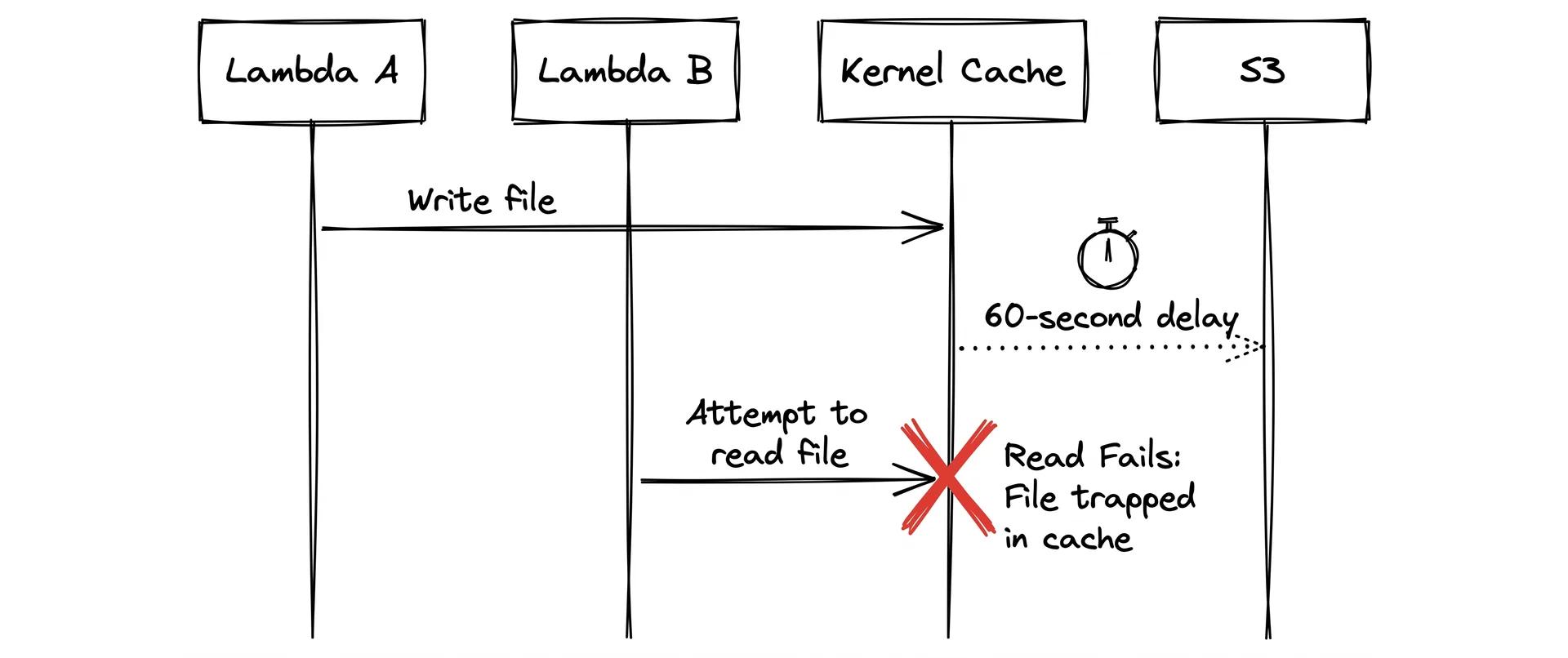
Imagine a pipeline where Lambda invocation A processes a job and writes the result to /mnt/s3files/results/job-123.json. A second invocation, B, is triggered seconds later to read that result and send a notification. Invocation B opens the file and reads an empty response or gets a "file not found" error. The write from invocation A hasn't flushed yet.
This pattern is everywhere in serverless architectures. Job queues, status files, coordination flags, lock files. They all assume that a write is immediately visible to other readers. On EFS, that assumption holds. On a local disk, it holds. On S3 Files, it silently breaks.
The safe mental model: treat S3 Files write visibility like S3 object visibility before strong consistency was introduced. Assume a reader on a different Lambda instance will not see your write for up to a minute.
Patterns that work fine:
- Write once, read later. Process a file and write output; nothing reads it for at least a minute.
- One writer, many readers. A single Lambda writes a config file at startup; all subsequent invocations read it.
- Append-only logs read in bulk after a delay.
Patterns that break:
- Coordination via file existence (
if file exists, skip). - Handoff between concurrent Lambda invocations using file writes as signals.
- Any application that writes a file and immediately expects another process to pick it up.
For coordination, use SQS, DynamoDB, or S3 directly. S3 has had strong read-after-write consistency since 2020 and won't give you these surprises.
POSIX Limits
S3 Files supports standard file operations: open, read, write, seek, stat, readdir. That covers most workloads.
What it doesn't support, and what breaks in practice:
Hard links are not allowed. Tools like rsync --hard-links, GNU cp -l, and inode-aware backup utilities will either error or silently fall back to copies. Symlinks work fine.
Advisory locks (flock, fcntl) don't work across clients. The lock succeeds locally but has no effect on other Lambda instances. This breaks any application that uses lock files for concurrency control: Python's filelock, Node's proper-lockfile, Webpack's build cache. Two Lambda invocations writing to the same cache directory simultaneously will produce corruption with no error.
rename() on directories is not atomic across the NFS boundary. Many applications use "write to temp, rename into place" as a safe write pattern: Git does it for refs, npm does it for cache entries. On S3 Files, the rename window is visible to other readers, meaning a partial state can be observed mid-rename.
SQLite, LevelDB, RocksDB, and anything else using file locking for write serialization will corrupt data under concurrent access. SQLite's WAL mode depends on POSIX advisory locks to coordinate readers and writers. LevelDB uses a lockfile. Neither works correctly on S3 Files with multiple clients. If you need a database in Lambda, use DynamoDB or an RDS proxy.
Unix sockets and named pipes are not supported. Less common in serverless contexts, but some IPC patterns and HTTP servers (Flask via Gunicorn with Unix sockets, for example) rely on these.
If your code uses fs.readFile, fs.writeFile, fs.readdir, and nothing more exotic, you're fine. If it touches lock files, database journals, or atomic rename patterns, test carefully.
Architecture Deep Dive
Here's what runs when Lambda reads a file from S3 Files:
- Lambda connects to the mount target over NFS (port 2049) inside your VPC.
- The mount target resolves file paths to S3 object keys.
- The S3 Files service reads or writes the S3 bucket using the service role you provide.
- An S3 Gateway VPC endpoint keeps all S3 traffic inside AWS; no internet routing.
The service role needs more permissions than you'd expect.
Beyond S3 read/write, it needs AbortMultipartUpload for large file writes, and EventBridge permissions for DO-NOT-DELETE-S3-Files* rules that AWS manages internally.
The Lambda function itself needs two IAM permissions:
s3files:ClientMountto attach the access points3files:ClientWriteto write through it
S3 versioning on the bucket is required. S3 Files uses object versions internally to manage file system state.
One more thing: the CreateFileSystemCommand requires acceptBucketWarning: true.
That flag is not cosmetic. Once a file system is attached to a bucket, direct S3 API writes to that bucket are restricted — S3 Files takes over write coordination. You can't freely mix S3 Files mounts and regular S3 PutObject calls on the same bucket after creation.
Setting It Up with Lambda
The sample repo uses AWS SAM to deploy the full stack.
VPC and Networking
Lambda connects to S3 Files over NFS inside a VPC. You need a private subnet and an S3 Gateway endpoint. The gateway endpoint routes S3 traffic through AWS's internal network. Without it, NFS data routes over the public internet.
S3GatewayEndpoint:
    Type: AWS::EC2::VPCEndpoint
    Properties:
        VpcId: !Ref VPC
        ServiceName: !Sub com.amazonaws.${AWS::Region}.s3
        VpcEndpointType: Gateway
        RouteTableIds:
            - !Ref RouteTable
Two security groups handle NFS traffic. Lambda's security group allows egress on port 2049. The mount target's security group allows ingress from Lambda on port 2049.
The Service Role
S3 Files needs a role to access your bucket.
The trust policy uses elasticfilesystem.amazonaws.com, scoped to your account and file system ARN pattern.
AssumeRolePolicyDocument:
    Statement:
        - Principal:
              Service: elasticfilesystem.amazonaws.com
          Action: sts:AssumeRole
          Condition:
              StringEquals:
                  aws:SourceAccount: !Ref AWS::AccountId
              ArnLike:
                  aws:SourceArn: !Sub arn:aws:s3files:${AWS::Region}:${AWS::AccountId}:file-system/*
Provisioning the File System
File system creation is asynchronous.
The sample repo handles this with a CloudFormation custom resource backed by a Lambda function (setup-handler.mjs).
It runs the full provisioning sequence at deploy time:
CreateFileSystemCommand: create the file system, point it at the bucket and service role- Poll
GetFileSystemCommanduntil status isavailable CreateMountTargetCommand: create the NFS endpoint in the private subnet- Poll until mount target is
available CreateAccessPointCommand: create the access point withuid: 1000, gid: 1000
const { fileSystemId } = await s3files.send(
    new CreateFileSystemCommand({
        bucket: `arn:aws:s3:::${BucketName}`,
        roleArn: RoleArn,
        acceptBucketWarning: true,
        tags: [{ key: 'Name', value: 'demo-filesystem' }],
    }),
);

await pollUntil(() => s3files.send(new GetFileSystemCommand({ fileSystemId })), 'available');
The Lambda Function
Once the file system is ready, Lambda mounts it via FileSystemConfigs.
No SDK calls inside the function; standard Node.js fs operations work directly on the mount path.
DemoFunction:
    Type: AWS::Serverless::Function
    Properties:
        FileSystemConfigs:
            - Arn: !GetAtt FileSystemResource.AccessPointArn
              LocalMountPath: /mnt/s3files
        VpcConfig:
            SubnetIds:
                - !Ref PrivateSubnet
            SecurityGroupIds:
                - !Ref LambdaSecurityGroup
Inside the function, reading files looks like any local filesystem operation:
const files = readdirSync('/mnt/s3files', { withFileTypes: true });
const stat = statSync('/mnt/s3files/data/cities.csv');
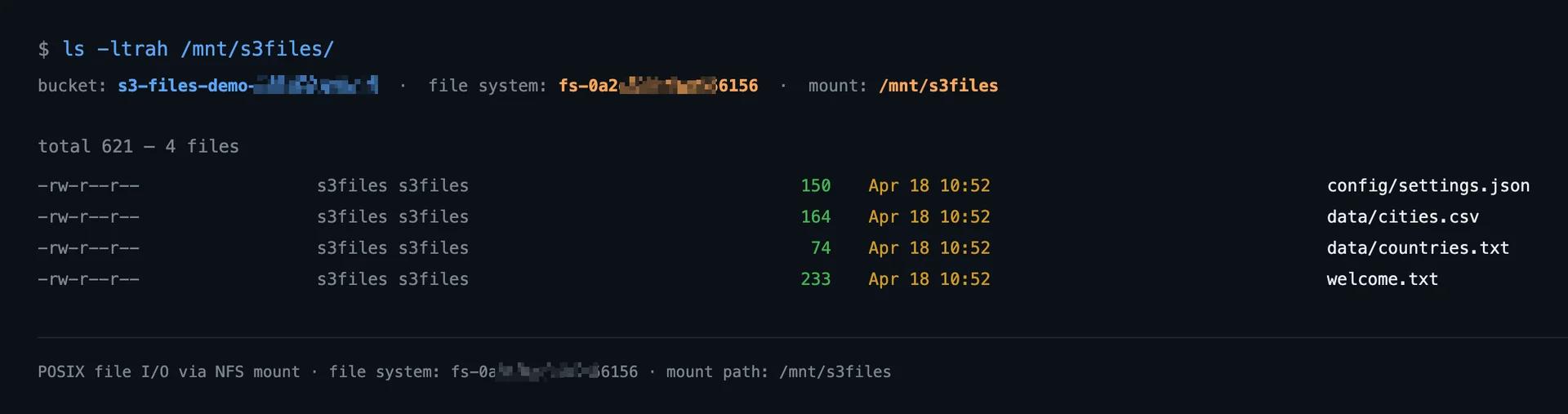
Objects in S3 are immediately visible as files on the mount path. Write a file through NFS and it appears as an S3 object within 60 seconds.
Deploy with:
sam build && sam deploy --parameter-overrides BucketName=your-bucket-name
Once deployed, the function URL returns a live directory listing of your S3 bucket, read through the NFS mount using standard fs calls.
S3 Files vs. EFS — When to Use Which
The decision comes down to two questions: how large are your files, and do you need concurrent writers?
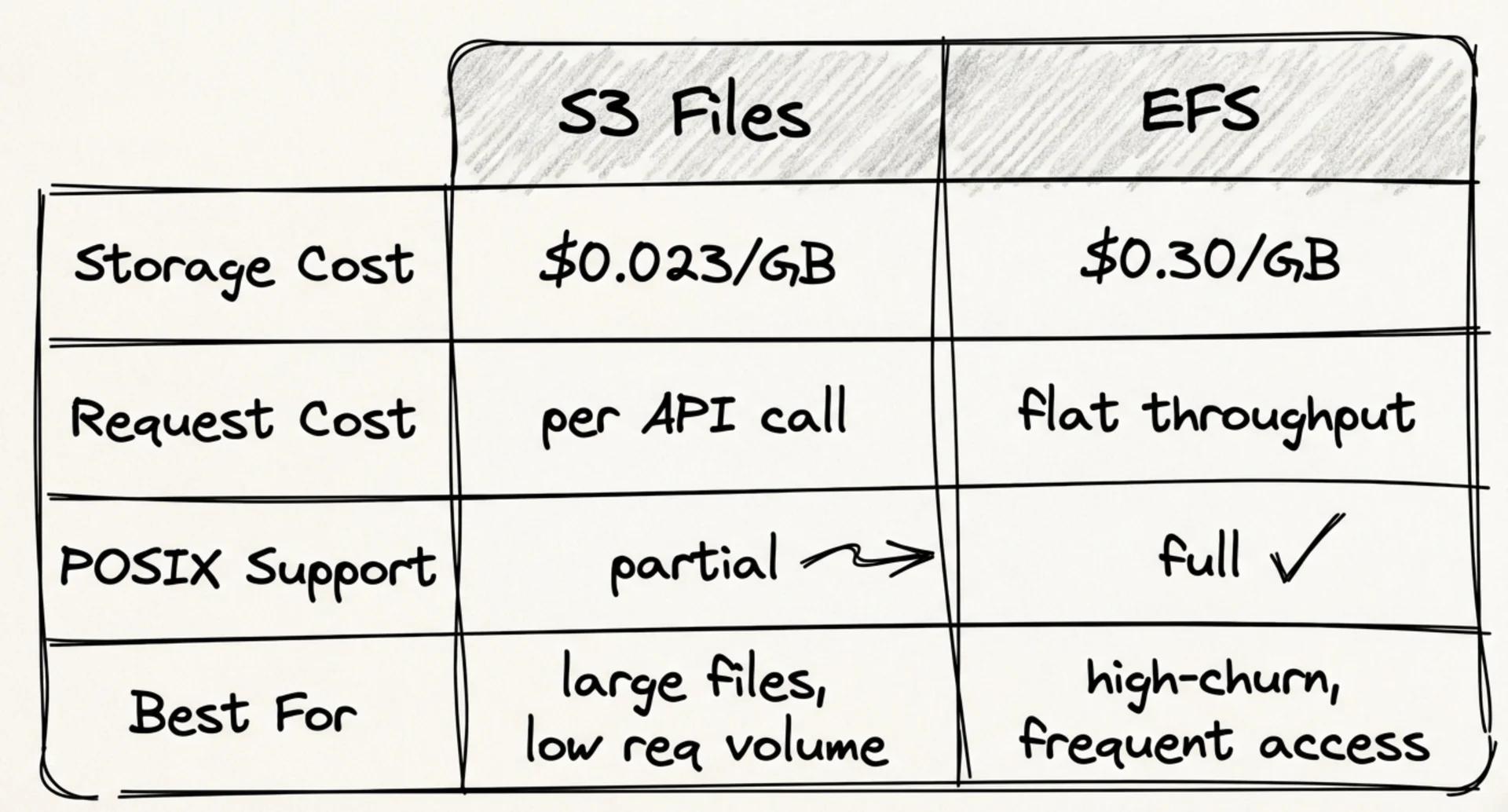
Most workloads fall clearly into one column or the other. The table breaks it down:
| S3 Files | EFS | |
|---|---|---|
| Storage cost (large files) | ~$0.023/GB (S3 rates) | $0.30/GB |
| Write visibility | ~60s write-back delay | Milliseconds |
| Hard links | No | Yes |
| File locking | No | Yes |
| Access to existing S3 data | Yes | No |
| File-based databases | No | Yes |
| Provisioned throughput | No | Yes |
| Lambda cold start impact | Higher (VPC required) | Higher (VPC required) |
Use S3 Files when:
- You need POSIX-compatible access to data already in S3
- Your workload is read-heavy or write-once
- Cost matters more than consistency speed
- You want Lambda to process large files without copying them out of S3 first
Use EFS when:
- You need strict read-after-write consistency across concurrent processes
- Your code uses file locking or hard links
- You're running a file-based database or write-intensive workload
- Multiple instances need to coordinate through the file system in real time
Wrapping Up
S3 Files is a genuine cost improvement for the right workload. The 13x gap is real: large files live in S3 at $0.023/GB, not in EFS at $0.30/GB, and that's where most of your data lives.
The trade-offs are real too. The 60-second write-back delay will silently break coordination patterns that work fine on EFS. File locking and atomic renames don't behave the way POSIX applications expect. If you're moving an existing EFS workload, test against both of those before switching.
For greenfield Lambda functions processing files from S3, it's a straightforward choice. The data is already there, you're not running a database, and you'd otherwise spend time writing S3 SDK boilerplate to read files. S3 Files lets you write normal file I/O code and pay S3 prices for it.