
Table of Contents
Jump to a section
At AWS Fundamentals we run several workloads on AWS: the main site, the CloudWatch Book project, a couple of sandbox environments, and one or two side projects. Every workload sits in its own account so that a mistake in one cannot touch the others.
This post walks through the AWS Organization that ties all of those accounts together. Everything you see here is managed with Terraform in our infrastructure repo, and every snippet is taken straight from the live setup.
We'll walk through four building blocks:
- Service Control Policies: To block dangerous actions across every account in the org before they ever happen.
- Resource Control Policies: To enforce TLS and lock down public S3 access, even for callers from outside our org.
- CloudTrail audit pipeline: To capture every API call once and to push the ones that matter into email and Slack in real time.
- Budget action based kill switch: To put a hard cap on the sandbox accounts so a runaway resource cannot quietly burn money for a week.
If you have ever felt nervous about handing your team an AdministratorAccess role, this is the setup that lets us sleep at night - hopefully! 😊
Why a Multi-Account Setup
A single AWS account is fine until it isn't.
- Everything shares the same IAM, the same VPCs, the same default region settings, and the same billing.
- One leaked access key and the whole thing is exposed.
- One forgotten EC2 instance and the whole bill goes up.
Splitting workloads into separate accounts buys us three things at once:
- An IAM mistake in one account cannot touch another, so the blast radius of any single mess-up is one account wide.
- Cost Explorer shows exactly what each project costs without mental tagging gymnastics.
- Identity gets way cleaner: no long-lived IAM users, no shared root, everyone logs in through Identity Center and assumes a role in the target account.
The trade-off is operational overhead, and it is smaller than people expect. You need a baseline of guardrails and observability that works across every account, otherwise the multi-account setup becomes more dangerous, not less.
AWS Lambda on One Page (No Fluff)
Skip the 300-page docs. Our Lambda cheat sheet covers everything from cold starts to concurrency limits - the stuff we actually use daily.
HD quality, print-friendly. Stick it next to your desk.
The Account Layout
An OU is a logical container inside the organization that holds accounts or other OUs. You can nest them, and any policy attached to an OU also applies to every account inside it, including accounts in nested OUs. That nesting is what makes OUs the right place to attach guardrails: write a policy once at the OU level, and every current and future account inherits it.

The AWS Fundamentals organization has three Organizational Units and six member accounts.
Root
└── Workloads OU
    ├── production            (main production account)
    ├── Project OU
    │   ├── project-prod      (second product line, production)
    │   └── project-dev       (second product line, dev/CDK)
    └── Sandbox OU
        ├── sandbox-a
        └── sandbox-b
The names above are stand-ins for the real account names, but the structure is exactly what we run. The management account holds the org itself (with its SCPs and RCPs), the CloudTrail bucket, Identity Center, and the budget kill switch. Nothing else runs there.
Identity Center is the only way humans get in.
There are no IAM users in any account, only SSO permission sets mapped to groups in the Identity Center directory. CI gets in through GitHub OIDC, which means GitHub Actions assume a scoped IAM role with short-lived credentials per run. No long-lived access keys are stored anywhere.
Terraform creates the accounts directly with aws_organizations_account and slots them into the right OU:
resource "aws_organizations_account" "sandbox_a" {
  close_on_deletion = false
  create_govcloud   = false

  name      = "sandbox-a"
  email     = "aws+sandbox-a@example.com"
  parent_id = aws_organizations_organizational_unit.sandbox.id
}
The
+alias trick on the email address means every account email lands in the same inbox without registering new addresses. Not every email provider supports plus-aliases, but Gmail and Google Workspace do, which is what we use.
SCPs: Identity-Side Guardrails
Service Control Policies sit on top of IAM. They do not grant anything, they only set the maximum permissions any principal in a target account can ever have. If an SCP denies an action, no IAM policy, no role, and no temporary credential can override that decision.
SCPs can be attached at three levels: the organization root, an OU, or an individual account. A policy attached at the root applies to every account below it, an OU policy applies to every account inside that OU and any nested OUs, and an account-level policy applies only to that one account. We use the root level for the two policies below because we want them to cover every account, present and future.

We attach two SCPs to the org root. One is a long deny policy that blocks dangerous actions. The other enforces MFA on IAM users.
Important: SCPs do apply to the management account, but they do not apply to the root user of the management account. That single principal is exempt from every SCP you attach. Every other identity in the management account (IAM users, IAM roles, Identity Center sessions) is restricted by SCPs just like in any member account. This is the single biggest reason to keep the management account empty of workloads and to lock its root credentials away with hardware MFA.
On top of that, we have centrally disabled the root user of every member account through the new Organizations root-credentials management feature. The root user of a member account is almost never needed for day-to-day work, and the few actions that do require it (closing the account, restoring a deleted S3 bucket, certain billing tasks) can be handled by enabling it on demand from the management account. Removing the root credentials altogether means nobody can phish a password reset, and a forgotten root MFA device cannot turn into a security incident.
Blocking Expensive Compute by Default
The most expensive mistakes on AWS are usually compute mistakes (and CloudWatch ingest, yes 🫠).
A p5.48xlarge (8x H100 GPUs) is currently around $55/hour on-demand in us-east-1.
Spin one up on a Friday afternoon for a quick experiment, forget about it over the long weekend, and you have already burned roughly $4,000 (!!!) by Monday morning (72 hours × $55 ≈ $3,963).
The deny SCP starts with a guard around EC2 and RDS. EC2 instances can only be launched by a small allowlist of admin user IDs, and a separate statement blocks expensive instance families regardless of who is asking:
statement {
  sid    = "DenyExpensiveInstanceTypes"
  effect = "Deny"
  actions = [
    "ec2:RunInstances",
    "ec2:StartInstances"
  ]
  resources = ["arn:aws:ec2:*:*:instance/*"]
  condition {
    test     = "ForAnyValue:StringLike"
    variable = "ec2:InstanceType"
    values = [
      "u-*", "p4*", "p5*", "x1e*",
      "trn1*", "inf2*", "hpc*",
      "*.metal", "*.24xlarge", "*.48xlarge"
    ]
  }
}
RDS has a similar guard.
Anyone outside the admin allowlist can only create db.t3.micro, db.t3.small, db.t4g.micro, or db.t4g.small instances.
Bedrock is denied across the entire org.
We do not have a current use case for it, and we would rather flip it back on when we need it than leave it open by default.
The motivation here is a story that keeps circulating: an AWS user whose account got compromised and woke up to a $97k Bedrock bill overnight.
Bedrock pricing can escalate fast on large models, and the surface area for "I forgot we even had this on" is wide.
A flat deny SCP turns it from a $97k problem into an AccessDenied.
Pinning Regions
AWS has 30-plus regions, and crypto-miners love spinning up workloads in regions you have never used. A single SCP statement pins everyone to four regions:
statement {
  sid    = "DenyNonApprovedRegions"
  effect = "Deny"
  not_actions = [
    "iam:*", "organizations:*", "account:*",
    "cloudfront:*", "route53:*", "sts:*",
    "support:*", "budgets:*", "ce:*",
    "sso:*", "identitystore:*",
    # ...other global services
  ]
  resources = ["*"]
  condition {
    test     = "StringNotEquals"
    variable = "aws:RequestedRegion"
    values   = [
      "us-east-1", "us-west-2",
      "eu-central-1", "eu-west-1",
    ]
  }
}
The not_actions list matters: global services like IAM, Organizations, CloudFront, and Route 53 do not have a meaningful region, so denying them outside us-east-1 would break the org itself.
Protecting the Foundations
A few statements protect the things you really do not want anyone to touch:
DenyCloudTrailTamperingblocksStopLogging,DeleteTrail,UpdateTrail, andPutEventSelectorsin every account.DenyTrailBucketDeletiondeniess3:DeleteBucketands3:DeleteBucketPolicyon the CloudTrail bucket.DenyLeaveOrganizationblocksorganizations:LeaveOrganizationso no member account can detach itself.DenyRootUserActionsdenies every action when the principal ARN matchesarn:aws:iam::*:root. Root should never be used for day-to-day work, and this makes that physically true.DenyIAMUserCreationblocksiam:CreateUser. New humans go through Identity Center, period.
Enforcing MFA
The second SCP is a classic MFA enforcement policy.
The pattern is well known: allow a small list of IAM self-service actions, then deny everything else when aws:MultiFactorAuthPresent is false:
statement {
  sid    = "DenyAllExceptListedIfNoMFA"
  effect = "Deny"
  not_actions = [
    "iam:CreateVirtualMFADevice",
    "iam:EnableMFADevice",
    "iam:ChangePassword",
    "iam:GetUser",
    "iam:ListMFADevices",
    "iam:ResyncMFADevice",
    "sts:GetSessionToken",
    # ...other self-service actions
  ]
  resources = ["*"]
  condition {
    test     = "BoolIfExists"
    variable = "aws:MultiFactorAuthPresent"
    values   = ["false"]
  }
  condition {
    test     = "StringLike"
    variable = "aws:PrincipalArn"
    values   = ["arn:aws:iam::*:user/*"]
  }
}
The second condition scopes the policy to IAM users only, so it never accidentally blocks an Identity Center session or a service role.
A note on testing. SCPs apply to every principal in the target accounts, so a bad policy can lock you out fast. Always test new statements in an isolated OU first, and always keep a break-glass user or role that is explicitly exempted from the policy you are about to attach.
RCPs: Resource-Side Guardrails
Resource Control Policies are the resource-side counterpart to SCPs. AWS shipped them in late 2024, and they fill a gap that SCPs cannot cover.
An SCP can only restrict principals that live inside your organization. If someone in a different AWS account calls your S3 bucket, an SCP in your org has nothing to say about it. An RCP attaches to your resources, which means it applies to every caller, including anonymous requests and principals from outside your organization.
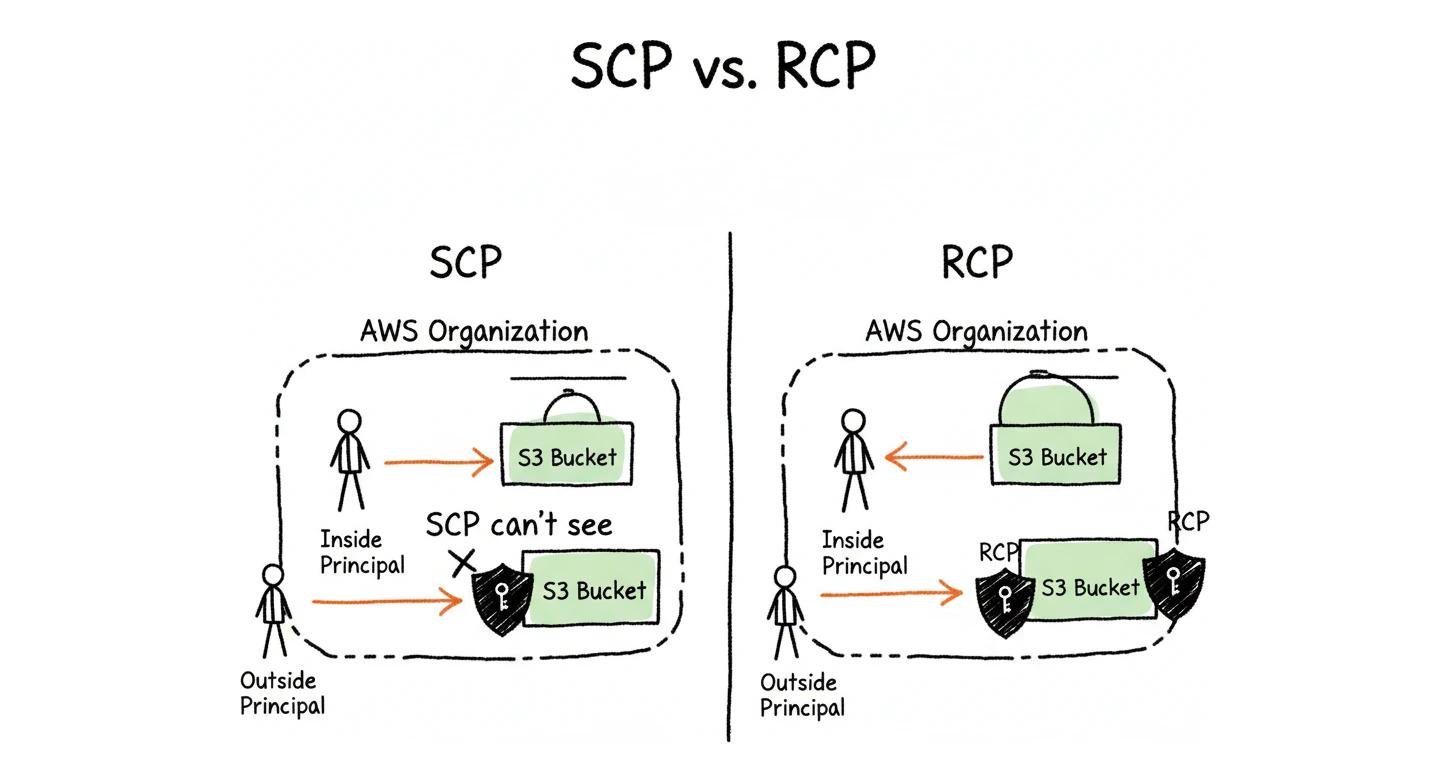
We attach one RCP to the org root. It does two things:
- Denies any call to S3, SQS, or Secrets Manager that does not go over TLS.
- Stops anyone from punching a hole in S3's account-level public access block, and blocks public ACL writes on buckets and objects.
Both are standard patterns and the exact JSON statements are in the official AWS docs, so we link them rather than paste them in: Resource control policy examples.
Why both SCPs and RCPs? SCPs gate what your identities can do, RCPs gate what your resources can accept. If an external account is granted access to one of your buckets through a bucket policy, only an RCP can enforce TLS on that caller. Running both in parallel covers both sides of every request.
CloudTrail: The Audit Trail
Policies are not enough. We also need an answer to the question "what actually happened in our org last Tuesday at 3am?"
That answer comes from a single organization-wide CloudTrail in the management account. Every API call in every member account flows into one S3 bucket, and that bucket is the source of truth we never want to lose.
resource "aws_cloudtrail" "mgmt_events" {
  name                          = "aws-org-mgmt-events"
  s3_bucket_name                = aws_s3_bucket.mgmt_events.id
  include_global_service_events = true
  kms_key_id                    = aws_kms_key.mgmt_events.arn

  enable_log_file_validation = true
  is_multi_region_trail      = true
  is_organization_trail      = true

  advanced_event_selector {
    name = "Management events selector"
    field_selector {
      equals = ["Management"]
      field  = "eventCategory"
    }
  }
}
A few flags are worth calling out:
is_organization_trail = truemeans every member account is covered, including new accounts created later. We do not have to remember to add them.is_multi_region_trail = truecatches activity in every region, even regions our SCP would otherwise block. If someone bypasses the region SCP somehow, we still see them.kms_key_idencrypts the log objects with a customer-managed key so the bucket alone is not enough to read them.enable_log_file_validationlets us cryptographically verify that nobody tampered with the log files after the fact.
We scope the trail to management events. Data events would balloon the bill and we cover most of what we need through targeted EventBridge rules instead.
The Bucket That Cannot Be Deleted
The CloudTrail bucket is the most sensitive resource in the org. If someone deletes it or modifies its contents, we lose our forensics trail right when we need it.
Three layers protect it.
S3 Object Lock in GOVERNANCE mode with a 365-day retention period makes every object immutable for a year after upload.
Versioning is enabled on top of that, so no accidental or intentional overwrite can hide data.
And the SCP DenyTrailBucketDeletion denies s3:DeleteBucket and s3:DeleteBucketPolicy at the org level, so even a compromised admin in the management account cannot wipe the bucket through normal IAM.
resource "aws_s3_bucket_object_lock_configuration" "mgmt_events" {
  bucket = aws_s3_bucket.mgmt_events.id

  rule {
    default_retention {
      mode = "GOVERNANCE"
      days = 365
    }
  }
}
GOVERNANCE mode lets a user with the right permission unlock specific objects, which is what we want for an admin emergency.
COMPLIANCE mode would be stricter and even AWS support cannot help you out of it, which is overkill for our use case.
The whole pipeline costs us a couple of dollars per month for storage and KMS requests, and it covers six accounts. That's a very cheap insurance we think! 🤷♂️
Real-Time Alerts: EventBridge to Lambda to Email and Slack
Logs in a bucket are useless if nobody reads them. Alongside the audit trail we want a phone-buzzing alert when something interesting happens.
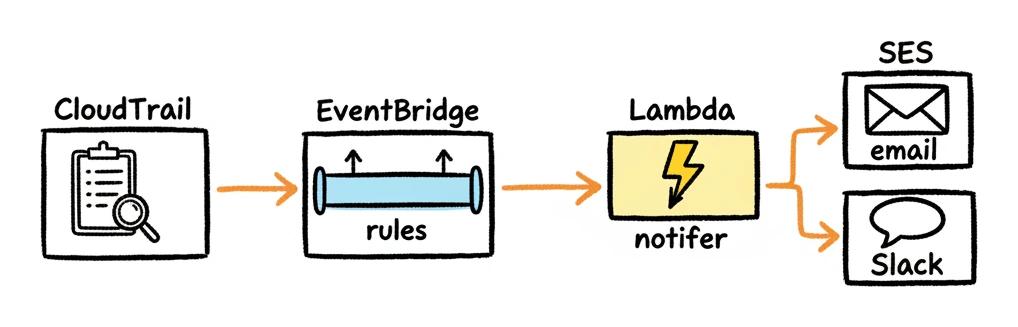
Every event we care about gets its own EventBridge rule, and every rule fires the same Lambda function. The Lambda picks a severity, formats the event, and pushes it to two places: SES for email, and a Slack incoming webhook for the team channel.
What We Alert On
The rules cover roughly four buckets of events.
Identity changes:
- Root user console login (
critical) - Console login without MFA by a non-root user (
medium) - Console login failure (
medium) - IAM user created (
info) - Console access added to an existing IAM user (
high) - IAM access key created (
info) - Identity Center user created (
info) - MFA device deactivated (
critical)
Tampering with the controls:
- CloudTrail logging stopped, trail deleted, or event selectors changed (
critical)
Resource exposure:
- Security group ingress rule opened to
0.0.0.0/0or::/0(high) - IAM Access Analyzer finding for an externally accessible resource (
high)
Money:
- Budget threshold reached or forecasted (
medium) - Cost Anomaly Detection alert (
high)
The EventBridge rule for the root login looks like this:
resource "aws_cloudwatch_event_rule" "root_login" {
  name        = "aws-root-login"
  description = "Root user console login"

  event_pattern = jsonencode({
    source = ["aws.signin"]
    detail = {
      userIdentity = { type = ["Root"] }
      eventName    = ["ConsoleLogin"]
    }
  })
}
Every rule has a matching aws_cloudwatch_event_target that points at the same Lambda, so adding a new alert is a two-block change: one rule, one target.
The Notifier Lambda
The Lambda is small, around 400 lines of Node.js with no third-party dependencies beyond the AWS SDK. It does three things:
- Route the event to a formatter based on
eventNameandsource. Each formatter returns the fields that matter for that event, plus a severity. - Render the fields into three outputs: an HTML email body, a plain-text email body, and a Slack
blockspayload. - Fan out the message to SES and the Slack webhook in parallel.
Severity is a small lookup table:
const SEVERITY = {
    critical: { bg: '#dc2626', label: 'CRITICAL' },
    high: { bg: '#ea580c', label: 'HIGH' },
    medium: { bg: '#d97706', label: 'MEDIUM' },
    info: { bg: '#2563eb', label: 'INFO' },
};
The color drives both the email header and the Slack attachment, so urgency is visible at a glance.
The Slack webhook URL is stored in SSM Parameter Store as a SecureString and pulled at runtime.
We never check secrets into Terraform.
environment {
  variables = {
    SES_FROM_EMAIL         = "notifications@example.com"
    SES_TO_EMAIL           = "alerts@example.com"
    SLACK_WEBHOOK_SSM_PATH = "/mgmt-events-notifier/slack-webhook-url"
  }
}
A dead-letter queue catches any invocation that fails twice in a row, so a misformatted event or a Slack outage cannot cost us a notification.
Tip: Resist the urge to alert on every API call. Alert fatigue is real, and a Slack channel that pings every fifteen minutes for routine events gets muted within a week. We picked the events above because each one represents something that either should NEVER happen or should happen RARELY.
Why Not Just GuardDuty?
A fair question: GuardDuty is the obvious AWS-native answer for "tell me when something bad happens." We do not run it as our only alerting layer, and the reason is that GuardDuty and this pipeline answer different questions.
GuardDuty is a threat detection service. It is good at things like detecting credential exfiltration, crypto-mining patterns, port-scanning behavior, or known malicious IPs hitting an EC2 instance. Those are real risks, and if our workloads grew, we would turn it on.
But most of the events we actually want to be notified about are not threats in the GuardDuty sense. They are changes to the organization itself: an IAM user was created, an access key was generated, an MFA device was deactivated, a CloudTrail was stopped, a security group was opened to the world, a budget threshold was reached. These are intentional API calls by legitimate principals, and GuardDuty is not designed to flag them. A custom EventBridge pipeline picks them up directly from CloudTrail in real time, costs us a few cents a month, and gives us full control over the event list, the routing, and the message format.
The honest answer is "we'd add GuardDuty alongside this, not instead of it." GuardDuty for threats, EventBridge for governance changes, and the two pipelines feed the same Slack channel.
Spending Guardrails
The last layer is the one that actually saves money. Security incidents are rare, but a runaway AWS bill is something almost every regular AWS user has lived through, and the internet is full of horror stories to prove it: the developer who woke up to a $14,000 bill after a hacked account spun up EC2 in every region, the journalist who suddenly owed AWS $13,000 overnight, the team that forgot about an RDS instance and watched $5k turn into $61k over three months, the Geocodio engineers who cost themselves $1,000 with a single configuration mistake, and the countless Lambda teams who have racked up five-figure bills from a single recursive invocation bug. Some of these get refunded by AWS support, many do not.
We use three different mechanisms, each one more aggressive than the last.
Forecast Budget Alarms
We run a set of forecast budget alarms in the management account only. Consolidated billing rolls every member account's spend up to the management account, so a budget defined here automatically covers the entire organization without us having to wire up one alarm per account. The alarm fires when AWS forecasts spending to cross the threshold for the month, not when it actually crosses it. By the time you blow past the limit on actual spend, you have lost a few days of reaction time, so a forecast alarm wins us a heads-up while we can still do something about it.
resource "aws_budgets_budget" "budget_alarms" {
  count = length(var.thresholds)

  name         = "budget-alarm-${var.thresholds[count.index]}"
  budget_type  = "COST"
  limit_amount = var.thresholds[count.index]
  limit_unit   = "USD"
  time_unit    = "MONTHLY"

  notification {
    comparison_operator        = "GREATER_THAN"
    threshold                  = 100
    threshold_type             = "PERCENTAGE"
    notification_type          = "FORECASTED"
    subscriber_email_addresses = [var.notification_email]
  }
}
Budget notifications also fire EventBridge events, so they end up in the same Lambda pipeline we built earlier. Email plus Slack, color-coded by severity, no extra wiring.
Cost Anomaly Detection
Budget alarms are great for steady-state spend, but they miss the surprises. A new service line item that costs $40 a day is not going to trip a $200 monthly threshold until day five.
AWS Cost Anomaly Detection compares each service's daily spend against its own history and flags anything that looks unusual.
We run one organization-wide monitor on the SERVICE dimension with a $10 absolute-impact threshold:
resource "aws_ce_anomaly_monitor" "org" {
  name              = "org-service-monitor"
  monitor_type      = "DIMENSIONAL"
  monitor_dimension = "SERVICE"
}

resource "aws_ce_anomaly_subscription" "main" {
  name             = "org-anomaly-subscription"
  frequency        = "DAILY"
  monitor_arn_list = [aws_ce_anomaly_monitor.org.arn]

  subscriber {
    type    = "EMAIL"
    address = "alerts@example.com"
  }

  threshold_expression {
    dimension {
      key           = "ANOMALY_TOTAL_IMPACT_ABSOLUTE"
      match_options = ["GREATER_THAN_OR_EQUAL"]
      values        = ["10"]
    }
  }
}
The $10 threshold is intentionally low. At our scale, a $10/day anomaly is the difference between "interesting" and "expensive." For a larger org you would tune the threshold up.
The Hard Cap: Sandbox Kill Switch
The first two layers are alerts, and they only matter if somebody reads them and reacts. For the sandbox accounts, where experiments happen and where we cannot guarantee anyone is paying attention, we wanted a true hard cap.
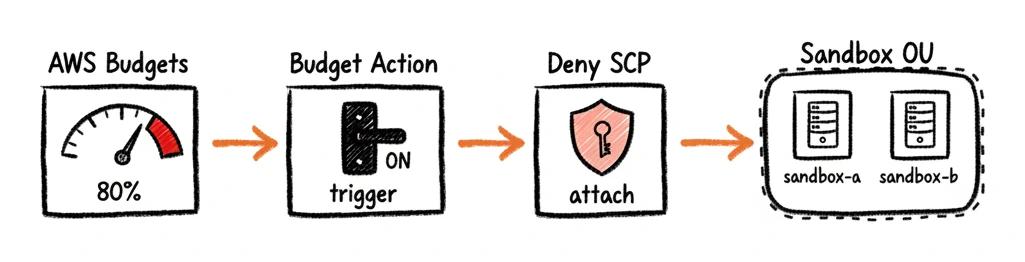
The setup is a $50 monthly budget on the Sandbox OU paired with an AWS Budget Action.
When actual spend crosses 80%, the Budget Action attaches a deny SCP to the Sandbox OU automatically, with no human approval required.
resource "aws_budgets_budget_action" "sandbox_kill_switch" {
  budget_name        = aws_budgets_budget.sandbox_kill_switch.name
  action_type        = "APPLY_SCP_POLICY"
  approval_model     = "AUTOMATIC"
  notification_type  = "ACTUAL"
  execution_role_arn = aws_iam_role.sandbox_kill_switch.arn

  action_threshold {
    action_threshold_type  = "PERCENTAGE"
    action_threshold_value = 80
  }

  definition {
    scp_action_definition {
      policy_id  = aws_organizations_policy.sandbox_kill_switch.id
      target_ids = [aws_organizations_organizational_unit.sandbox.id]
    }
  }
}
The SCP itself is a not_actions list.
Everything is denied except a small set of services needed to recover the account:
- IAM, STS, Organizations, Account, Support, Billing, Cost Explorer
- Read-only CloudTrail actions so we can still investigate
- A break-glass condition for the admin SSO role and the primary admin user ID
statement {
  sid    = "DenyAllExceptBreakGlassAndSafeServices"
  effect = "Deny"
  not_actions = [
    "iam:*", "organizations:*", "sts:*",
    "support:*", "ce:*", "budgets:*",
    "account:*", "aws-portal:*",
    "cloudtrail:Describe*", "cloudtrail:Get*",
    "cloudtrail:List*", "cloudtrail:LookupEvents",
  ]
  resources = ["*"]
  condition {
    test     = "ArnNotLike"
    variable = "aws:PrincipalArn"
    values   = [
      "arn:aws:iam::*:role/aws-reserved/sso.amazonaws.com/*AWSReservedSSO_AdministratorAccess*",
    ]
  }
}
When the kill switch fires, three things happen at once:
- Every workload in the sandbox accounts grinds to a halt. New API calls return
AccessDenied, running compute keeps running (you cannot kill it without ec2 actions), but nothing new can be started or modified. - Email and Slack alerts go out through the same EventBridge pipeline.
- The admin SSO role still works, so we can log in, see what happened, fix the root cause, and detach the SCP manually.
The manual detach is a feature, not a bug. We want a human in the loop before sandbox accounts come back online, because the budget firing is the symptom of something that needs to be understood, not just unblocked.
The sharp edge: A kill switch this aggressive is only safe in an OU where you control every workload. Do not attach this pattern to a production OU. If your prod traffic hits the threshold, you do not want AWS Budgets to take your site down at 3am for you.
No guarantee and an 8-to-12 hour delay! It is worth being honest about what this kill switch actually buys you. AWS Budgets is driven by Cost Explorer data, and that data is updated on a delay of roughly 8 to 12 hours, sometimes longer. A workload that goes from $0 to $10,000/hour at 3am will not be detected at 3am. The Budget Action might not fire until lunchtime the next day, by which point you may already have spent far more than the $50 cap. There is no AWS-native mechanism today that truly enforces a hard spending limit in real time. Service Quotas, Budget Actions, and Cost Anomaly Detection are all best-effort and lag behind actual usage. Treat the kill switch as a backstop that limits the blast radius of a runaway resource, not as a guarantee. If you genuinely need a $50 ceiling enforced to the cent, AWS is not the platform to bet on.
Summary
Four layers, each with different coverage and different granularity.
SCPs stop the actions you never want to see. RCPs make sure your resources reject bad requests even when the caller lives outside your org. CloudTrail plus EventBridge plus Lambda give you both the long-term audit log and the in-the-moment notification. Budget alarms, Cost Anomaly Detection, and a hard kill switch on sandbox keep the bill bounded (with some guarantee).
None of this is exotic, obviously! Every piece is standard AWS, and the whole thing fits in a few hundred lines of Terraform.
The value of a multi-account setup is what you build around the accounts, not the accounts themselves. A bare AWS Organization with no SCPs, no audit trail, and no spending guardrails is just multiple places (=accounts) for the same mistake(s) to happen.
The guardrails are the point! 🎯

