
Table of Contents
Jump to a section
What is AWS Lambda?
AWS Lambda is a compute service that runs your code in response to events (API requests, queue messages, file uploads) without requiring you to manage servers. It scales automatically as traffic increases.
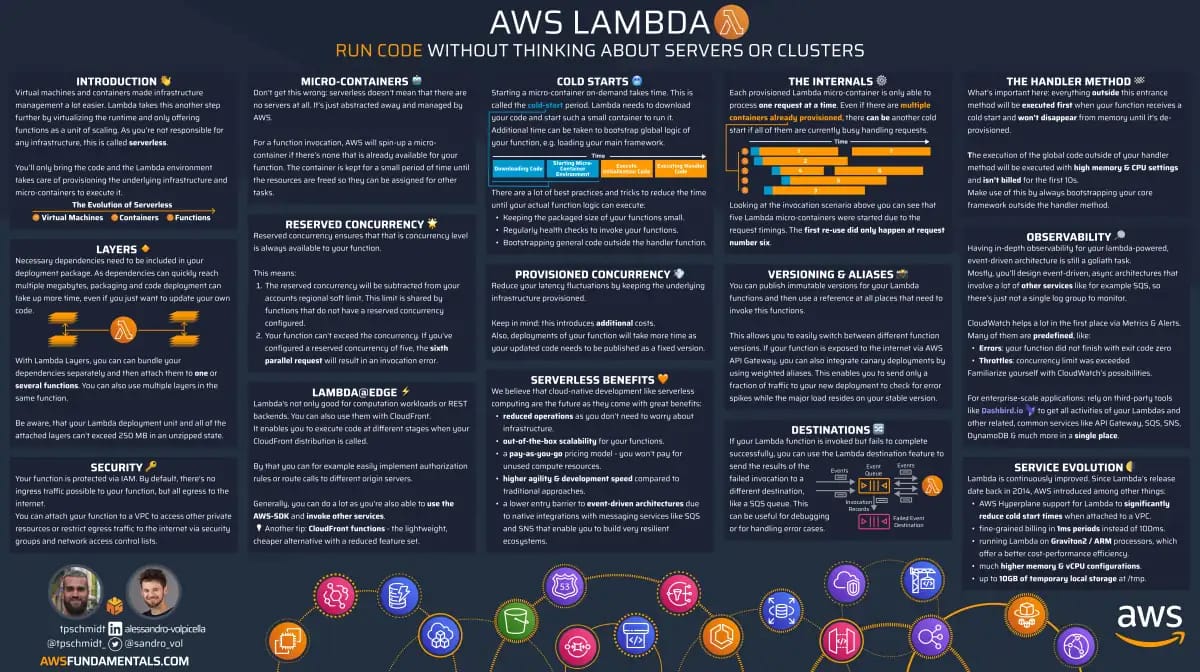
AWS Lambda on One Page (No Fluff)
Skip the 300-page docs. Our Lambda cheat sheet covers everything from cold starts to concurrency limits - the stuff we actually use daily.
HD quality, print-friendly. Stick it next to your desk.
The problem
When you scale serverless architectures, observability gets noisy fast. Dozens of metrics, dashboards per function, alarms on individual errors. Then one night at 3am you get an alert: regional concurrency limit reached. Requests are being dropped across the entire account. Which metric should you have been watching? What could you have done before it got to this point?
The answer is ClaimedAccountConcurrency: the one metric that reflects how much of your regional capacity is truly unavailable for new invocations. This guide shows you how to monitor it and set up an alarm that fires at 70% utilization, giving you time to react before throttling begins.
Topics:
- How Lambda concurrency works (just enough to understand the metric choice)
- Why
ClaimedAccountConcurrencyis the right metric to monitor - Setting up a CloudWatch alarm step by step
- Deploying a dashboard to see the whole Region at a glance
- Automating quota increases when the alarm fires
Important considerations before you start:
This guide includes an automated quota increase considering organic traffic growth. Examples where increasing the limit will not help:
-
Reserved concurrency over a limit increase. If you run several functions in the same Region and expect on-demand growth across them, use reserved concurrency to protect the critical ones first. It guarantees their slice of the pool so no other function can take it. Plan RC to expected traffic, since it also caps the function.
-
Runaway error loops. An erroring function. Raising the limit just gives it more room to fail. When the alarm fires, always check whether the consumer is healthy before requesting more capacity. If it is broken, cap it with reserved concurrency instead.
-
Async invocation silent delays. Synchronous invocations get throttled visibly. Asynchronous invocations (CloudFormation custom resources, S3 triggers, EventBridge) are queued for up to 6 hours. For these, check
AsyncEventAgeand setMaximumEventAgeInSecondsfor critical async functions.
In every one of these cases, throttling works in your favor as a circuit breaker. Only raise the limit when the consumer is healthy and the traffic is legitimate.
For functions that must never be delayed, set a small reserved concurrency (e.g. 5) as a permanent guardrail regardless of monitoring. Reserved concurrency guarantees dedicated capacity that no other function can consume.
Note: This guide uses the AWS Console intentionally. While Infrastructure as Code (CloudFormation, CDK, Terraform) is more efficient, console-first instructions make the concepts easier to learn. Once you understand the mechanics, translating to IaC is straightforward. Ready-to-deploy CDK examples (a monitoring dashboard and the auto-increase automation) are available in the companion repo.
How Lambda concurrency works
Before building the alarm, you need to understand how Lambda allocates capacity and where the limits come from.
From AWS documentation:
Concurrency is the number of in-flight requests that your AWS Lambda function is handling at the same time.
Each execution environment handles one request at a time. These environments are secure, isolated sandboxes running on hardware-virtualized micro virtual machines (MicroVMs); each one manages the resources for your function and the lifecycle of its runtime and any extensions. If an environment is busy (during both the Init and Invoke phases), Lambda provisions another. When an environment finishes processing, it can serve the next request without re-initializing (warm start).
When multiple requests arrive simultaneously, Lambda spins up as many environments as needed. Draw a vertical line at any point in time and count the active environments. That number is your concurrency at that moment.
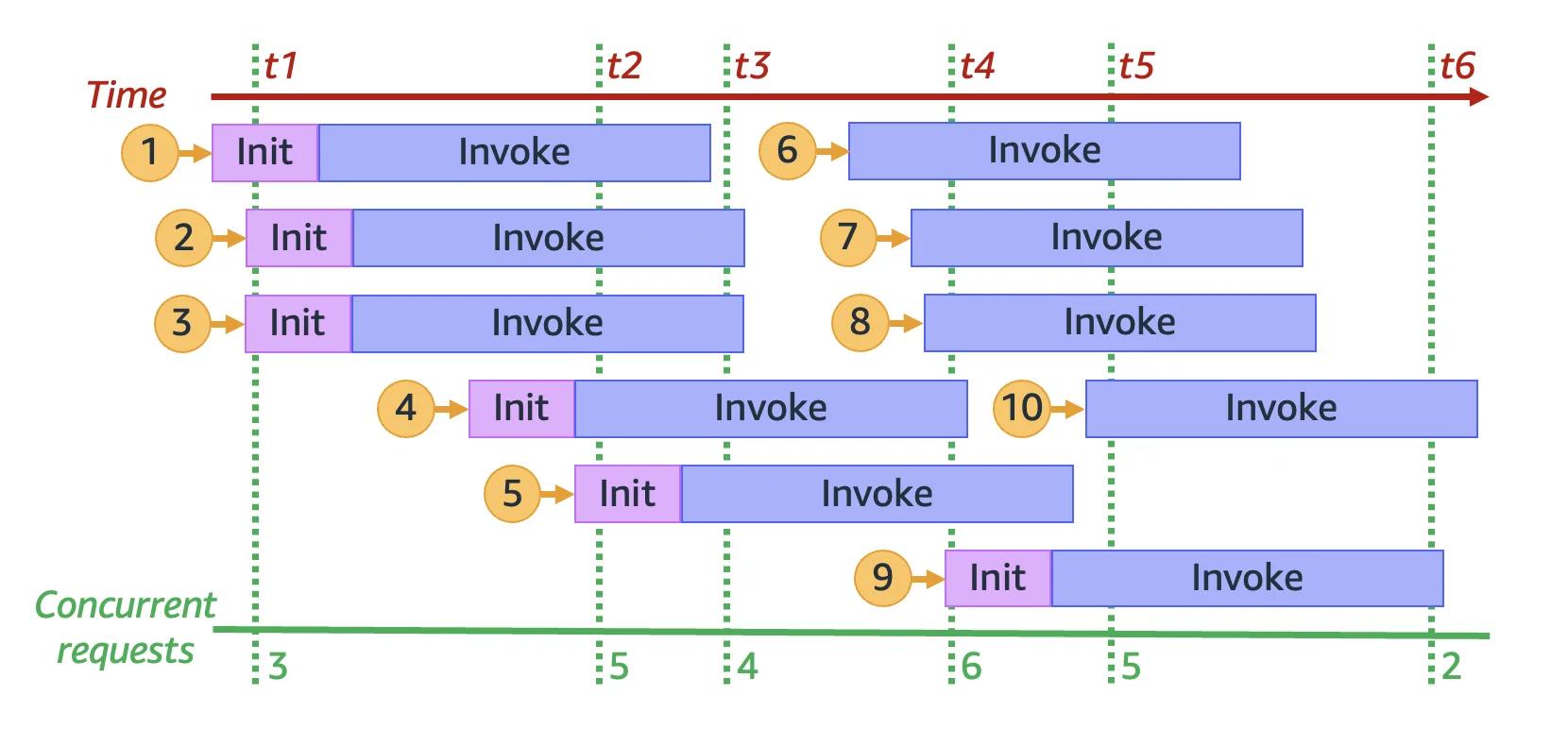
Follow the green lines. At t1 there are three active environments serving three concurrent requests. At t2 there are 5, so concurrency at that moment is 5. Requests 1 through 5 each ran their Init phase, so all five were cold starts, each consuming one unit of concurrency.
Between t3 and t4, requests 6, 7, and 8 skip Init. They reuse environments that started earlier, so they are warm starts. Around t4, request 9 needs a fresh environment (cold start), and request 10 reuses an existing one (warm start). Across the whole window, 6 requests needed new environments and 4 reused warm ones.
Concurrency is regional and shared
Concurrency is not per function. All Lambda functions in an account share the same concurrency pool, scoped to a single AWS Region.
By default, every account gets 1,000 concurrent executions per Region. This is a soft limit you can increase via Service Quotas. New accounts start lower; AWS raises the quota automatically as your usage grows. Lambda also always keeps 100 units of the pool available for functions without reserved concurrency, so no single function can claim every last unit.
Lambda also enforces a requests per second limit equal to 10x your concurrency limit (e.g. 10,000 RPS at 1,000 concurrency). You can be throttled by request rate even if concurrency is not maxed out.
Good to know: When your regional concurrency limit is hit, throttling affects everything using Lambda in that account and Region. Not just your API functions. SQS consumers, Kinesis stream pollers, DynamoDB Streams processors, EventBridge targets, scheduled jobs. Every team and every service relying on Lambda in that Region gets impacted simultaneously.
The limit is not the only ceiling: scaling rate
The account concurrency limit is one quota. There is a second: burst concurrency, the rate at which Lambda creates new execution environments.
In each Region, for each function, the scaling rate is 1,000 new execution environments every 10 seconds (equivalently, 10,000 requests per second every 10 seconds). It exists to protect against runaway over-scaling when traffic spikes.
The catch: you can hit this ceiling even when account concurrency is nowhere near full. A sharp spike gets throttled while the dashboard still shows plenty of available capacity. So watch both. ClaimedAccountConcurrency tells you how full the pool is; the scaling rate governs how fast you are allowed to fill it. See Lambda scaling behavior for details.
Why ClaimedAccountConcurrency is the right metric
Now that we know concurrency is shared and finite, the question becomes: which metric actually tells us how close we are to the limit?
Lambda exposes three concurrency metrics in CloudWatch:
| Metric | What it measures |
|---|---|
| ConcurrentExecutions | Actively running invocations |
| UnreservedConcurrentExecutions | Invocations using the shared (unreserved) pool |
| ClaimedAccountConcurrency | Total concurrency unavailable for new on-demand invocations |
Looking at these three metrics, the intuitive choice seems obvious: just track ConcurrentExecutions and you are done. Not quite.
Why ConcurrentExecutions is not enough
ConcurrentExecutions only counts what is actively running. It ignores concurrency that has been allocated through reserved or provisioned concurrency. That allocated capacity is blocked from other functions even when idle, so the real available capacity is lower than ConcurrentExecutions suggests.
What ClaimedAccountConcurrency captures
ClaimedAccountConcurrency = UnreservedConcurrentExecutions + Allocated Concurrency
Allocated concurrency is the sum of:
- Reserved concurrency (RC) across all functions in the Region. Reserved concurrency sets both a guaranteed minimum and a hard maximum for a function. The function gets a dedicated slice of the pool, but it cannot exceed that amount or use unreserved capacity. No other function can use it, even when idle. No additional charge.
- Provisioned concurrency (PC) across functions that do not have reserved concurrency. Provisioned concurrency pre-initializes environments to eliminate cold starts. These environments count against the pool even when not processing requests. Incurs additional charges.
Important: If a function has both RC and PC, Lambda only counts RC toward allocated concurrency (since RC is always >= PC for a given function). This avoids double-counting. In the example below, each function uses one or the other, so the values simply add up.
Try it yourself: In
us-east-1, set a high reserved concurrency on one function (just below your limit), invoke a different function, then watch the metrics.ClaimedAccountConcurrencyjumps within a few seconds. You can open a pre-filled CloudWatch metrics view with the expressions already wired up.
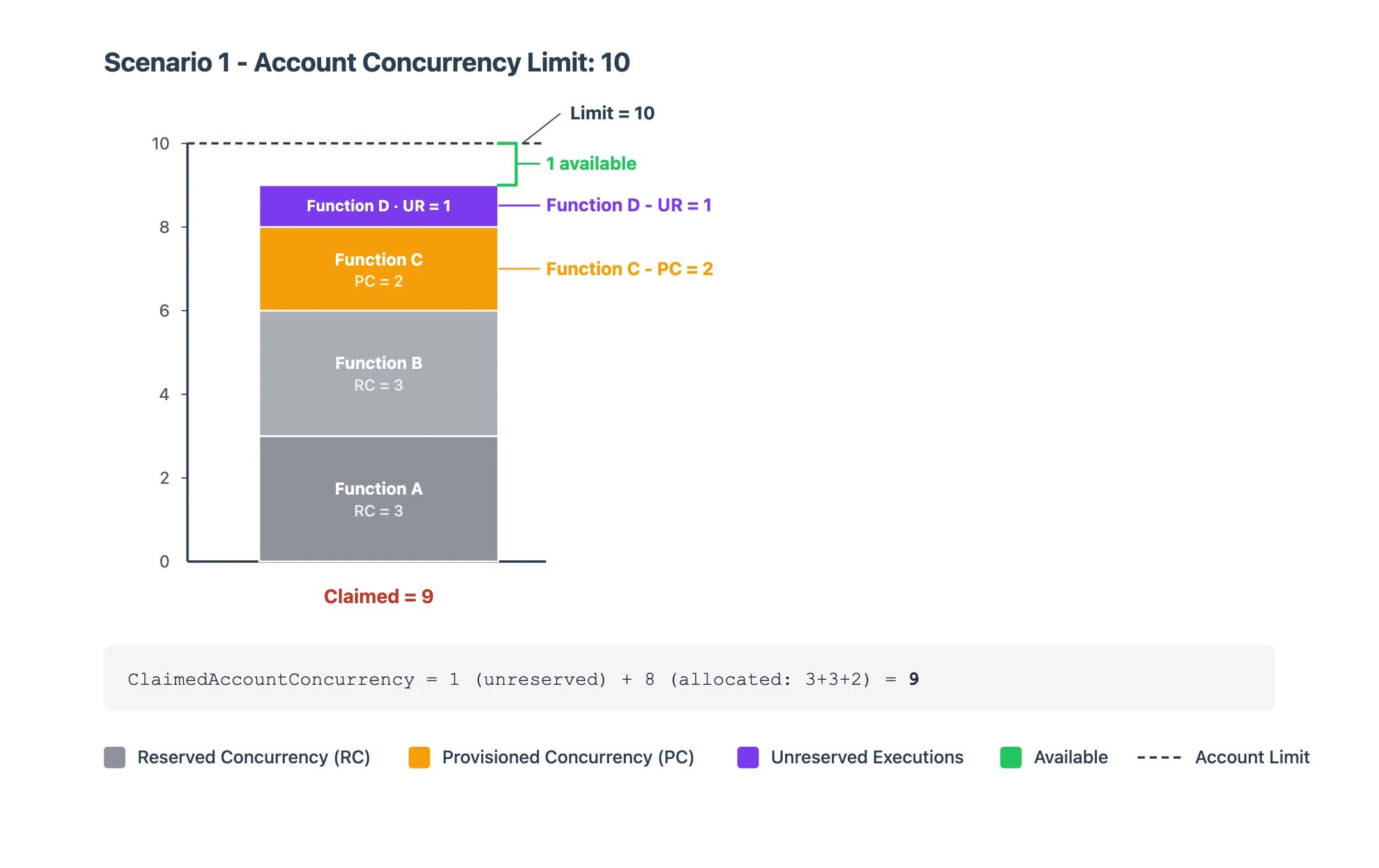
Scenario 1: small account, almost full
| Configuration | Value |
|---|---|
| Account concurrency limit | 10 |
| Reserved concurrency (function A) | 3 |
| Reserved concurrency (function B) | 3 |
| Provisioned concurrency (function C, no RC) | 2 |
| Active executions (unreserved, function D) | 1 |
ClaimedAccountConcurrency = 1 (unreserved) + 8 (allocated: 3 + 3 + 2) = 9. Only 1 unit of capacity remains for new invocations.
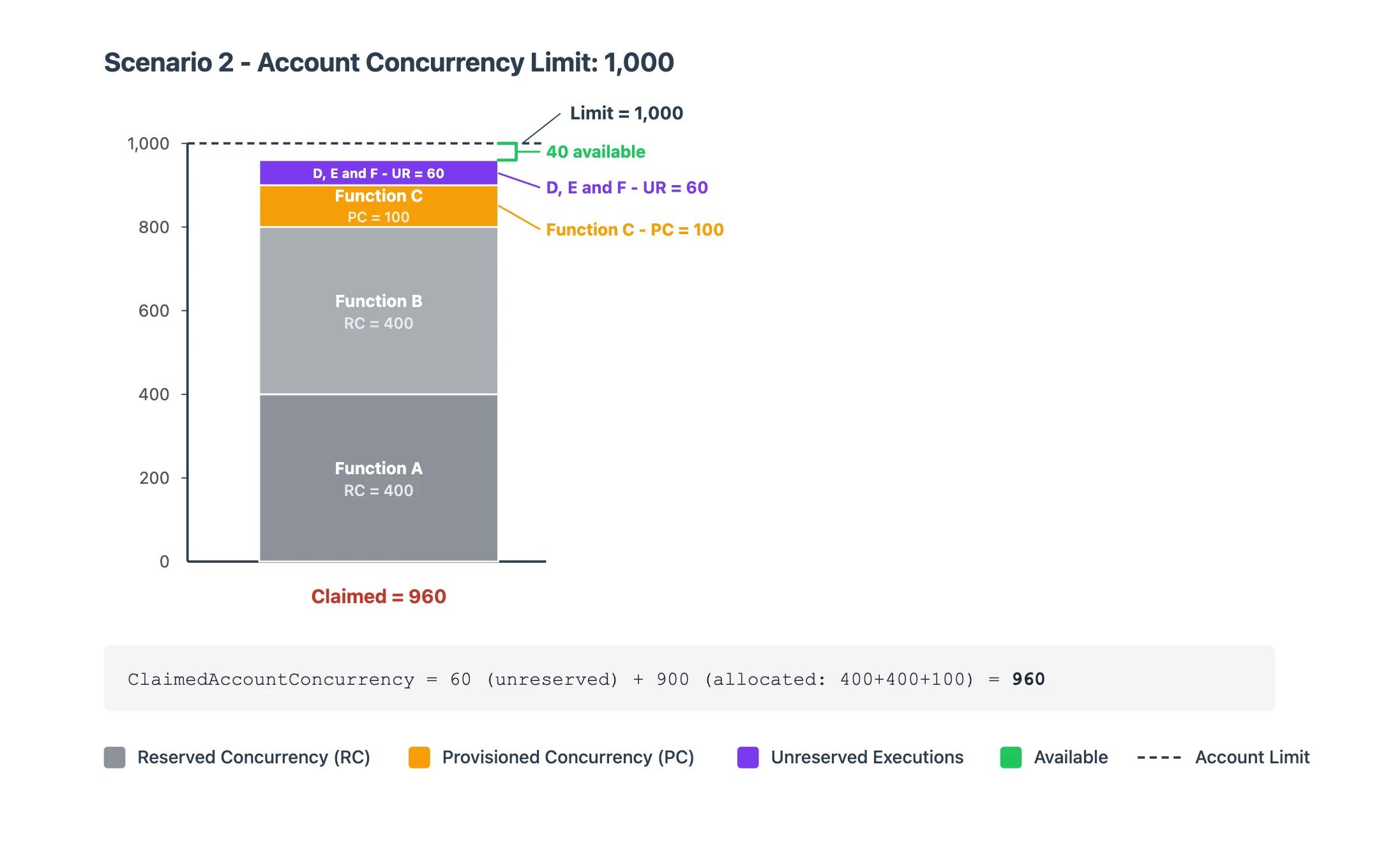
Scenario 2: production account at steady state
| Configuration | Value |
|---|---|
| Account concurrency limit | 1,000 |
| Reserved concurrency (function A) | 400 |
| Reserved concurrency (function B) | 400 |
| Provisioned concurrency (function C, no RC) | 100 |
| Active executions (unreserved, across functions D, E, F) | 60 |
ClaimedAccountConcurrency = 60 (unreserved) + 900 (allocated: 400 + 400 + 100) = 960
Only 60 on-demand invocations are running, but 900 additional units are allocated. Total claimed is 960. Available for new invocations: 40.
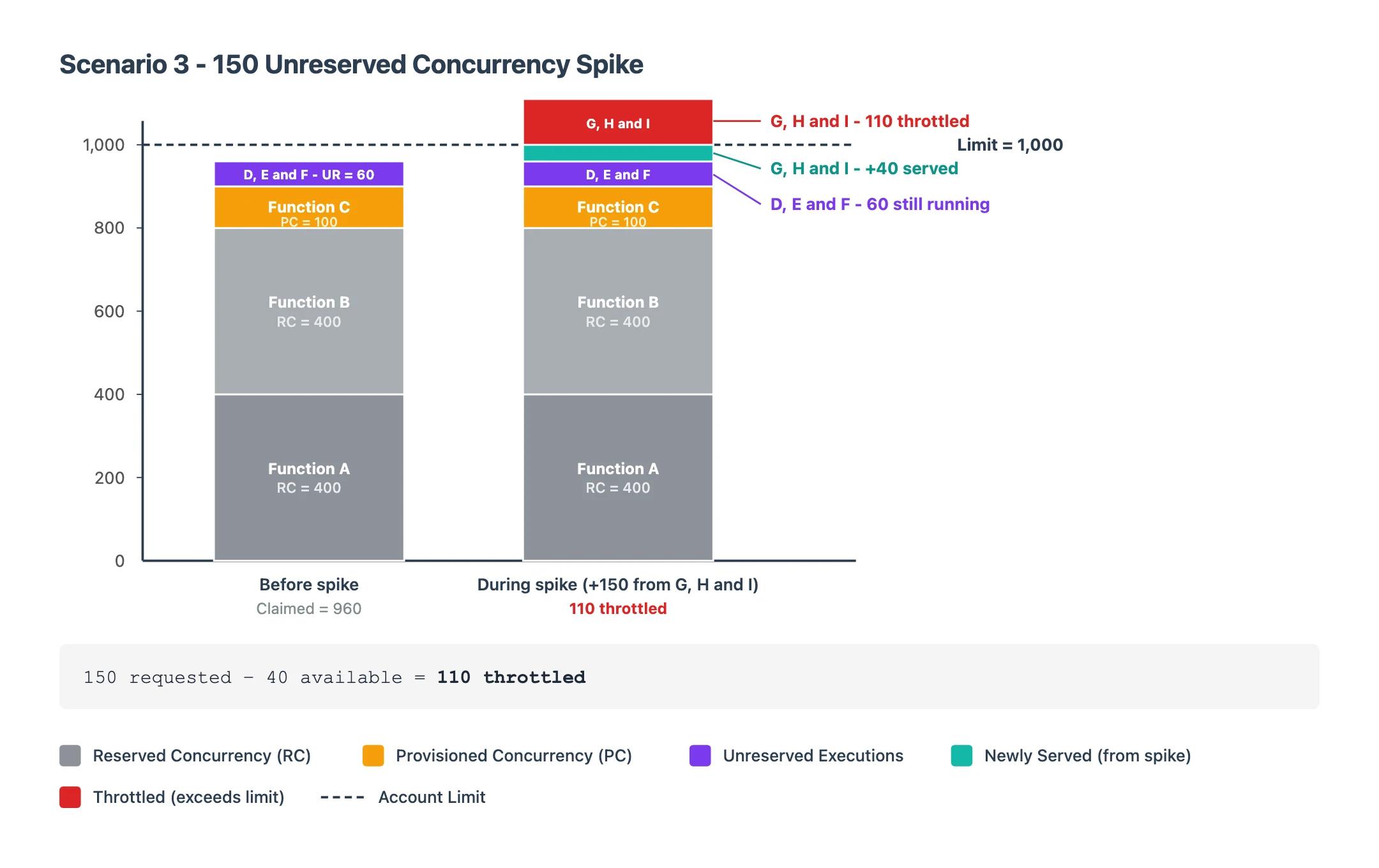
Scenario 3: traffic spike causes throttling
Using the same account from Scenario 2, a sudden spike hits. Functions G, H, and I receive 150 new concurrent requests on unreserved concurrency. At that point, only 40 units are available.
Available = Regional limit - ClaimedAccountConcurrency
Available = 1,000 - 960 = 40

Throttled = New requests - Available
Throttled = 150 - 40 = 110
Only 40 of the 150 requests can run immediately. The remaining 110 are throttled (visible in the Throttles metric).
For more worked examples, see the AWS docs on the reserved concurrency diagram and the provisioned plus reserved concurrency diagram.
This is why Lambda uses ClaimedAccountConcurrency, not ConcurrentExecutions, to determine whether capacity is available.
Setting up the CloudWatch alarm
With the right metric identified, let's wire it into a CloudWatch alarm that fires before throttling begins.
Step 1: Configure the metrics
- Go to CloudWatch → All metrics
- Click the Source tab
- Paste the following JSON:
{
    "metrics": [
        [
            "AWS/Lambda",
            "ConcurrentExecutions",
            {
                "id": "m1",
                "yAxis": "left",
                "label": "ConcurrentExecutionsMetric",
                "visible": false
            }
        ],
        [
            {
                "expression": "SERVICE_QUOTA(m1)",
                "label": "Current Concurrent Limit",
                "id": "e1",
                "period": 60,
                "yAxis": "left",
                "color": "#9467bd"
            }
        ],
        [
            "AWS/Lambda",
            "ClaimedAccountConcurrency",
            {
                "id": "m2",
                "yAxis": "left",
                "color": "#ff7f0e"
            }
        ],
        [
            {
                "expression": "(m2/e1) * 100",
                "label": "% Claimed",
                "id": "e2",
                "period": 60,
                "yAxis": "left"
            }
        ],
        [
            {
                "expression": "e1 - m2",
                "label": "Available",
                "id": "e5",
                "period": 60,
                "yAxis": "left",
                "color": "#2ca02c"
            }
        ]
    ],
    "sparkline": false,
    "view": "pie",
    "stacked": false,
    "region": "us-east-1",
    "period": 60,
    "stat": "Maximum",
    "liveData": false,
    "labels": { "visible": true },
    "legend": { "position": "bottom" }
}
- Click Update
What each metric does
| ID | Type | Purpose |
|---|---|---|
| m1 | Metric | ConcurrentExecutions, used as input for SERVICE_QUOTA(). Hidden from graph |
| e1 | Expression | SERVICE_QUOTA(m1), dynamically fetches your actual regional concurrency limit |
| m2 | Metric | ClaimedAccountConcurrency, the metric we want to monitor |
| e2 | Expression | (m2/e1) x 100, utilization as a percentage |
| e5 | Expression | e1 - m2, remaining available concurrency |
Why
SERVICE_QUOTA(m1)instead of hardcoding 1,000? The concurrency limit is a soft limit. If you request an increase,SERVICE_QUOTA()dynamically reflects your actual current limit. No need to update the alarm every time your quota changes.
Step 2: Verify the metrics
After pasting the JSON and clicking Update, you should see the metrics table populated with all five entries. The table shows each metric's ID, label, details (source metric or expression), statistic, and period:
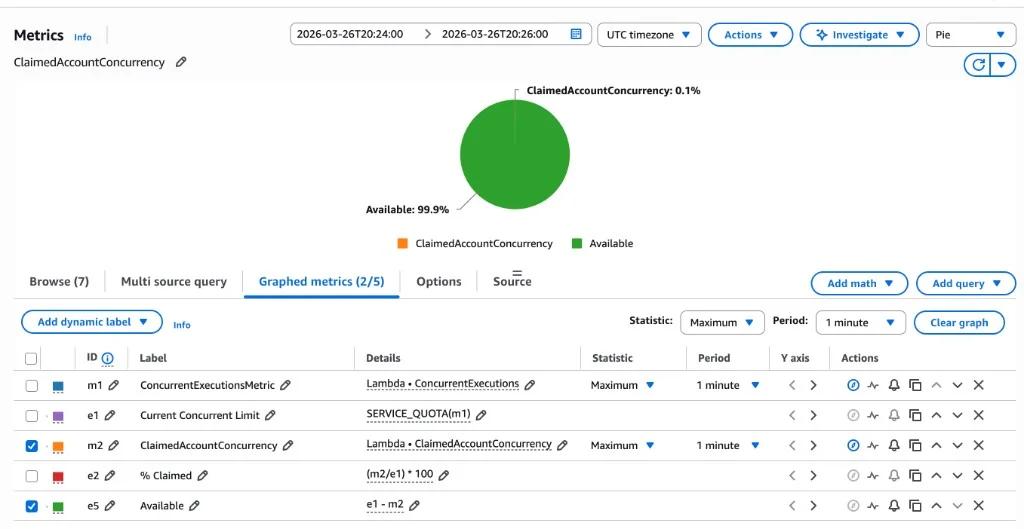
In the Pie view, select only ClaimedAccountConcurrency and Available (checkboxes on the left) to get an instant visual of how much of your concurrency pool is claimed vs. free.
Switch to the Line view and select all metrics to see the values over time. Hovering over the chart reveals the actual numbers at any point. Here, the tooltip shows a Current Concurrent Limit of 1,000, Available at 999, ClaimedAccountConcurrency at 1, and % Claimed at 0.1%:
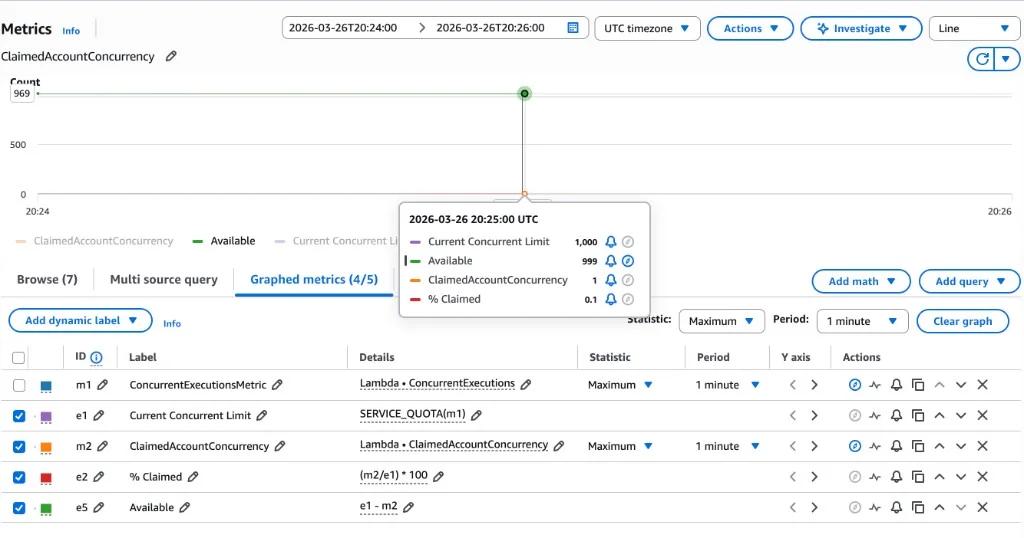
This confirms the metrics and expressions are working correctly before creating the alarm.
Step 3: Create the alarm
- Click the bell icon next to the
% Claimedexpression (e2) - Configure the alarm condition:
| Setting | Value | Why |
|---|---|---|
| Metric | % Claimed (e2) | The utilization percentage we calculated |
| Threshold type | Static | Fixed threshold value |
| Condition | Greater than 70 | 70% gives headroom before hitting the limit |
| Period | 1 minute | Matches Lambda's metric emission granularity |
| Statistic | Maximum | Catches spikes (average would smooth them out) |
| Datapoints to alarm | 1 out of 1 | Triggers on the first breach |
Step 4: Configure actions
Configure an SNS topic as the notification target. This can deliver alerts via:
- Slack (via AWS Chatbot or a Lambda-backed integration)
- PagerDuty, Opsgenie, or any HTTP endpoint
Step 5: Name the alarm
Give the alarm a descriptive name and optionally add a Markdown description (rendered in the CloudWatch console):
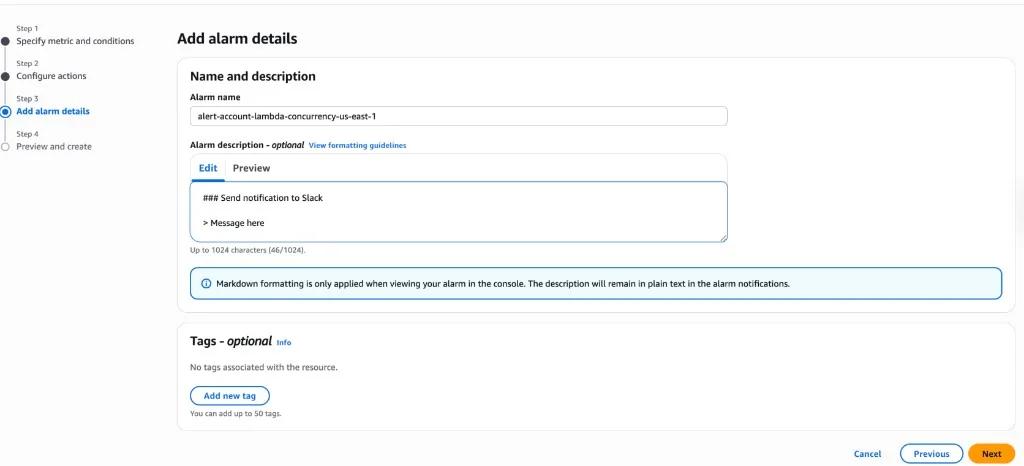
Step 6: Review and create
Review the configuration and click Create alarm.
Alarm in action
Once active, the alarm graph shows your utilization over time:
- Blue line →
% Claimedutilization - Threshold → 70%
- The alarm bar at the bottom transitions from OK (green) to In alarm (red) when the threshold is breached
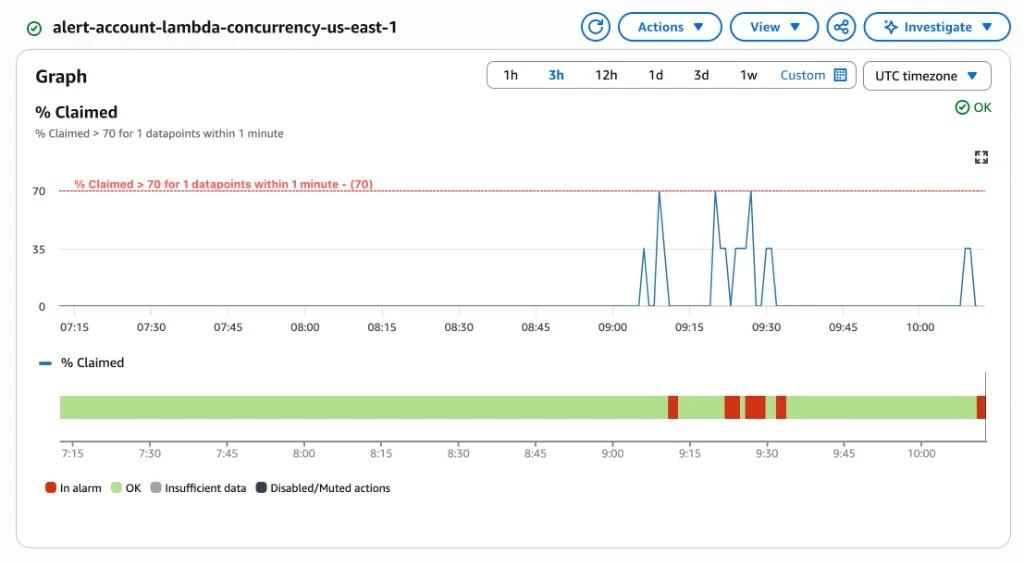
See the whole Region at a glance: the dashboard
The alarm tells you when you cross 70%. It does not tell you what is eating the pool. When the page fires at 3am, you still have to dig through functions to find the culprit.
The companion repo ships a CDK app that deploys a CloudWatch dashboard for exactly this. One cdk deploy and you get the alarm above plus a single view of regional capacity.
The top of the dashboard shows alarm state, % Claimed, claimed vs. available, the utilization trend, and your top consumers, throttles, and errors:
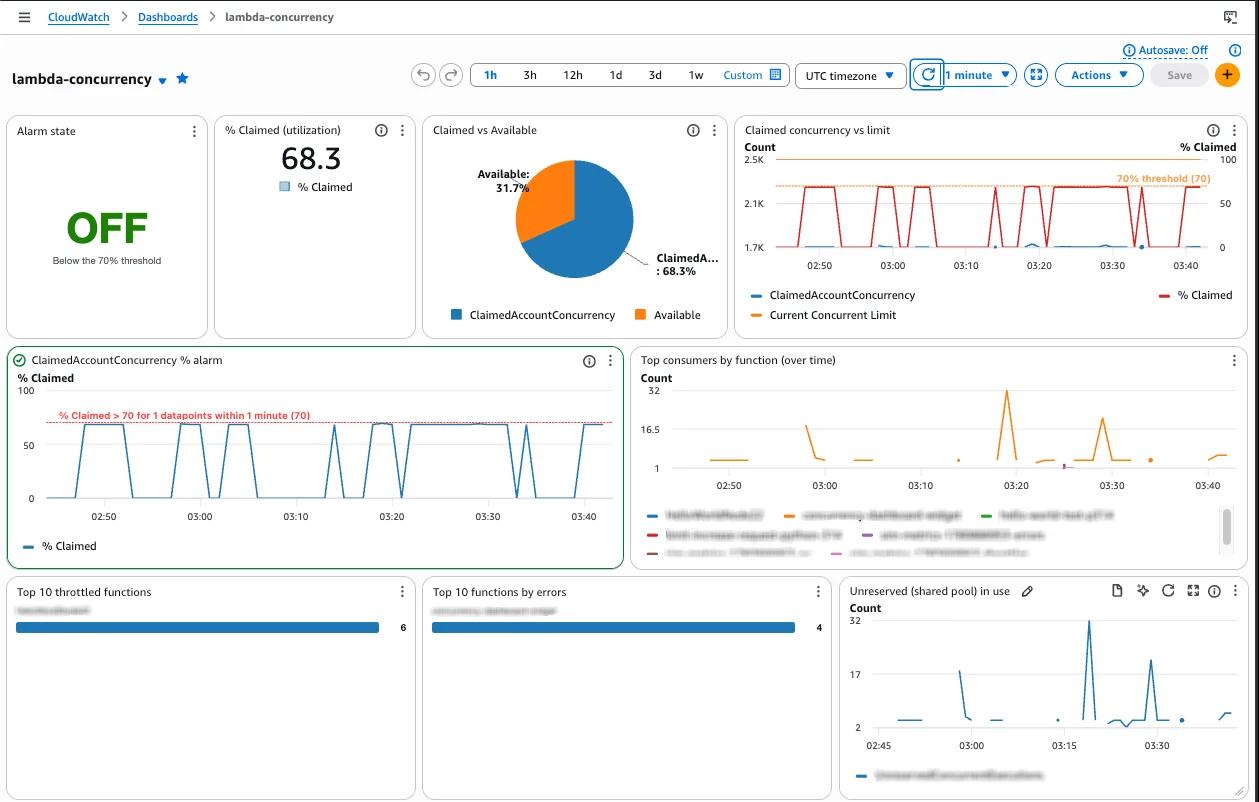
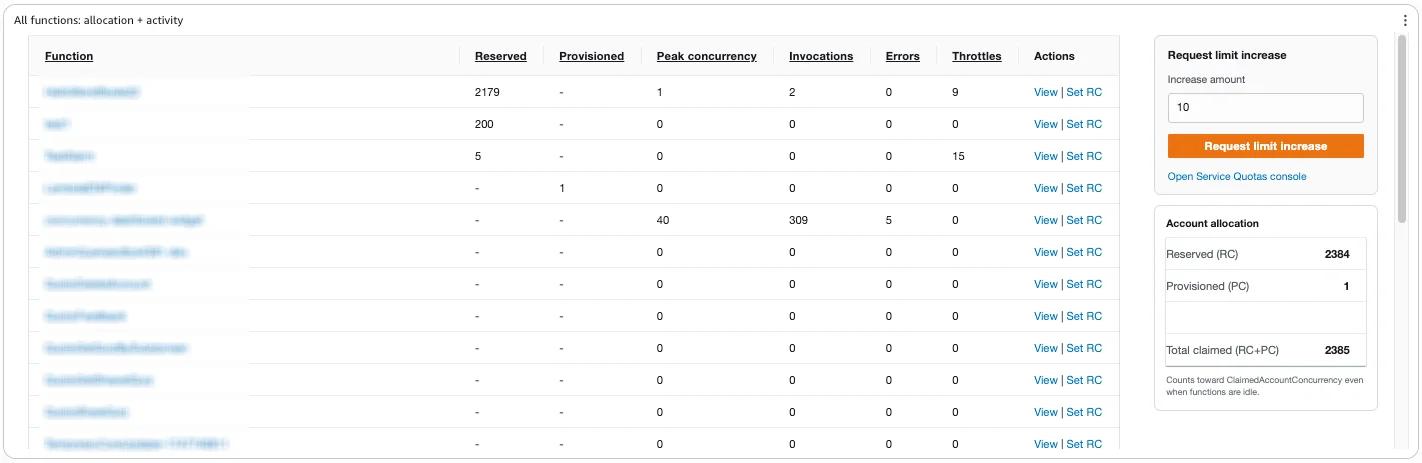
A sortable per-function table breaks down reserved and provisioned concurrency, peak concurrency, invocations, errors, and throttles. This is how you spot a function sitting on a large reserved slice it never uses. There is also a button to log a quota increase request straight from the dashboard, no trip to the Service Quotas console:
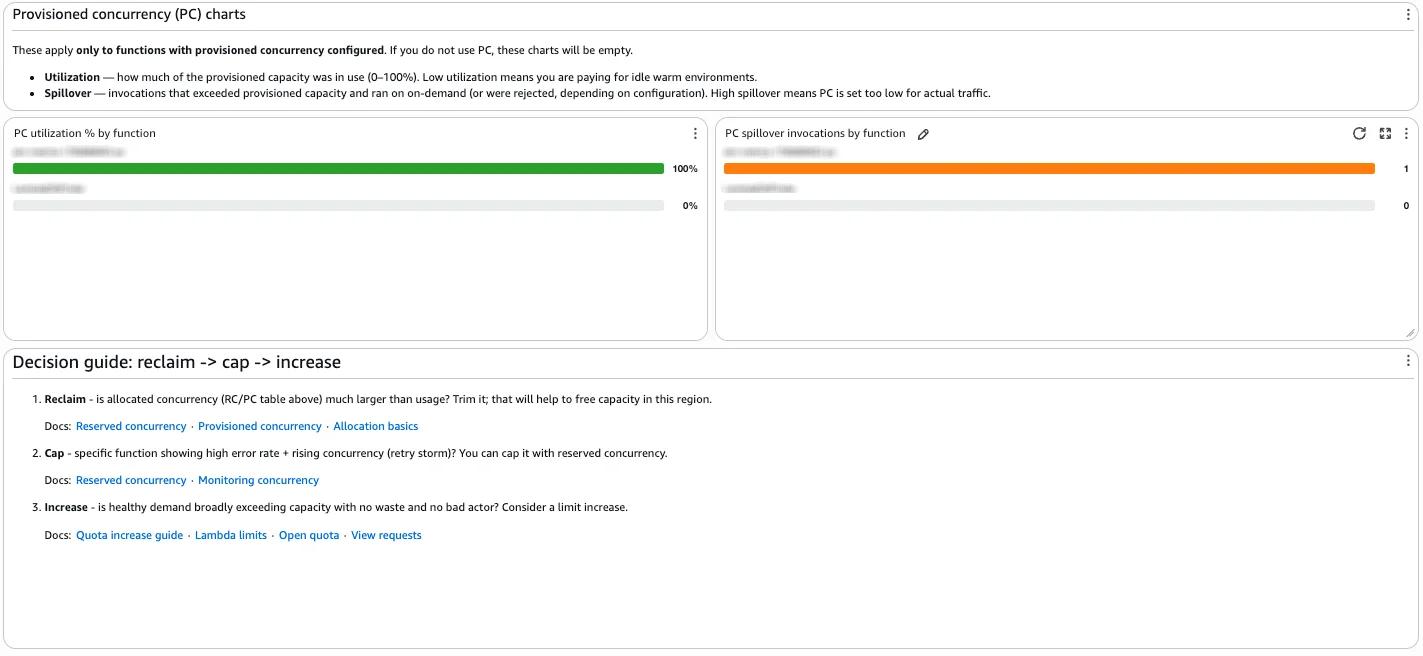
A third panel focuses on provisioned concurrency utilization and spillover per function, with a short decision guide on when to reclaim, cap, or increase:
Deploy it into the Region you want to watch:
cd dashboard
npm install
npx cdk bootstrap   # once per account/Region
npx cdk deploy
Pass an email to auto-subscribe it to the alarm topic (confirm the SNS subscription afterwards):
npx cdk deploy -c alertEmail=you@example.com
Then open CloudWatch → Dashboards → lambda-concurrency. The alarm here is notification-only. The SNS message includes a direct link back to the dashboard, so whoever gets paged lands on the full picture immediately.
Going further: automate limit increases
The alarm tells you there is a problem. The next step is fixing it automatically.
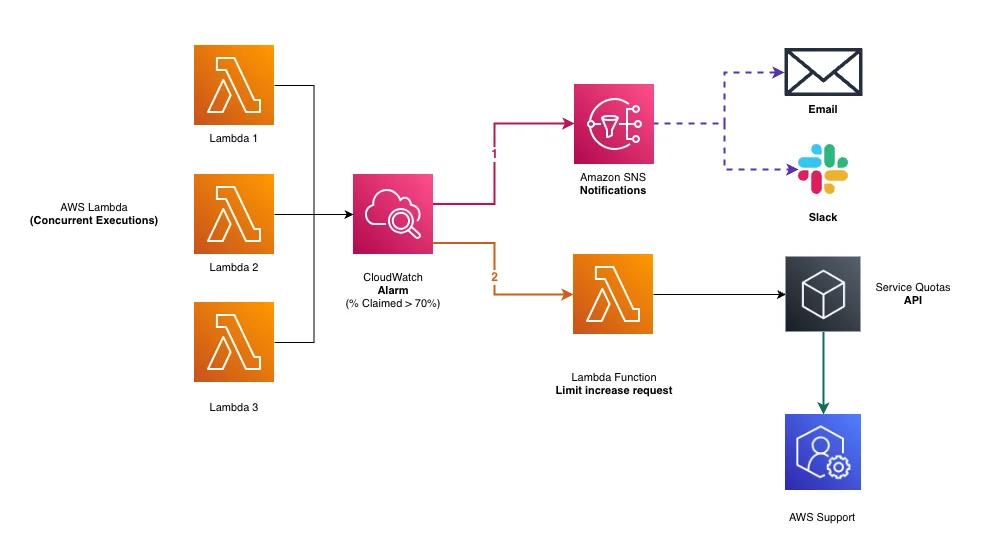
Instead of only alerting, you can add a Lambda function as a direct alarm action that automatically submits a Service Quotas increase request. The alarm triggers two independent actions:
- SNS → notifies your team (email, Slack)
- Lambda → requests a concurrency limit increase
CloudWatch Alarm --(ALARM state)--> SNS Topic --(email / Slack)--> Team
CloudWatch Alarm --(ALARM state)--> Lambda --(request_service_quota_increase())--> Service Quotas API
How often does the Lambda fire? CloudWatch Alarm actions trigger on state transitions, not continuously. The function is invoked once when the alarm transitions from
OKtoIn alarm. It will not fire again while the alarm stays inALARMstate. If the alarm recovers toOKand breaches again, it fires once more. To keep repeated breaches from compounding increases, the function makes itself a one-shot: after submitting a request it sets its own reserved concurrency to 0, so the next alarm action is throttled until a human re-enables it.
Important caveat: Quota increases are not instant. AWS reviews and approves them manually, which can take hours or days. This automation gets the request submitted immediately, but it does not provide more capacity right away. Treat it as a proactive request mechanism, not a real-time scaling solution.
The Lambda function
Create a new Lambda function with the Python 3.14 runtime. It receives the alarm event directly, skips out if a request is already pending, submits a proportional increase, then disables itself:
import os
import boto3
import logging
import math

logger = logging.getLogger()
logger.setLevel(logging.INFO)

SERVICE_CODE = "lambda"
QUOTA_CODE = "L-B99A9384"  # Concurrent executions
INCREMENT_PERCENT = float(os.environ.get("INCREMENT_PERCENT", "0.10"))

quotas = boto3.client("service-quotas")
lambda_client = boto3.client("lambda")


def has_pending_request():
    paginator = quotas.get_paginator(
        "list_requested_service_quota_change_history_by_quota"
    )
    for page in paginator.paginate(ServiceCode=SERVICE_CODE, QuotaCode=QUOTA_CODE):
        for r in page.get("RequestedQuotas", []):
            if r["Status"] in ("PENDING", "CASE_OPENED"):
                return True
    return False


def throttle_self(function_name):
    """Set this function's reserved concurrency to 0 so future alarm
    invocations are throttled by Lambda itself. Re-enable with:
        aws lambda delete-function-concurrency --function-name <name>
    """
    lambda_client.put_function_concurrency(
        FunctionName=function_name,
        ReservedConcurrentExecutions=0,
    )
    logger.warning(
        f"Auto-increase DISABLED: set {function_name} RC=0. "
        f"A human must re-enable the function to allow future auto-increases."
    )


def lambda_handler(event, context):
    alarm_name = event.get("alarmData", {}).get("alarmName", "unknown")
    logger.info(f"Alarm triggered: {alarm_name}")

    if has_pending_request():
        logger.info("Skipping: a quota increase request is already pending")
        throttle_self(context.function_name)
        return {"status": "SKIPPED", "reason": "pending request exists"}

    current = quotas.get_service_quota(
        ServiceCode=SERVICE_CODE, QuotaCode=QUOTA_CODE
    )
    current_value = current["Quota"]["Value"]

    increment = math.ceil(current_value * INCREMENT_PERCENT)
    desired_value = current_value + increment

    response = quotas.request_service_quota_increase(
        ServiceCode=SERVICE_CODE,
        QuotaCode=QUOTA_CODE,
        DesiredValue=desired_value,
    )

    status = response["RequestedQuota"]["Status"]
    logger.info(
        f"Requested increase: {current_value} -> {desired_value} "
        f"(+{increment}, {INCREMENT_PERCENT * 100:.0f}%) | Status: {status}"
    )

    throttle_self(context.function_name)

    return {
        "current": current_value,
        "desired": desired_value,
        "increment": increment,
        "increment_percent": INCREMENT_PERCENT * 100,
        "status": status,
    }
Key points about this function:
L-B99A9384is the quota code for Lambda concurrent executionsINCREMENT_PERCENT = 0.10requests 10% more than the current limit (rounded up), so the bump scales with your account instead of a flat number. Override it with theINCREMENT_PERCENTenvironment variablethrottle_self()sets the function's own reserved concurrency to 0 after it runs. That makes it a one-shot: the next alarm action is throttled until you re-enable it withaws lambda delete-function-concurrency --function-name <name>. This is the guardrail against runaway auto-increases that quietly compound costhas_pending_request()paginates the request history and skips submission if an increase is alreadyPENDINGorCASE_OPENEDSERVICE_QUOTA()in CloudWatch dynamically reflects the new limit after approval, so the alarm threshold adjusts automatically- The event comes directly from the CloudWatch Alarm action (not via SNS), so the alarm name is at
event["alarmData"]["alarmName"] - No external dependencies.
boto3is included in the Lambda runtime
IAM permissions
Attach a policy to the function's execution role with the minimum required permissions. The lambda:PutFunctionConcurrency action is scoped to the function itself, which is all the self-disable step needs:
{
    "Version": "2012-10-17",
    "Statement": [
        {
            "Effect": "Allow",
            "Action": [
                "servicequotas:GetServiceQuota",
                "servicequotas:RequestServiceQuotaIncrease",
                "servicequotas:ListRequestedServiceQuotaChangeHistoryByQuota"
            ],
            "Resource": "*"
        },
        {
            "Effect": "Allow",
            "Action": "lambda:PutFunctionConcurrency",
            "Resource": "arn:aws:lambda:*:*:function:limit-increase-request"
        },
        {
            "Effect": "Allow",
            "Action": "iam:CreateServiceLinkedRole",
            "Resource": "arn:aws:iam::*:role/aws-service-role/servicequotas.amazonaws.com/*",
            "Condition": {
                "StringEquals": {
                    "iam:AWSServiceName": "servicequotas.amazonaws.com"
                }
            }
        }
    ]
}
Wiring it up in the console
-
Create the function: Go to Lambda → Create function → Author from scratch. Name it (e.g.
limit-increase-request), select Python 3.14 as the runtime, and paste the code above. -
Attach the IAM policy: Go to the function's Configuration → Permissions → click the execution role → Add permissions → Create inline policy → paste the JSON above.
-
Grant CloudWatch permission to invoke the function. CloudWatch Alarms use a specific service principal and need explicit permission on the Lambda function. Run:
aws lambda add-permission \
  --function-name "limit-increase-request" \
  --statement-id "AllowCloudWatchAlarmInvoke" \
  --action "lambda:InvokeFunction" \
  --principal "lambda.alarms.cloudwatch.amazonaws.com" \
  --source-arn "arn:aws:cloudwatch:<REGION>:<ACCOUNT_ID>:alarm:<ALARM_NAME>"
Replace <REGION>, <ACCOUNT_ID>, and <ALARM_NAME> with your values. Without this, CloudWatch will silently fail to invoke the function.
- Add the Lambda alarm action: Go back to your CloudWatch alarm → Edit → Configure actions → Add Lambda action. Select In alarm as the trigger state and choose your function:
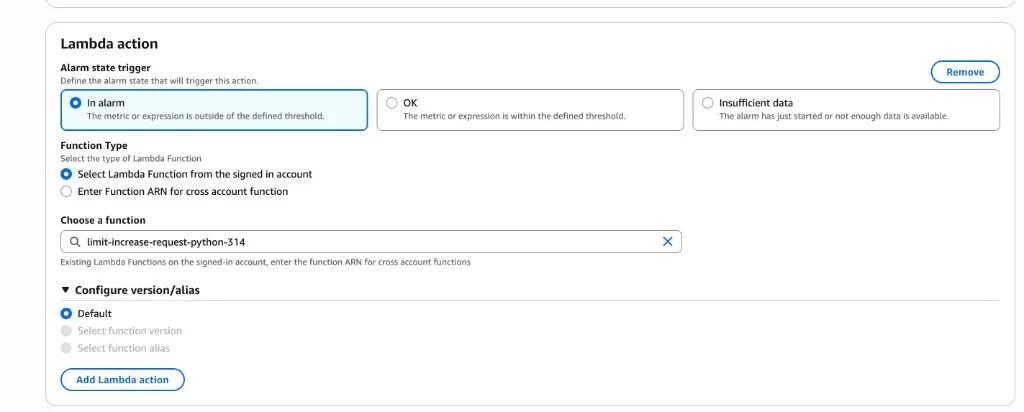
The SNS action you configured in Step 4 stays as-is for notifications. The Lambda action runs independently alongside it.
Verify the quota request and support case
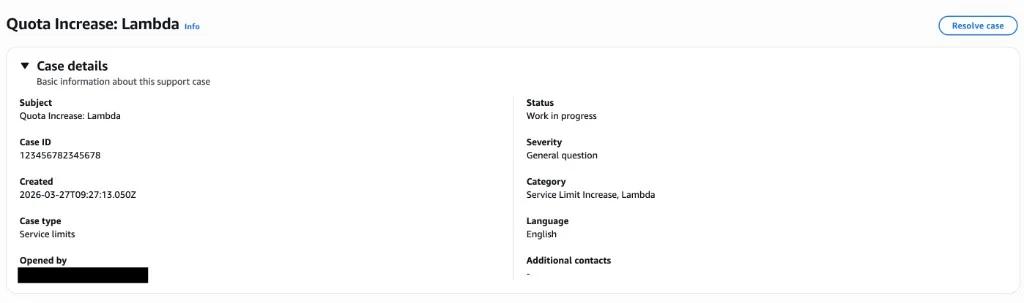
After a successful invocation, go to Service Quotas → Recent quota increase requests and confirm a new request appears for AWS Lambda / Concurrent executions with a status like Case Opened:

Click the support case ID to open the case details page and confirm the request metadata (subject, status, category, and creation time):
That covers the full setup. When concurrency crosses 70%, the alarm fires. Your team gets notified via SNS. The Lambda function requests a limit increase, then disables itself so the next breach waits for a human decision. AWS opens a support case for quota review. Monitoring becomes proactive instead of reactive.
Key takeaways
- Concurrency = number of execution environments active at the same time
- Concurrency is regional and shared across all functions in the same account and region
ConcurrentExecutionsonly shows active invocations. It misses reserved and provisioned capacityClaimedAccountConcurrencyreflects real capacity usage, which is what Lambda uses to determine availability- A separate burst scaling rate (1,000 new environments per 10 seconds) can throttle sudden spikes even when the pool still has room
SERVICE_QUOTA()dynamically fetches your actual limit. Do not hardcode it- Set alarms at 70% to give yourself time to react before throttling
- Quota increases are not instant. Combine the automated request with alerting so your team can also take manual action if needed
References: AWS Lambda: Understanding function scaling · Lambda scaling behavior · Monitoring concurrency · Companion repo (dashboard + auto-increase CDK)

