
Table of Contents
Jump to a section
Most incidents are not complex. Something breaks and someone has to figure out what changed. You open CloudWatch, check recent deployments, ask whoever last touched the service. Two hours later, you find a renamed DynamoDB field in last week's commit. The fix? Five minutes.
AWS thinks they have a solution for that.
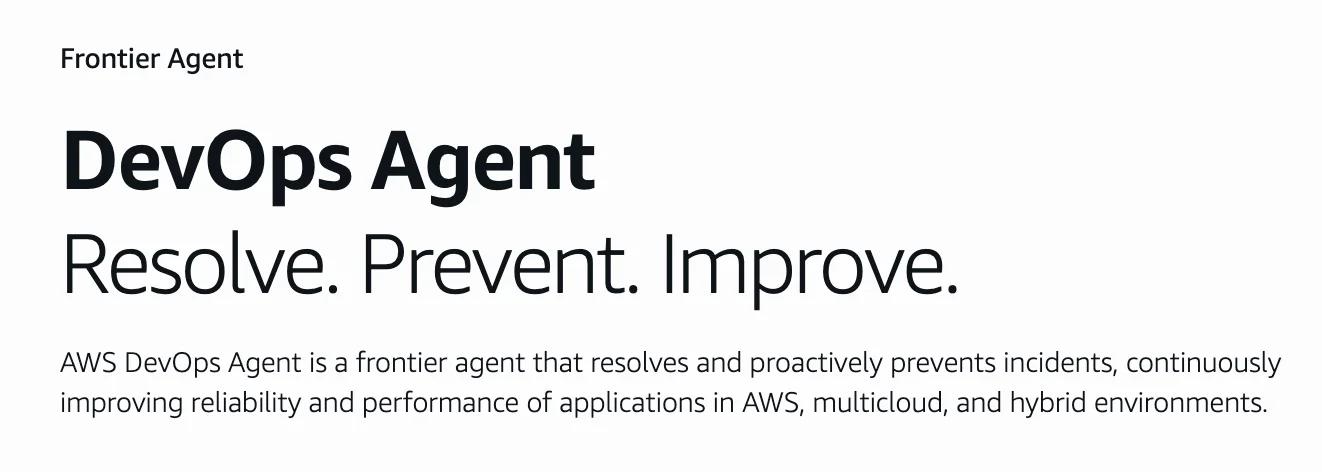
They call it an "always-on, autonomous on-call engineer" that begins investigating the moment an alert comes in. It's supposed to move teams "from reactive firefighting to proactive operational improvement" by analyzing patterns across historical incidents. It promises access to "untapped insights in your operational data" without changing your workflows.
Bold claims. And yes, half the DevOps internet is already mad about it.

The fear is real: an AI that investigates incidents autonomously sounds like a threat to anyone who built a career around knowing where to look when things break. We'll see which parts of that fear are justified.
What AWS DevOps Agent Actually Is
AWS DevOps Agent is an AI that investigates incidents for you. Connect it to your observability stack, code repositories, deployment pipelines, and runbooks. When something breaks, it correlates data across all of them to find what changed.
It is built on Amazon Bedrock AgentCore and became generally available in March 2026. AWS does not use your operational data to train its models.
The entry point is a concept called Agent Spaces.
AWS Lambda on One Page (No Fluff)
Skip the 300-page docs. Our Lambda cheat sheet covers everything from cold starts to concurrency limits - the stuff we actually use daily.
HD quality, print-friendly. Stick it next to your desk.
Agent Spaces: How You Set It Up
An Agent Space is a logical boundary that controls what the agent can see and do. You define which AWS accounts it can access, which external tools it connects to, and which users on your team can interact with it.
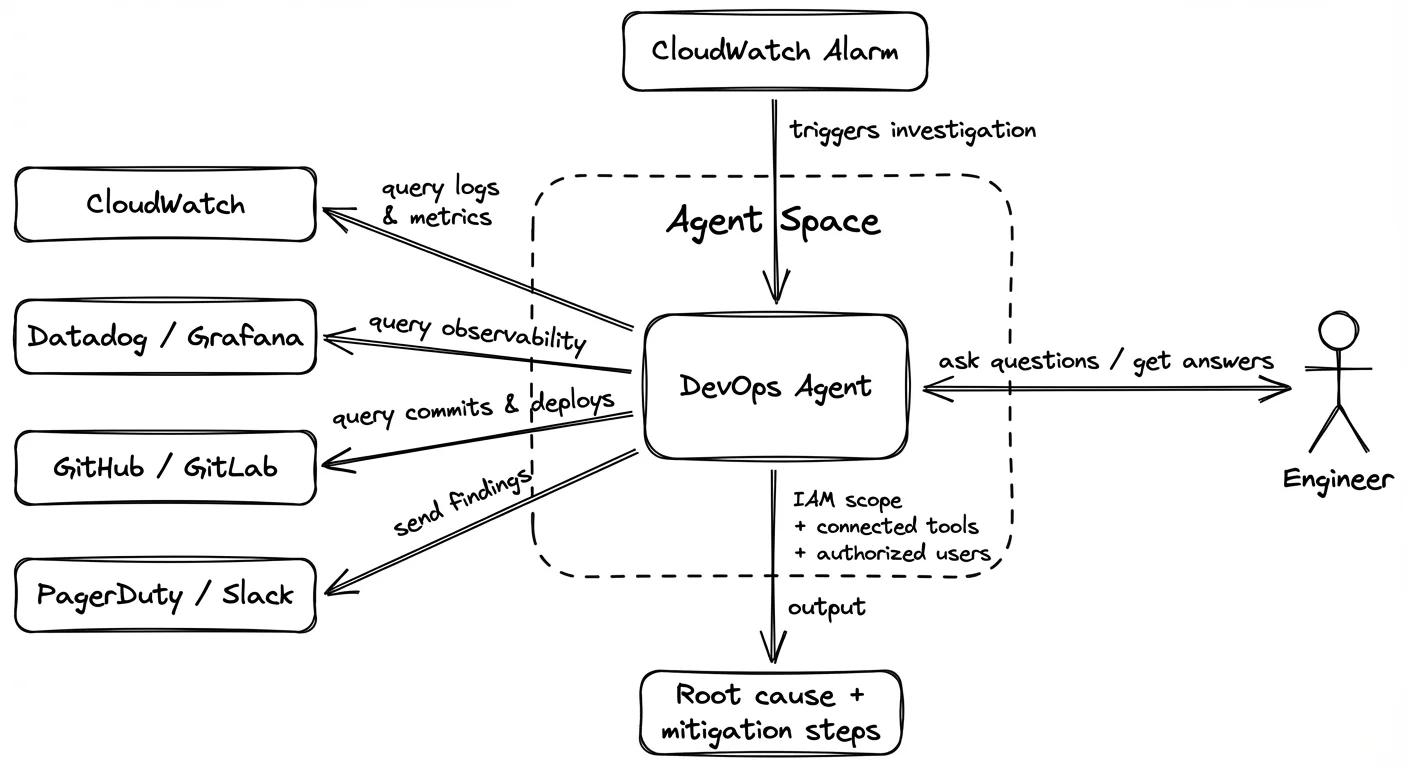
One Agent Space per team or environment is the typical setup. A production space might connect to your full observability stack and restrict access to senior engineers. A staging space can be more open for testing.
Each space requires one primary AWS account and can have additional secondary accounts attached. That lets a single Agent Space investigate across an entire multi-account organization without needing separate setups per account.
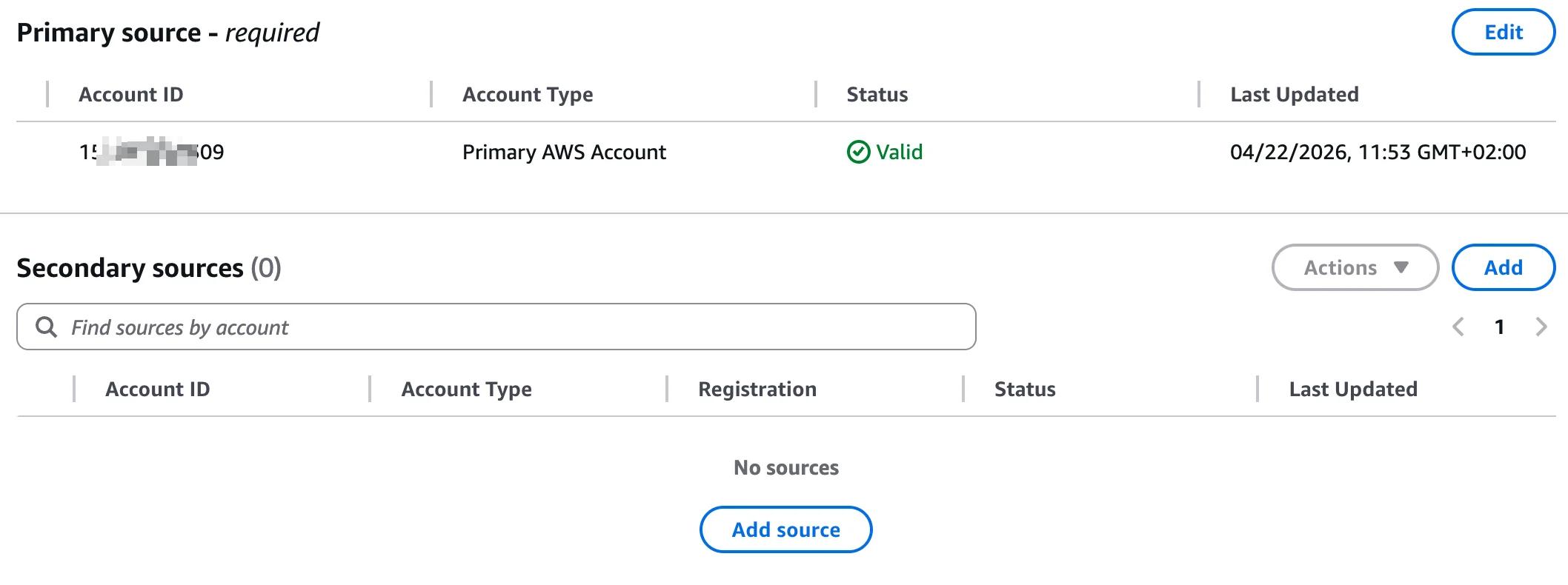
The agent itself never acts beyond what the IAM role in the space allows. Private networking is supported too. If your tools run inside a VPC, you can connect them without exposing them to the public internet.
Once the space is created, the agent immediately starts mapping your infrastructure topology. On our existing AWS Fundamentals account with basic IAM permissions, it already found 1239 resource relationships before a single investigation had run.
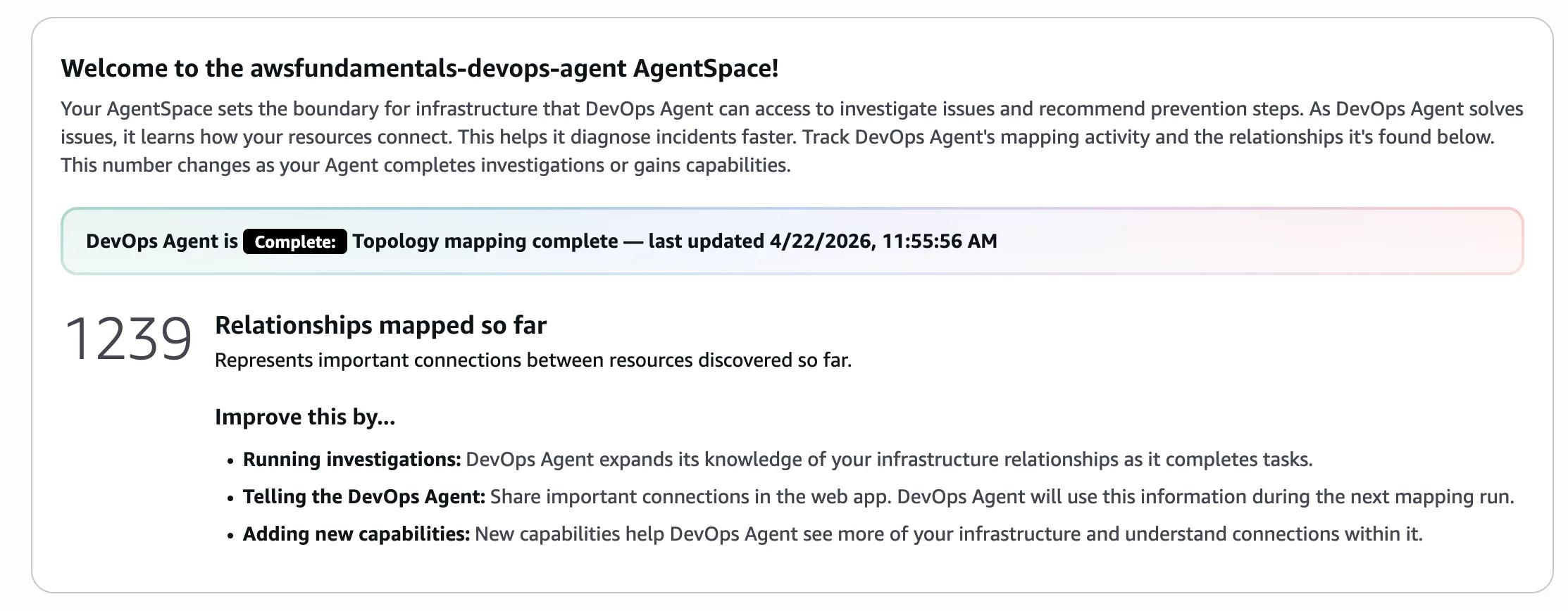
That topology map is what makes investigations fast. The more it knows about how your resources connect, the less time it spends figuring out blast radius when something breaks.
One thing worth knowing before you create a space: DevOps Agent is not free. Topology mapping itself is passive and does not count as billable time. You only get charged when the agent actively works: running an investigation, generating a preventative evaluation, or answering an on-demand question. Any account using DevOps Agent for the first time gets a 2-month free trial — it does not matter how old your AWS account is. We will cover the full pricing breakdown later in this article.
What It Can Do
Three things, roughly in order of how useful they are:
- Incident investigation. An alarm fires and the agent starts working immediately. It pulls logs, checks recent deployments, diffs the code history, and tells you what changed and why things broke. No manual log spelunking required.
- Proactive recommendations. Between incidents it analyzes your historical patterns and flags recurring issues before they blow up again. Think of it as a weekly ops review you never have to schedule.
- On-demand questions. Ask it things like "why did checkout latency spike last Tuesday?" and it queries your connected tools to give you an answer. You can also generate custom charts and reports without touching any dashboards yourself.
Integrations: Everything It Talks To
DevOps Agent connects to the tools you already use.
| Category | Tools |
|---|---|
| Observability | CloudWatch, Datadog, Dynatrace, Grafana, New Relic, Splunk, Amazon Managed Prometheus |
| Code & deployments | GitHub, GitLab, Azure DevOps |
| Alerting & ticketing | PagerDuty, ServiceNow, Slack |
If none of those cover your setup, you can extend it with MCP servers. Any tool that exposes an MCP-compatible interface can be wired in as a custom skill.
Connecting Slack is a standard OAuth flow through the AWS Console. One thing you will notice: Slack flags the app as "not approved by Slack" during the authorization step. It still works fine; it just has not gone through Slack's marketplace review process yet.
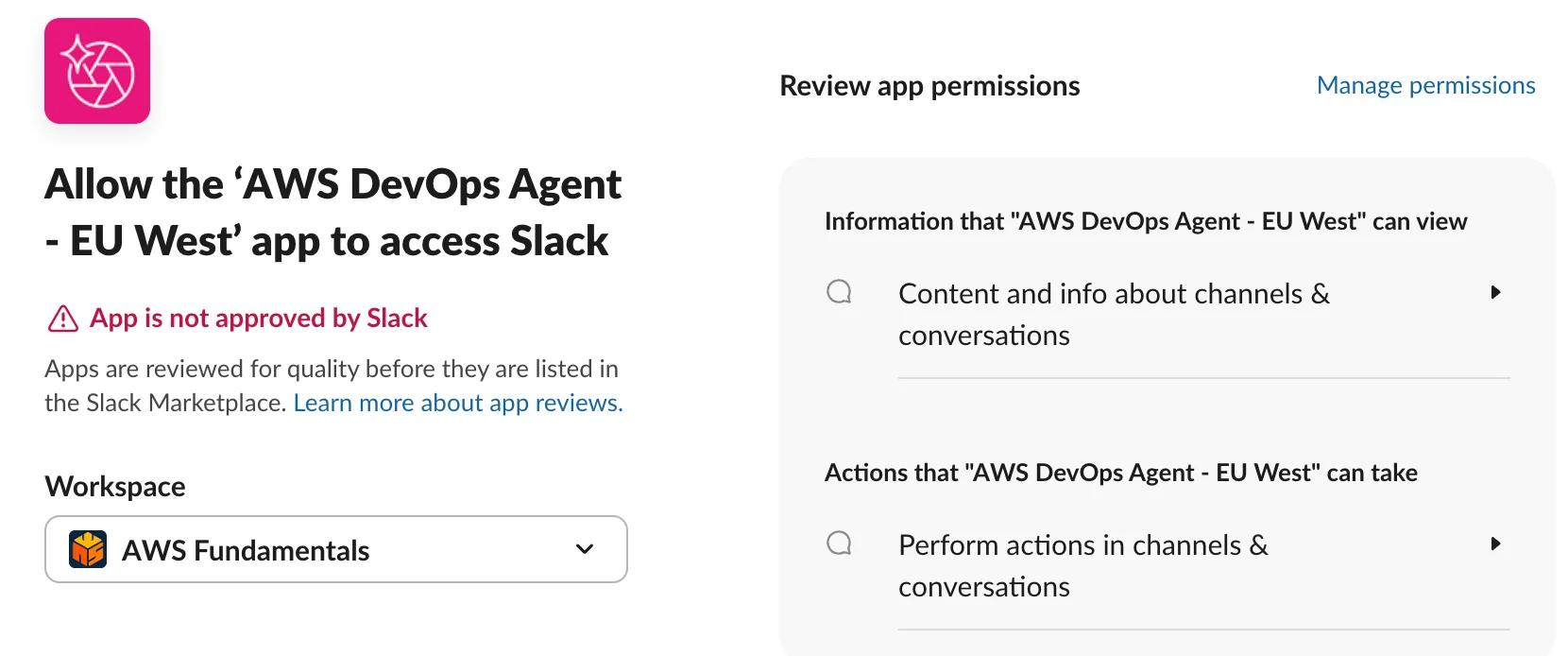
Once connected, the agent shows up as a bot in your Slack workspace and can send findings directly to a channel or DM.

Multicloud: AWS, Azure, and On-Prem
DevOps Agent is not AWS-only. It supports Azure and on-premises environments out of the box.
The agent can correlate an incident that spans both clouds. If your checkout service runs on AWS but your identity provider is Azure AD, it can pull data from both sides during an investigation.
Microsoft announced a joint integration called "AWS with Azure SRE Agent" specifically for cross-cloud investigations. It is early, and the depth of Azure support will not match what you get on AWS, but the foundation is there.
Seeing It in Action: Our Test Setup
To test the agent properly, we built a small demo infrastructure in Terraform. Here is how all the pieces connect.
The overall flow looks like this:
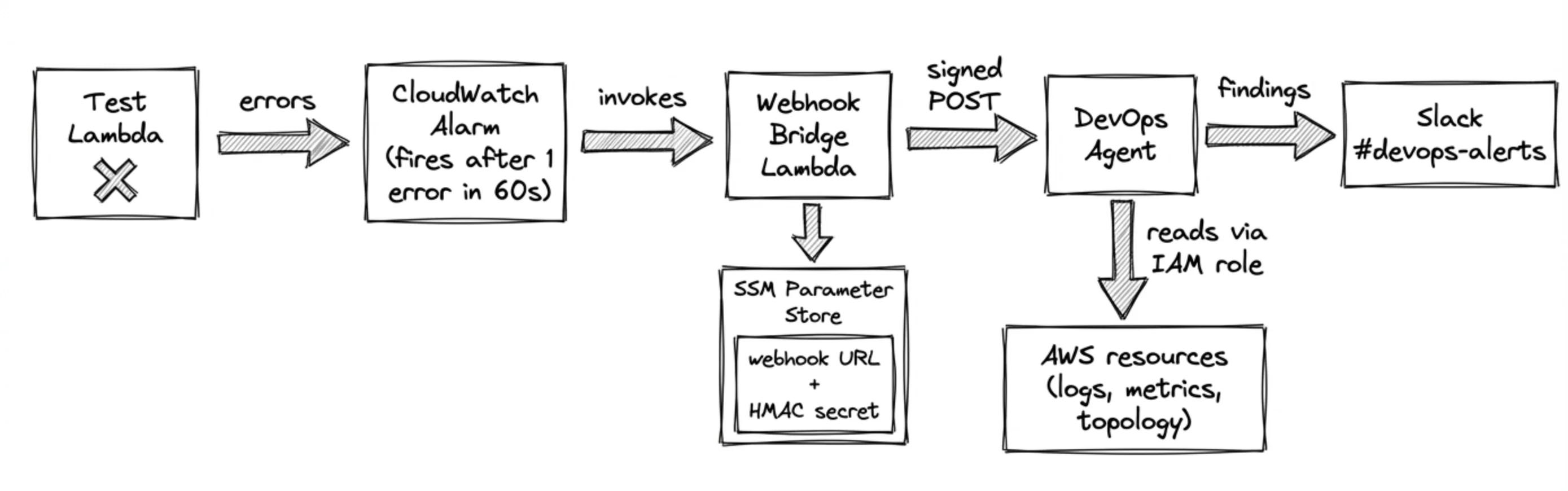
Simple on paper. The wiring has a few non-obvious steps.
1. Creating the Agent Space
DevOps Agent resources are not in the standard hashicorp/aws Terraform provider.
You need hashicorp/awscc (version 1.66.0 or higher), which generates resources from the CloudFormation registry.
Two resources matter: awscc_devopsagent_agent_space creates the space, and awscc_devopsagent_association links accounts and integrations to it.
2. The IAM role
The agent needs an IAM role to read your infrastructure.
The trust policy principal is aidevops.amazonaws.com, not devops-agent.amazonaws.com.
That is an easy mistake to make.
Two conditions are required in the trust policy: aws:SourceAccount scoped to your account ID, and aws:SourceArn scoped to the exact AgentSpace ARN.
Using a wildcard ARN pattern causes a 400 error during role verification.
You must reference the actual computed ARN from the awscc_devopsagent_agent_space resource, not a pattern.
The role needs two things attached:
- AWS managed policy
AIDevOpsAgentAccessPolicyfor read access to CloudWatch, logs, and config - An inline policy allowing
iam:CreateServiceLinkedRolefor Resource Explorer — the agent creates this on first run to build the topology map for resources not deployed via CloudFormation
3. Wiring alarms to the agent
CloudWatch alarms have no native action that targets DevOps Agent directly. The only supported path is a webhook, which means you need a bridge Lambda between them.
The bridge Lambda does three things when an alarm fires:
- Fetches the webhook URL and HMAC signing secret from SSM Parameter Store
- Constructs an incident payload from the alarm data (name, state, reason, region)
- Signs the payload with
HMAC-SHA256and POSTs it to the DevOps Agent webhook endpoint
The webhook URL itself cannot be provisioned via Terraform. You generate it in the console under Agent Space → Capabilities → Webhook → Generate, then store it manually in SSM.
With that in place, any CloudWatch alarm can trigger an investigation with one line:
alarm_actions = [module.devops_agent.webhook_bridge_lambda_arn]
4. Connecting Slack
Slack requires a manual OAuth step before Terraform can manage the association. You register the integration in the console, authorize the AWS DevOps Agent app in your workspace, then retrieve a UUID that identifies your Slack workspace in the API.
One gotcha: the service_id in the Terraform association resource is not the string "slack".
It is a UUID generated when the workspace was registered.
You have to retrieve it via the CloudControl API:
aws cloudcontrol list-resources --type-name AWS::DevOpsAgent::Service --region eu-west-1 \
  --query 'ResourceDescriptions[?contains(Properties, `"ServiceType":"slack"`)].Identifier'
Pass that UUID to the Terraform module and it creates the association. After that, investigation results land in whichever Slack channel you configure.
Test 1: The Always-Failing Lambda
The first test is deliberately simple. A Lambda that throws on every invocation:
exports.handler = async (event) => {
    throw new Error('Something went wrong');
};
A CloudWatch alarm fires within 60 seconds of the first error. The webhook bridge picks it up and forwards it to DevOps Agent.
This one is mostly useful for confirming the pipeline works end-to-end. The agent correctly identifies the Lambda as the error source — not much of a challenge.
Test 2: Order Processor — Missing IAM Permissions
The second test is more realistic.
An order processor Lambda calls dynamodb:PutItem but its IAM role is missing the DynamoDB permission.
The kind of mistake that slips through code review.
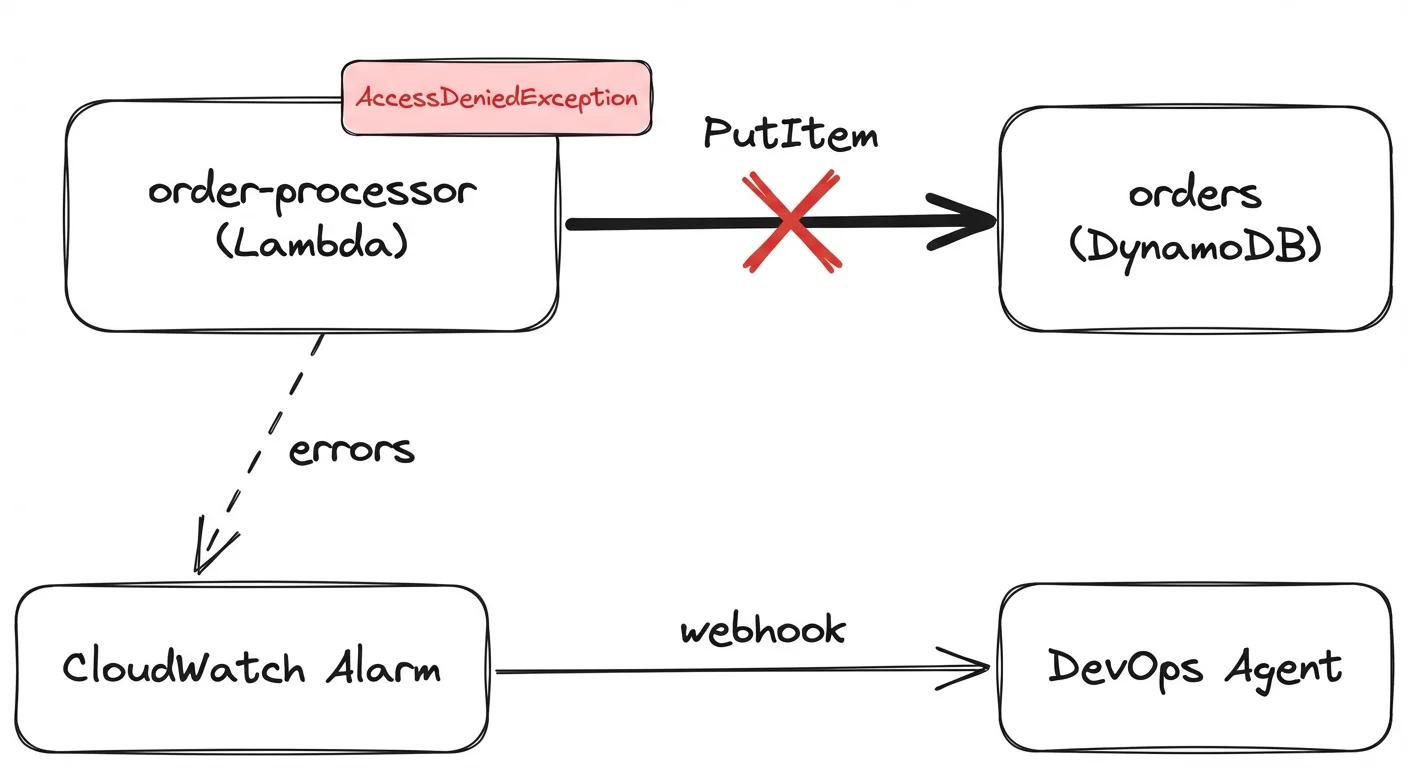
The moment the alarm fired, DevOps Agent posted to Slack:
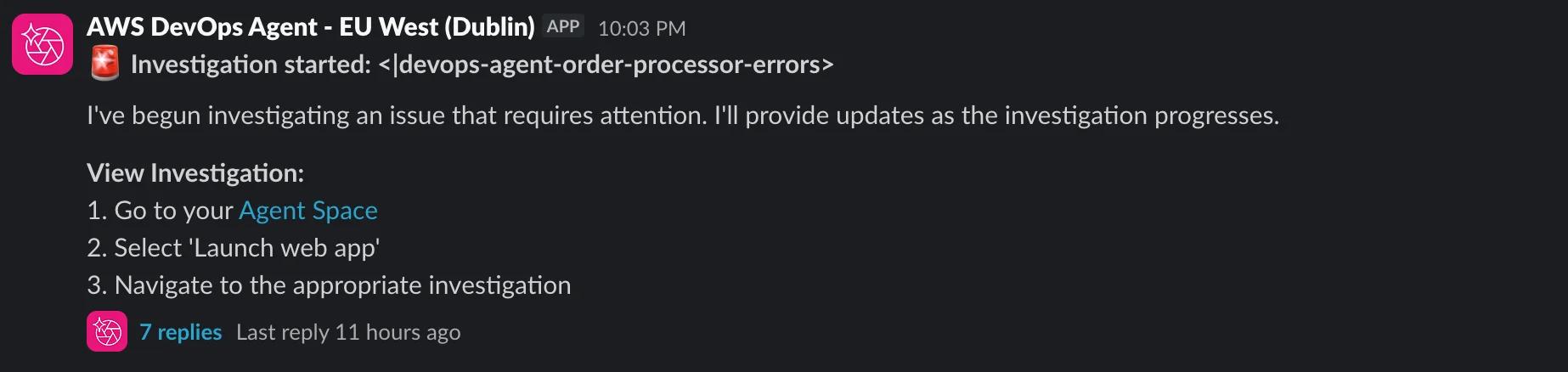
The thread filled in with the root cause shortly after:
Root cause: Terraform deployment by tobias.schmidt created Lambda function with incomplete IAM permissions.
At 2026-04-25T20:00:30Z, user tobias.schmidt deployed the entire
devops-agent-order-processorstack via Terraform. The deployment created the IAM role (20:00:30Z), attached onlyAWSLambdaBasicExecutionRole(20:00:31Z), created the Lambda function (20:00:40Z after 2 retries due to IAM propagation), and created the CloudWatch alarm (20:00:46Z). The Terraform configuration is missing the required DynamoDB permissions for the role despite the function's code callingdynamodb:PutItemon tabledevops-agent-orders. CloudTrail showsDescribeTablecalls fordevops-agent-ordersduring deployment (20:00:31–37Z), confirming the table was referenced in the Terraform config but the corresponding IAM policy grantingPutItemwas not included.
Not a vague summary. It identified the exact deployment, the exact missing permission, and traced it through CloudTrail timestamps. No human dug through logs to produce that.
Test 3: Inventory Updater — The Wrong Side to Blame
The third test is where things get interesting.
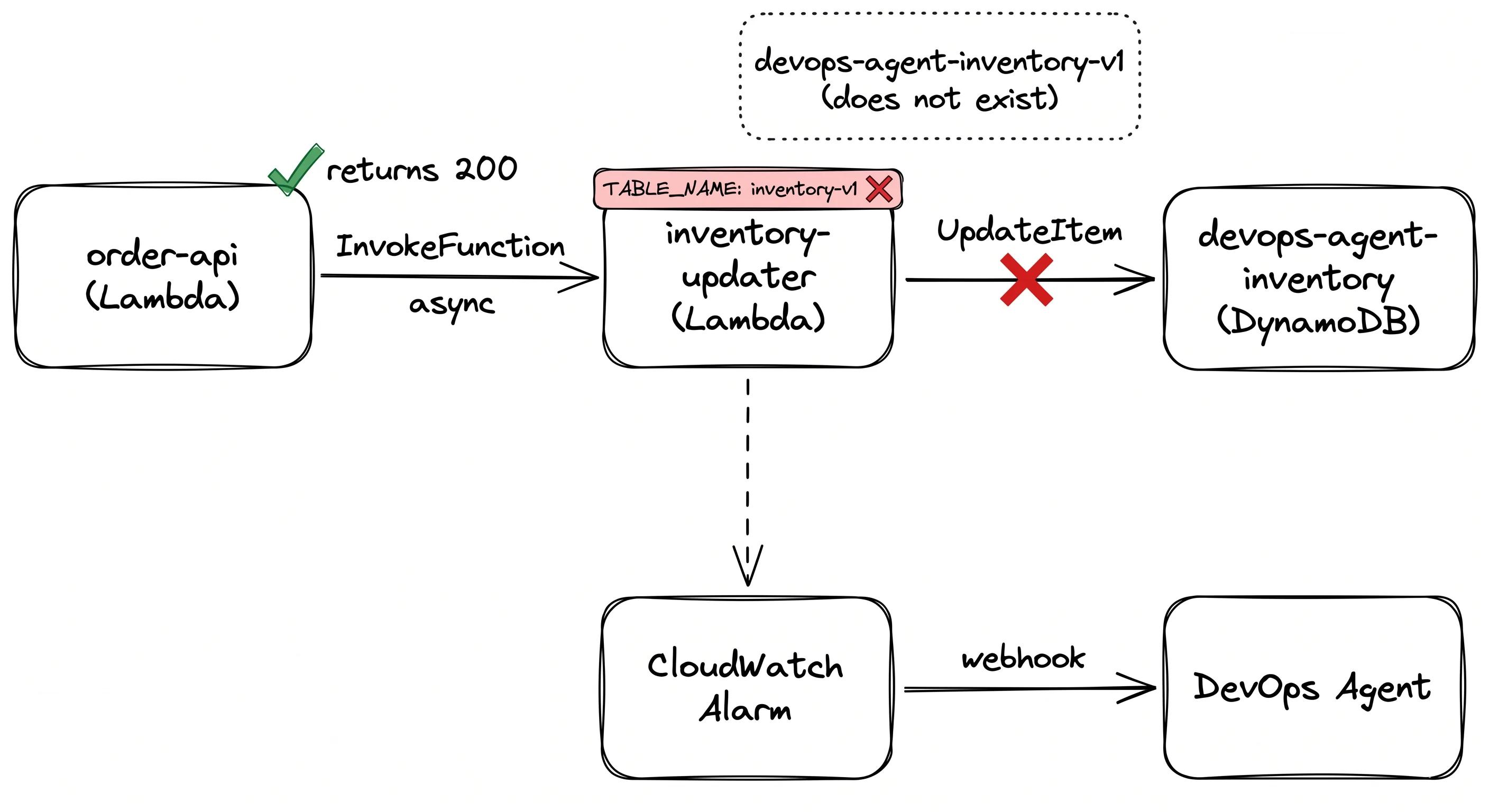
An inventory Lambda had TABLE_NAME=devops-agent-inventory-v1 in its environment variables, but the IAM inline policy granted dynamodb:UpdateItem on table/devops-agent-inventory, missing the -v1 suffix.
Every invocation failed with AccessDeniedException.
The agent's findings:
DynamoDB table
devops-agent-inventory-v1does not exist in eu-west-1. IAM inline policy references wrong DynamoDB table name (devops-agent-inventoryinstead ofdevops-agent-inventory-v1).Root cause: The Terraform deployment by tobias.schmidt at 07:23–07:24Z created the Lambda function
devops-agent-inventory-updaterwithTABLE_NAME=devops-agent-inventory-v1, but the IAM inline policyDynamoUpdateItemgrantsdynamodb:UpdateItemtotable/devops-agent-inventory(missing the-v1suffix). IAM denies the request before DynamoDB even sees it, resulting inAccessDeniedExceptionon every invocation (100% error rate, 24+ errors observed).
Technically accurate. But the root cause attribution is backwards.
The agent concluded the IAM policy was the bug and would recommend updating it to point at table/devops-agent-inventory-v1.
That fix would resolve the AccessDeniedException and immediately surface a ResourceNotFoundException, because devops-agent-inventory-v1 does not exist as a table.
The actual bug is the environment variable.
TABLE_NAME should be devops-agent-inventory, not devops-agent-inventory-v1.
The IAM policy is correct.
The agent traced the async invocation chain, correlated CloudWatch errors, identified the exact IAM and environment variable mismatch, and pinpointed the Terraform commit. It just picked the wrong side to blame. Following its recommendation would require a second investigation to finish the job.
Where It Falls Short
Test 3 already showed the main one: the agent can identify all the right components in an incident and still recommend fixing the wrong thing. It traced the exact mismatch between the IAM policy and the environment variable, but concluded the IAM policy needed updating. The actual fix was one line in the Terraform config on the other side. If you follow its recommendation without thinking, you exchange one error for a different one.
The agent surfaces evidence well. It does not always reason about which piece of evidence is the actual root cause.
A few other things worth knowing before you commit to it:
- No native CloudWatch integration. There is no CloudWatch alarm action that targets DevOps Agent directly. You need a bridge Lambda, SSM parameters, HMAC signing, and manual steps in the console to generate the webhook. It works, but it is not the one-click setup the product page implies.
- Pricing is hard to predict. The per-second billing model means a long investigation on a complex incident can run up a meaningful bill. The trial covers 20 hours of investigations per month, which sounds like a lot until you have a bad week. There are no cost caps.
- Azure support is shallow. The cross-cloud story is real but early. Investigations that span AWS and Azure will not get the same depth of analysis you see on pure AWS incidents. CloudTrail has no equivalent on the Azure side.
- The Slack app is not approved. Minor, but your security team may ask questions. It works fine; it just has not gone through Slack's marketplace review.
Pricing
All three task types bill at the same rate: $0.0083 per agent-second.
That works out to roughly $0.50 per minute or $30 per hour of active agent time. Idle time is free. Topology mapping is free. You only pay when the agent is actively working.
| Task type | Rate |
|---|---|
| Incident investigation | $0.0083 / agent-second |
| Proactive evaluation | $0.0083 / agent-second |
| On-demand SRE tasks | $0.0083 / agent-second |
Any account using DevOps Agent for the first time gets a 2-month free trial. The trial includes per month:
- 20 hours of incident investigations
- 15 hours of proactive evaluations
- 20 hours of on-demand SRE tasks
AWS Support customers also receive monthly credits based on their support plan spend.
After the trial, a single complex investigation that runs 30 minutes costs around $15. A busy on-call week with several multi-hour investigations could reach the hundreds. There are no cost caps, so watch your usage.
Who Should Try It
If your team spends hours per incident manually correlating logs, deployments, and CloudTrail — start the free trial. The 2-month window is enough to test it properly against real incidents.
The setup takes an afternoon. After that it runs without maintenance.
If your observability is sparse or you are not primarily on AWS, hold off. The agent is only as good as the data it can reach.
Back to those bold claims at the start:
- "Always-on, autonomous on-call engineer" — yes, that part holds up.
- "From reactive firefighting to proactive operational improvement" — too early to say, needs months of production data.
- "Untapped insights without changing your workflows" — mostly true, except for the webhook bridge you have to build first.
The DevOps SRE fear is real but premature. It is a good investigator, not a replacement for someone who understands the system. Test 3 proved that.

