
Table of Contents
Jump to a section
A contractor joins your team for a 3-week sprint. You create an IAM user, attach a policy that looks reasonable, and assign them a Reader role on the Azure subscription. The sprint ends. Nobody touches the permissions again.
Three months later that IAM user still has the same policy attached, and the Azure role assignment is still there. You have no record of what they accessed, no expiry date, and no process to clean any of it up. Multiply that by ten contractors a year and you stop knowing who has access to what, and why you gave it to them in the first place.
Provisioning access takes two minutes. Cleaning it up requires someone to actually remember, and that almost never happens reliably at scale.
Existing Solutions Close One Gap and Open Another
AWS has an open-source solution for this called TEAM (Temporary Elevated Access Management). A developer requests elevated access, a manager approves it, and the credentials expire automatically. It works well for AWS console and CLI access. AWS has a detailed blog post on how to set it up with IAM Identity Center.
The hard limit is that TEAM is tied to AWS. The whole solution runs on top of IAM Identity Center, which means the moment you need access to a second cloud it simply does not apply. If a contractor needs access to both AWS and Azure, you still have to handle the Azure side manually, which often means reaching for another dedicated tool and running that yourself. What you actually want is one place that handles the full lifecycle across both clouds.
What We're Building
We are going to build a self-service access portal using Kestra, a YAML-first workflow orchestrator built for infrastructure and DevOps automation.
Kestra runs as a single service, has a built-in UI, and tracks every execution with full input and output history. You write the access workflow once in YAML. Kestra handles running it, pausing for approvals, and cleaning up when the time is up.
The scenario: a contractor needs read access to an S3 bucket on AWS and a storage container on Azure for 48 hours.
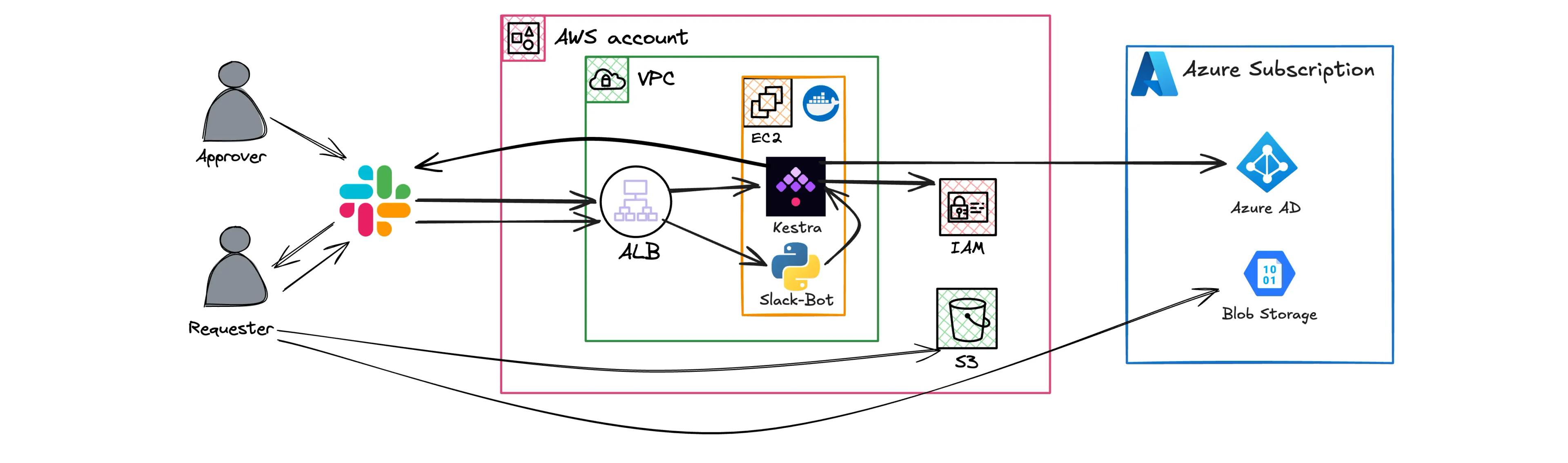
Here is how the flow works:
- Anyone with access to the Slack channel runs
/request-accesswith the contractor username, duration, and reason (or you restrict it to specific people, whatever fits your setup) - The approver receives a private Slack DM with the request details and Approve/Deny buttons
- The approver clicks Approve directly in Slack — no need to open Kestra at all
- Kestra attaches an S3 read policy to the contractor's IAM user and assigns an Azure storage reader role (fully automated, no further human action needed)
- After the requested duration, Kestra removes both automatically
The access gets cleaned up whether anyone remembers to do it or not.
The full source code for this post is on GitHub: awsfundamentals-hq/kestra-cross-cloud-access.
apps/
  kestra/               # Kestra flow, docker-compose, and config
  slack-bot/            # Flask app handling /request-access and approval interactions
scripts/
  deploy.sh             # Deploys aws | azure | kestra via Terraform
  permissions-list.sh   # Lists AWS IAM + Azure role assignments for a user
terraform/
  aws/                  # VPC, EC2, ALB, IAM roles, S3
  azure/                # Resource group, storage account, service principal
  kestra/               # Kestra flow + KV store values
Each Terraform module has a .env.example — copy it to .env and fill in your values before deploying.
Setting Up Kestra on AWS
The simplest way to run Kestra on AWS is a single EC2 instance with Docker Compose.
A t3.medium is the minimum (2 vCPU, 4 GiB RAM).
Kestra and PostgreSQL run as two containers side by side.
The Terraform in the repository handles everything: VPC, EC2, ALB, IAM roles, and S3 bucket. The EC2 user data script installs Docker, writes the compose file and Kestra config to disk, and starts everything on boot.
./scripts/deploy.sh aws
After apply, Kestra is available behind an ALB at the URL you configure. PostgreSQL runs as a sidecar container so you do not need RDS to get started. For production, swap the sidecar for RDS and configure S3 as the storage backend.
The full setup guide from Kestra is at kestra.io/docs/installation/aws-ec2.
Prerequisites
Before the flow can run, you need a few things in place.
Each Terraform module has a .env.example file. Copy it to .env and fill in your values — this is how all configuration is injected into Terraform and the EC2 instance.
cp terraform/aws/.env.example terraform/aws/.env
cp terraform/azure/.env.example terraform/azure/.env
cp terraform/kestra/.env.example terraform/kestra/.env
On AWS (terraform/aws/.env):
- An IAM user for the contractor (the flow references them by username)
- The EC2 instance running Kestra needs
iam:AttachUserPolicyandiam:DetachUserPolicypermissions - An S3 bucket to grant access to
On Azure (terraform/azure/.env):
- The contractor needs an existing user account in your Entra tenant (the flow looks them up by UPN, it does not create accounts)
- A service principal for Kestra with
User Access Administratoron the target subscription - The service principal also needs
User.Read.Allvia Microsoft Graph to look up the contractor's object ID by UPN
On Kestra (terraform/kestra/.env):
The KV store is populated automatically when you run ./scripts/deploy.sh kestra — all values come from this file. The values that need manual input are the Slack webhook URL, the Azure service principal credentials (output from ./scripts/deploy.sh azure), and your Azure tenant details.
The Terraform in terraform/azure provisions the service principal and assigns the right roles, and outputs the credentials you need to add to your .env file.
Step 1: The Request Form and Slack Approval
The flow starts with three inputs: the contractor's username, how long they need access in minutes, and a reason.
id: cross-cloud-access-request
namespace: jit

inputs:
    - id: username
      type: STRING
      description: 'Username (e.g. john.doe)'
    - id: duration_minutes
      type: INT
      description: 'Access duration in minutes (max 480)'
      defaults: 5
    - id: reason
      type: STRING
      description: 'Business justification for access'
The first task calls the Slack bot to send a private DM to the approver. The DM includes all request details and interactive Approve/Deny buttons — the approver never needs to open Kestra.
- id: notify_approver
  type: io.kestra.plugin.scripts.python.Script
  runner: PROCESS
  beforeCommands:
      - pip install requests --quiet
  script: |
      import requests
      requests.post(
          "{{ kv('SLACK_BOT_URL', 'jit') }}/slack/notify-approval",
          json={
              "execution_id": "{{ execution.id }}",
              "username": "{{ inputs.username }}",
              "duration_minutes": {{ inputs.duration_minutes }},
              "reason": "{{ inputs.reason }}",
          },
      ).raise_for_status()
The bot sends a DM via chat.postMessage with Block Kit Approve/Deny buttons.
When the approver clicks a button, Slack posts the interaction to /slack/interact, and the bot calls the Kestra resume API to continue the execution.
After the message goes out, the execution pauses and waits for a human.
- id: wait_for_approval
  type: io.kestra.plugin.core.flow.Pause
  pauseDuration: PT24H
  onResume:
      - id: approved
        type: BOOL
        defaults: false
      # [...]
pauseDuration: PT24H means the execution cancels on its own if nobody acts within 24 hours.
The approver clicks Approve or Deny directly in the Slack DM.
If they deny, the next task catches that, sends a rejection notification to Slack, and fails the execution.
Triggering from Slack without touching Kestra
The Kestra UI works fine, but it means anyone submitting a request needs a Kestra account. For a contractor portal that is one login too many.
The repository includes a small Slack bot that adds a /request-access slash command.
The requester types it directly in Slack and never needs to open Kestra at all.
/request-access john.doe 20 Need to fix production bug
The bot is a small Flask app that validates the Slack request signature, parses the three arguments, and calls the Kestra API to trigger the flow.

# [...]
resp = requests.post(
    f"{KESTRA_URL}/api/v1/main/executions/jit/cross-cloud-access-request",
    auth=(KESTRA_USER, KESTRA_PASSWORD),
    files={
        "username": (None, username),
        "duration_minutes": (None, str(duration)),
        "reason": (None, reason),
    },
)
# [...]
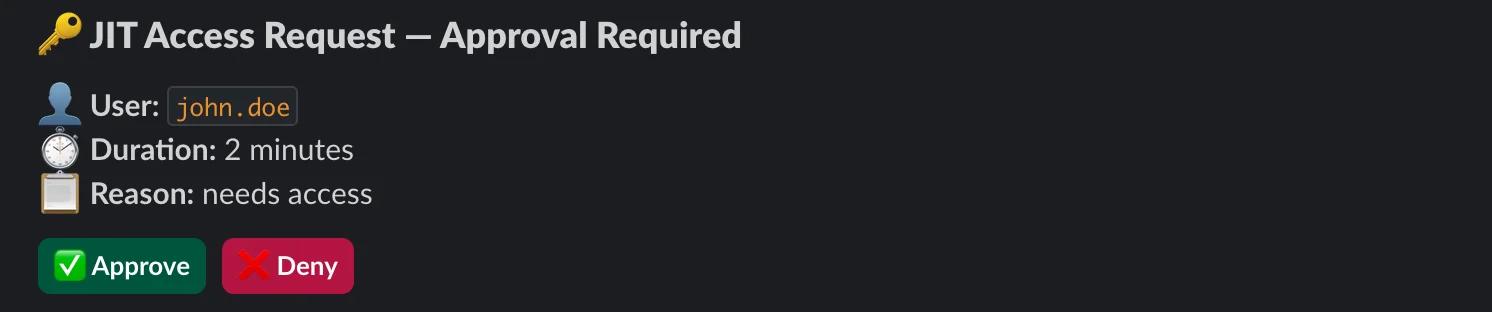
Slack gets an immediate confirmation back with the execution link, and the approver receives a private DM with Approve/Deny buttons.

On the approver's side, the Slack message lands with all the context they need to make a decision.
The bot runs as a second container alongside Kestra.
You can find the full code in apps/slack-bot/app.py and the Dockerfile in the repository.
Step 2: Provisioning Access on AWS and Azure
Once approved, Kestra runs two Python script tasks back to back.
The AWS task uses boto3 to attach AmazonS3ReadOnlyAccess directly to the contractor's IAM user.
import boto3
from kestra import Kestra

aws_username = "{{ inputs.username }}"
policy_arn = "arn:aws:iam::aws:policy/AmazonS3ReadOnlyAccess"

iam = boto3.client('iam', region_name="{{ kv('AWS_REGION', 'jit') }}")
iam.attach_user_policy(UserName=aws_username, PolicyArn=policy_arn)

Kestra.outputs({"aws_username": aws_username, "policy_arn": policy_arn})
The EC2 instance profile gives Kestra the IAM permissions it needs here. No credentials are hardcoded.
The Azure task is a bit more involved because az role assignment create expects an object ID, not a UPN.
The script first calls the Microsoft Graph API to resolve the contractor's email address to their Entra object ID.
Then it assigns two roles: Storage Blob Data Reader on the storage account and Reader on the resource group.
azure_upn = "{{ inputs.username }}@{{ kv('AZURE_TENANT_DOMAIN', 'jit') }}"

creds = ClientSecretCredential(tenant_id, client_id, client_secret)

token = creds.get_token("https://graph.microsoft.com/.default").token
resp = requests.get(
    f"https://graph.microsoft.com/v1.0/users/{azure_upn}",
    headers={"Authorization": f"Bearer {token}"}
)
contractor_oid = resp.json()["id"]

scope = (
    f"/subscriptions/{subscription_id}"
    f"/resourceGroups/{{ kv('AZURE_RESOURCE_GROUP', 'jit') }}"
    f"/providers/Microsoft.Storage/storageAccounts/{{ kv('AZURE_STORAGE_ACCOUNT', 'jit') }}"
)

authz = AuthorizationManagementClient(creds, subscription_id)
blob_reader = list(authz.role_definitions.list(scope, filter="roleName eq 'Storage Blob Data Reader'"))
authz.role_assignments.create(scope, str(uuid.uuid4()), {
    "role_definition_id": blob_reader[0].id,
    "principal_id": contractor_oid
})
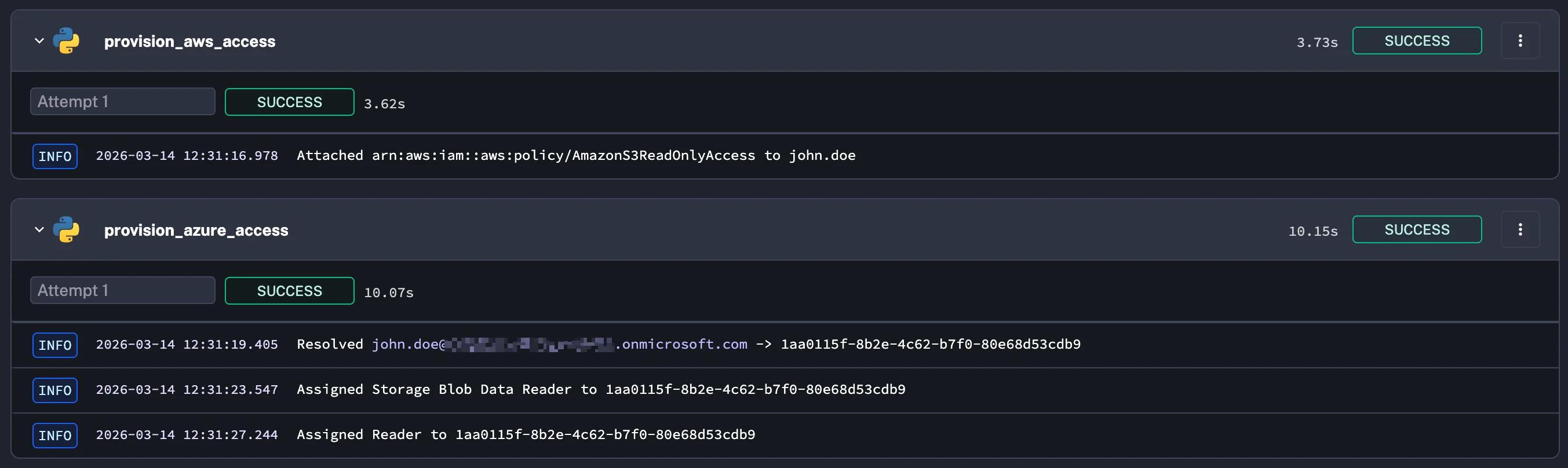
After both tasks complete, Kestra sends a confirmation message to Slack with what was provisioned and when access expires. The contractor gets access, and the clock starts ticking automatically.

Step 3: Automatic Revocation
The flow sleeps for the requested duration, then removes everything.
- id: wait_for_expiry
  type: io.kestra.plugin.core.flow.Sleep
  duration: 'PT{{ inputs.duration_minutes }}M'
After the sleep, two revocation tasks run.
- On AWS:
iam.detach_user_policyremoves the S3 policy from the IAM user. - On Azure: the script iterates over all role assignments for the contractor's object ID on both scopes and deletes each one.
for s in [scope, rg_scope]:
    assignments = list(authz.role_assignments.list_for_scope(
        s, filter=f"assignedTo('{contractor_oid}')"
    ))
    for assignment in assignments:
        authz.role_assignments.delete_by_id(assignment.id)
A final Slack message confirms that both sides are clean.
The Sleep task holds the execution open the entire time it is running.
Before you deploy this, make sure the EC2 instance has a termination grace period long enough to let running executions finish.
The Docker Compose file in the repository (apps/kestra/docker-compose.yml) sets stop_grace_period: 360s, which covers short access windows.
For windows longer than a few hours, account for this in your instance lifecycle settings.
If any task fails, the errors block sends a separate Slack alert naming the failed task and flagging that the access state is unknown, so you know to go check manually.
Audit Logs and Observability Out of the Box
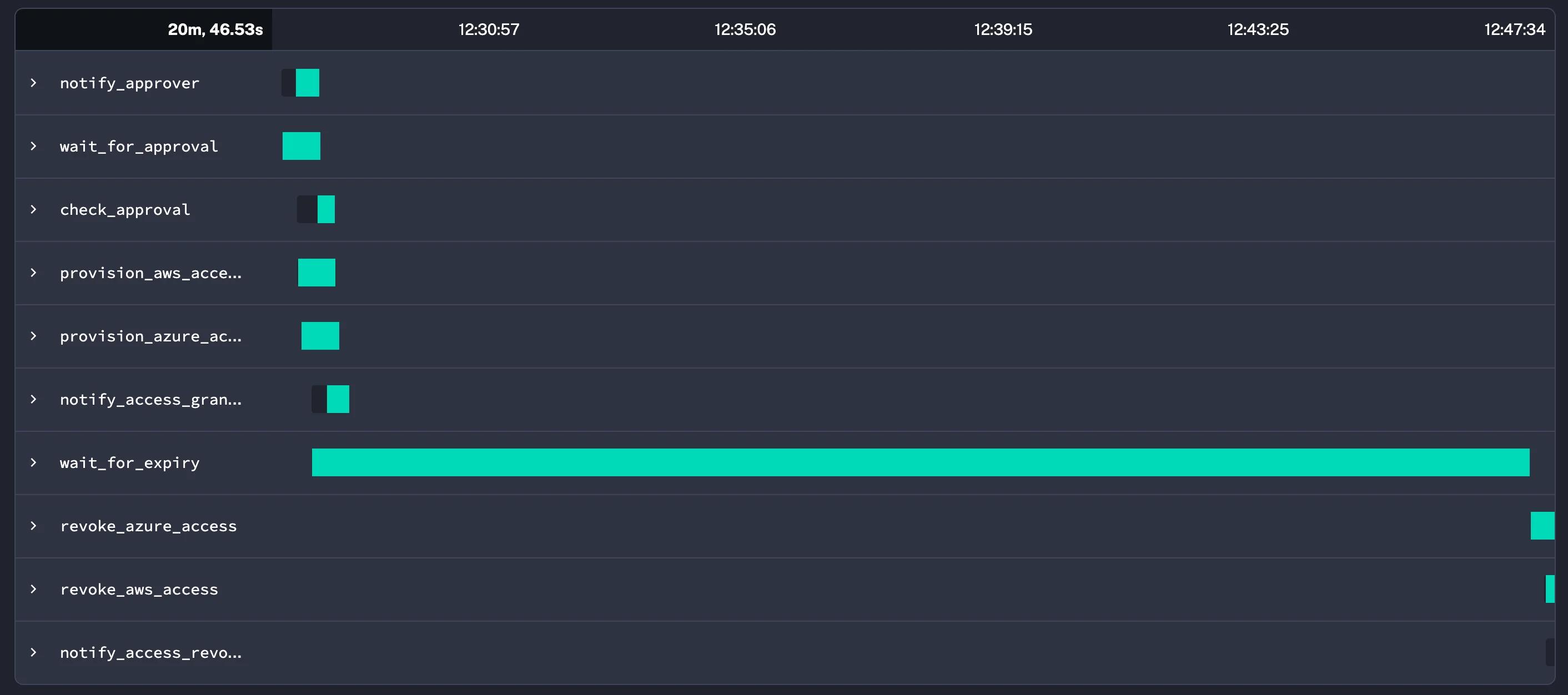
Every Kestra execution stores the full run history: which tasks ran, what inputs they received, what each task returned, and when each step happened.

You can see who requested access, who approved it, and exactly when Kestra provisioned and revoked both sides. No separate logging setup needed. The execution ID in every Slack message links directly to that run.
Compare this to someone running aws iam attach-user-policy from a laptop.
CloudTrail captures the API call but not why it happened, who approved it, or when it should stop.
Kestra has all of that by default.
Namespaces let you also restrict who can modify the workflow itself.
Only engineers with access to the jit namespace can change the flow.
Everyone else can only trigger it.

Tips for Production
A few things worth knowing before you run this for real.
- 🗄️ Swap PostgreSQL for RDS. The Docker Compose setup writes execution history to a container volume on the EC2 disk. A terminated instance loses that. RDS removes the risk.
- 🪣 Use S3 for Kestra's internal storage. Point
kestra.storageat an S3 bucket so it survives instance replacement. - ⏱️ Cap the duration input. Add a max guard on
duration_minutesso nobody accidentally requests access for weeks. - 😴 Keep the Sleep duration in mind. A running Sleep task holds the execution open. For long access windows, account for this in the instance lifecycle settings.
- 🧪 Test Pause and Resume before going live. Run through the full approval cycle in a staging environment first, including the timeout path and the rejection path. It is the part of the flow most likely to behave unexpectedly.
- 🏷️ One namespace per team. If multiple teams use the same Kestra instance, give each team its own namespace with its own KV store secrets.
- 🚀 Consider Kestra Enterprise. The open-source version covers everything in this post, but the enterprise edition adds features that matter at scale: SSO and role-based access control so your engineers log in with their company credentials, a secrets manager integration that avoids putting credentials in the KV store directly, audit logs with tamper-proof history, and worker isolation so long-running flows do not compete for resources. If you are running this across multiple teams or in a compliance-heavy environment, it is worth the cost.
Beyond Access Management
The JIT access portal is one workflow. Kestra is a general-purpose automation platform, and the same building blocks work for any workflow that touches infrastructure.
What makes it practical is how it handles human-in-the-loop steps.
The Pause task and the Slack integration are not access-management features. They are primitives you can drop into any flow.
Approval before a production deployment.
A Slack confirmation before rotating a database password.
A Teams notification when a cost threshold gets crossed, with a button to pause the offending pipeline.
You write the logic once in YAML. Kestra handles waiting, retrying, logging, and cleaning up. The same approval pattern works just as well for infrastructure changes, release gates, or any process where a human needs to sign off before something irreversible happens.
A few things that make Kestra worth considering beyond this specific use case:
- Declarative — workflows are defined in YAML, version-controlled like any other config, and readable by anyone on the team without needing to understand a programming language.
- Any language — script tasks run Python, Node.js, Bash, or anything else. You are not locked into a single runtime.
- API-first — every action available in the UI is available via the API. That is how the Slack bot in this post triggers and resumes executions programmatically.
- 1200+ plugins — built-in integrations for AWS, Azure, GCP, Slack, databases, message queues, and more. Most of what you need already exists.
- No lock-in — flows are plain YAML files. You can run them anywhere Kestra runs, move them between instances, or store them in Git.
- Self-hosted or cloud — run it on a single EC2 instance as in this post, or use Kestra Cloud if you do not want to manage the infrastructure yourself.
Summary
Static credentials stick around because removing them reliably does not scale. AWS TEAM helps within AWS, but it stops at the AWS boundary.
Kestra handles the approval, the provisioning, the waiting, and the cleanup in a single YAML file running on one EC2 instance. The contractor example in this post is the simple version. The same pattern covers staging environments, database access, cross-account deployments, and anything else where you want time-limited access with a trail of who approved what.
The full Terraform and Kestra flow are on GitHub at awsfundamentals-hq/kestra-cross-cloud-access.
This post is written in partnership with Kestra.